A visit on the timeline
Each visit on the timeline represents a distinct consultation or clinical encounter recorded in the patient medical record.
What it does
The visit card displays encounter details including the date, start time, visit duration, attending practitioner, reasons for encounter, diagnoses, consultation notes, and interactive document chips. It allows you to expand detailed clinical narratives, view issued documents in place, or reopen the consultation into your main workspace.
When to use it
Use this screen to review past clinical findings, check what was discussed during a previous visit, read full progress notes, or inspect past prescriptions and investigation requests.
Step by step
- Open Timeline in Full view to inspect encounter cards.
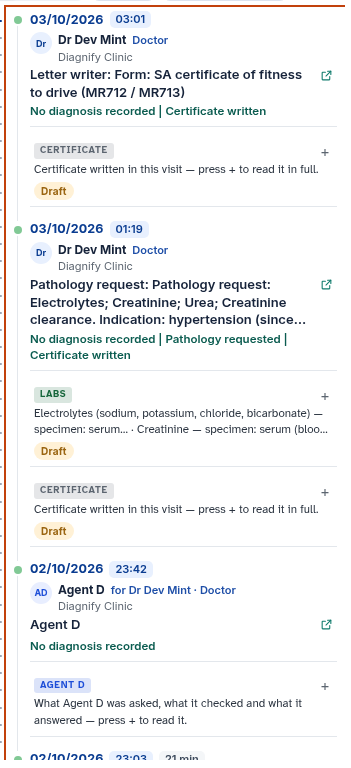
- Select any note line or document chip to read the clinical body text and attached materials.
Also on this screen
- Date, time, and length: Displays the encounter date (formatted as DD/MM/YYYY), starting clock time, and total consultation duration.
- Who did it: Identifies the clinician name, professional role, and practice location, or an Agent D badge for automated system notes.
- Reason for visit: Lists the presenting symptoms, complaints, or consultation objectives.
- Diagnosis and actions: Summarises recorded conditions alongside clinical actions such as prescriptions issued, pathology requested, or referrals written.
- Note body: Contains the full consultation progress note; clicking opens long paragraphs in place.
- Document chips: Interactive indicators for attached clinical notes, prescriptions, laboratory requests, radiology orders, and correspondence.
- Open this visit: Reopens the consultation directly into the active consult workspace.
- Fold this visit: Closes an expanded encounter card when browsing in Compact view.
- Show older visits: Appears at the bottom of the column to fetch older historical visits from the database.
What Agent D can do
- Agent D reads complete document contents from past visits using
consult.timeline_visit_document. - Agent D brings together prior visit notes, active treatments, and recurring symptoms when preparing today consultation.
- Agent D cannot modify finalised progress notes from past visits.
Safety (what needs your Confirm)
- Past consultation notes and issued items are permanent legal records and cannot be silently overwritten.
- Opening a past visit into the active workspace will prompt you to save or discard any unsaved notes currently in progress.
Common questions
Can I edit a progress note from a previous visit?
Finalised progress notes cannot be altered. To record updated clinical details, create an addendum note in the current consultation.
How do I see the full contents of a past prescription or referral?
Click the corresponding document chip on the visit card to open the document details in place.
What does "No diagnosis recorded" mean?
If a clinician did not assign a specific diagnostic code or condition title when finalising the encounter, the system displays this default placeholder.
Related
Last reviewed: 03/10/2026.