Create your practice
The practice creation wizard allows practice owners and practice managers to set up a new clinic workspace, configure sites, and invite colleagues.
What it does
The practice setup flow provisions a secure, multi-user tenant workspace for your clinic. You specify your practice name, subdomain, time zone, and medical specialty. You can also name your primary physical site, configure clinical modules (like General Practice, urgent care, telehealth, or AI scribe), and send email invitations to doctors and administrative staff.
When to use it
Use this workflow when onboarding a new medical clinic to Diagnify, establishing a secondary branch site, or initialising practice settings.
Step by step
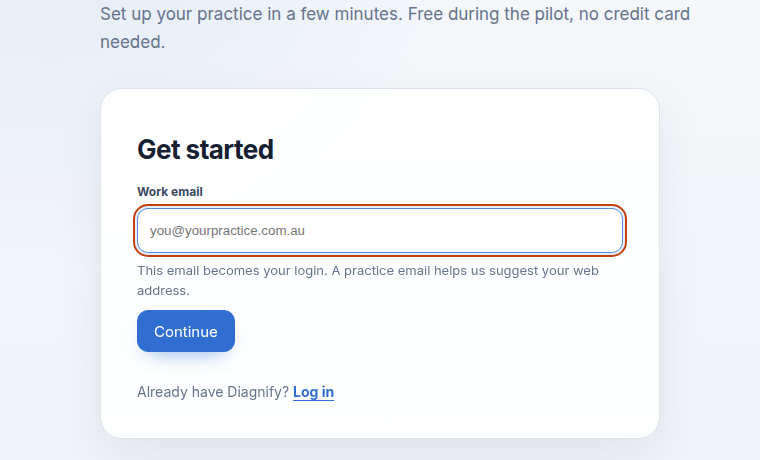
- Enter your professional email address on the setup landing page and select Continue.
- Enter your full name, clinical or administrative role, and a secure password.
- Enter your clinic name, preferred web address, Australian time zone, and country, then select Create practice.
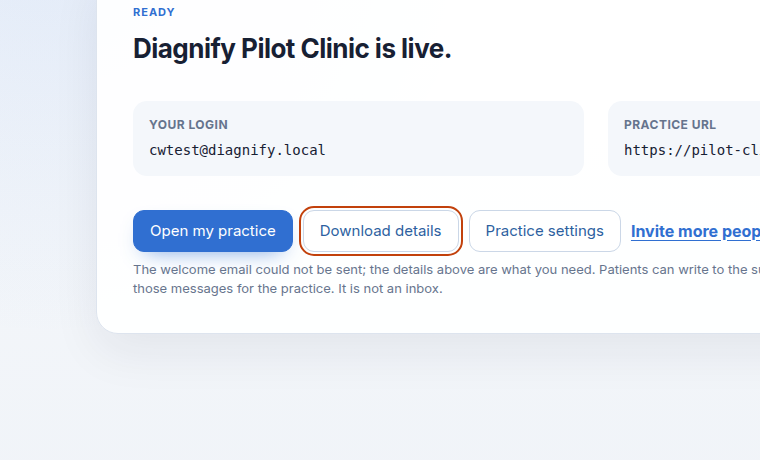
- Review the ready card and select Open my practice to enter your new clinical system.
Also on this screen
- Live progress: Displays an animated status indicator while database tables, security roles, and encryption keys are established.
- How will you use Diagnify: Select checkboxes for your clinic services including General Practice, urgent care, telehealth, AI scribe, intake forms, or specialist care.
- Name the first site: Enter a location title for your primary clinic site or tap one of the suggested site names.
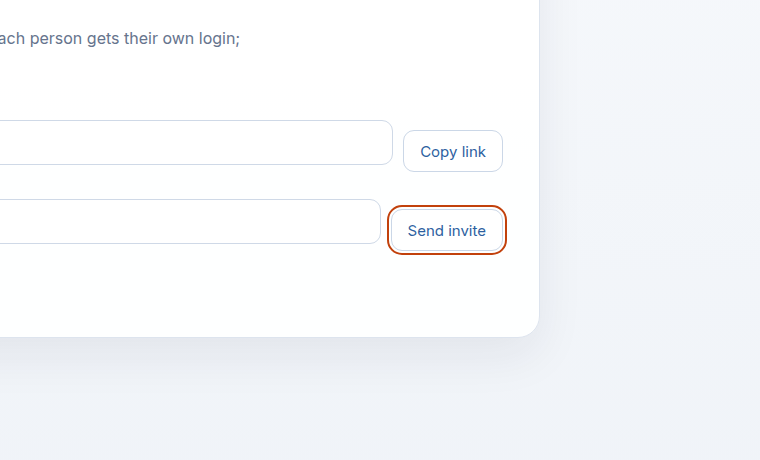
- Invite the team while you wait: Copy a shareable invitation link or type staff email addresses to dispatch invites before setup finishes.
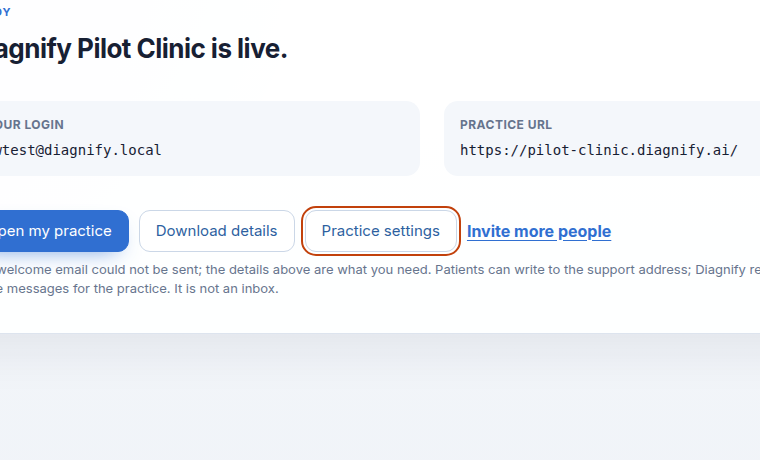
- Practice settings from the ready card: Directly open advanced clinic settings to configure letterheads, billing numbers, and provider details.
- Invite more people: Reopens the team invitation modal from the ready card to add more doctors and receptionists.
What Agent D can do
- Agent D configures default clinical templates and decision-support rules based on the practice types you select.
- Agent D cannot send team invitations or modify clinic ownership without explicit administrative direction.
Safety (what needs your Confirm)
- Creating a practice creates an isolated tenant database partition.
- Team invitation links provide access to clinic records; verify staff email addresses before sending.
- Automated welcome emails containing login URLs are dispatched only after you confirm clinic setup.
Common questions
Can our practice operate across multiple locations?
Yes. Diagnify supports multi-site clinics. You name your primary site during onboarding and can add additional branches in Practice Settings.
How do other doctors join the clinic?
You can copy the team invitation link or send email invites directly from the setup wizard or Practice Settings. Invited practitioners set their own passwords upon accepting.
What should I do if setup stalls during database creation?
If the setup screen loses network connectivity, select Try again to resume setup from the last verified step without losing entered data.
Related
- Sign in and open your practice
- Find your way around the screen
- Check the patient and the Confirm card
Last reviewed: 03/10/2026.