Open Help
The Help button provides quick access to guided tours, feature explanations, and command reference guides directly within Diagnify.
What it does
New (test site)
When Help docs is on, the ? button at the top of the screen and Help & docs in the left navigation open this public guide in a new tab. The guide opens at the section for the screen you are using.
The existing Help — take a guided tour button still opens the guided tour.
The Help button opens interactive guidance without requiring you to leave your active consultation. It triggers the on-screen guided tour, highlights contextual tips across buttons and toolbars, displays account entitlement status, and links to the command reference card.
When to use it
Use the Help button when exploring a new feature, showing a new team member how to use the app, or checking available slash commands while preparing a consultation.
Step by step
- For the public guide, press ? at the top of the screen or Help & docs in the left navigation. It opens in a new tab. To take the guided tour, use the existing Help icon near the bottom of the left navigation.

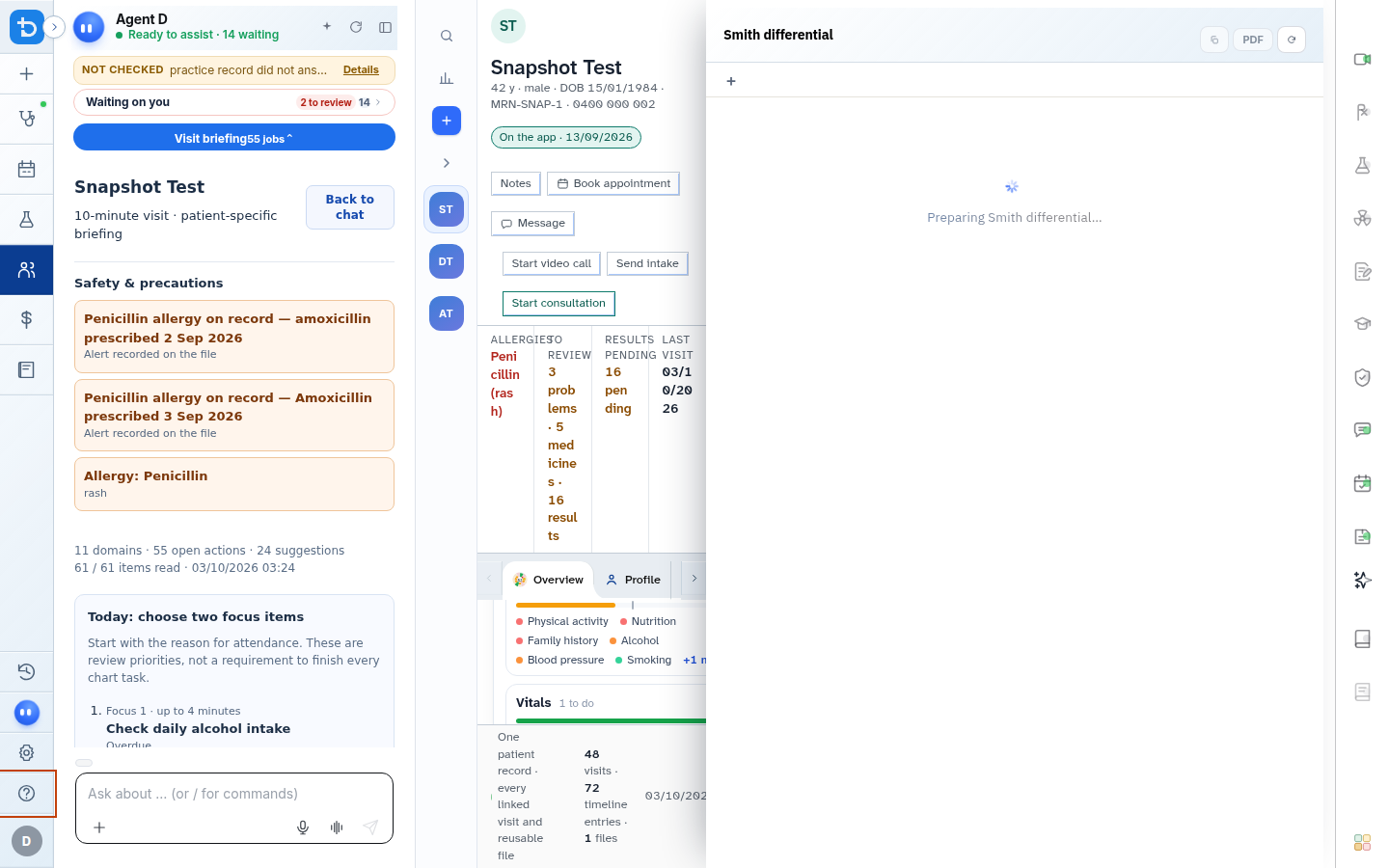
- Select Help — take a guided tour to start the on-screen tour. Opening the public guide does not start the tour.
Also on this screen
- Help button (?): A persistent quick-access button in the lower left navigation footer available on all clinical screens.
- Guided tour trigger: Launches the four-step interactive spotlight tour of the workspace.
- Does not start by itself: The guided tour never pops up automatically or interrupts consults; it only opens when explicitly requested.
- Hover tips: Pausing your cursor over any button or tool icon displays a brief functional description and its associated shortcut key.
- Upgrade your plan: Highlights your profile icon if your account requires a license renewal or feature upgrade.
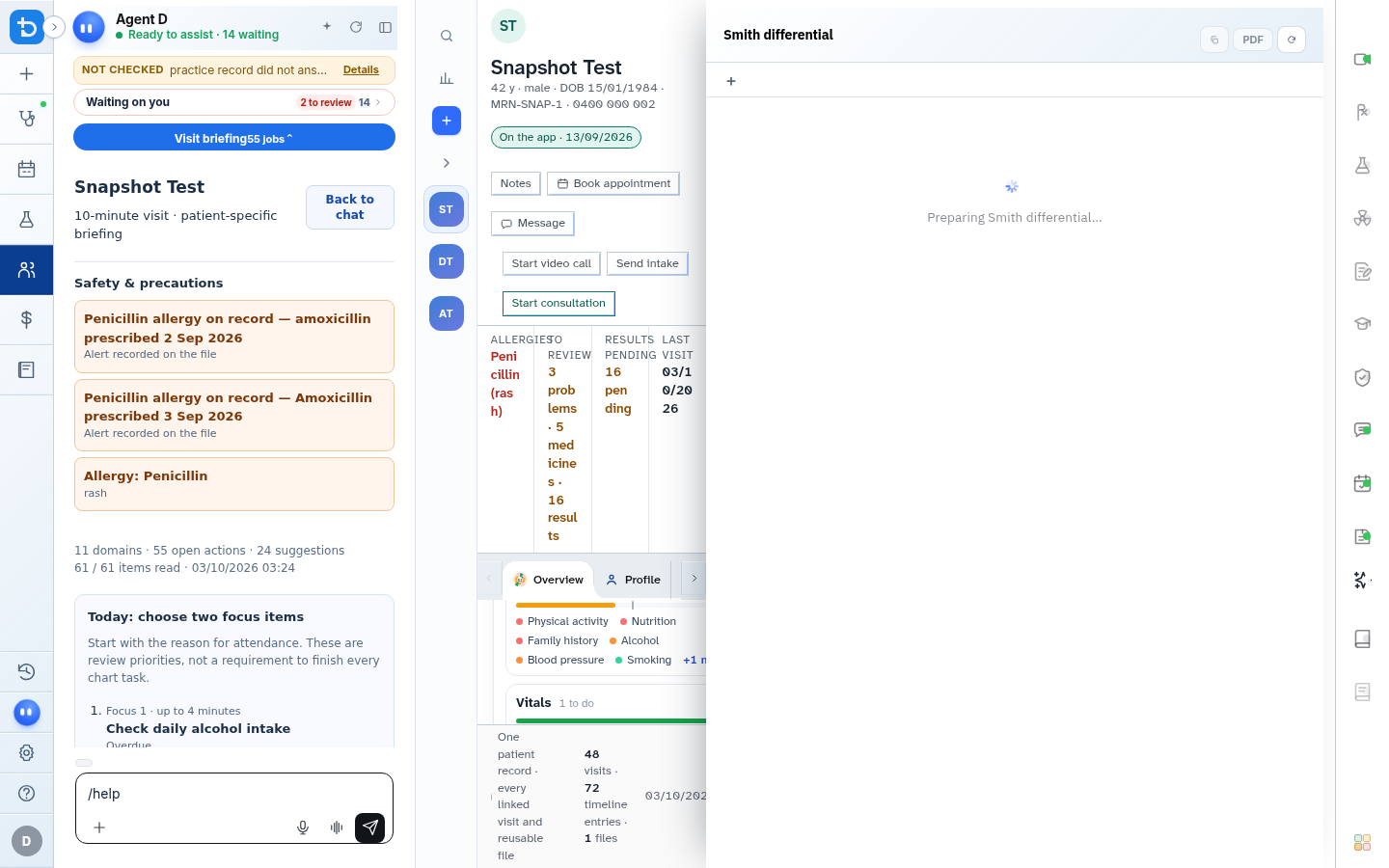
- /help command: Typing
/helpin the Ask Agent D box displays a concise reference card of all clinical shortcuts and commands.
What Agent D can do
- Typing
/helpinto Agent D brings up an immediate command card listing all clinical drafting shortcuts (such as/script,/labs,/refer, and/plan). - Agent D answers natural language questions about how to use practice tools.
Safety (what needs your Confirm)
- Opening Help, viewing hover tips, or launching the guided tour is purely visual and read-only.
- Help overlays do not modify, overwrite, or clear active consultation notes or open patient charts.
Common questions
Will opening Help disrupt my active consultation?
No. Help tools run as a overlay that leaves your work in place. Your typed notes, vitals entries, and drafted items remain intact.
How can I view all available slash commands?
Type /help into the Ask Agent D input box and press Enter to display the full command cheat sheet.
Can practice staff and receptionists access Help?
Yes. The Help button and hover tooltips are available across all user roles, including doctors, nurses, and administrative staff.
Related
Last reviewed: 03/10/2026.