Your profile
Your profile manages your practitioner credentials, qualifications, and practice details.
What it does
The profile settings establish your professional identity within Diagnify. It stores your legal name, clinical occupation, medical specialty, area of practice, professional registration number, qualifications, and clinic contact information. These details format the headers and footers across all prescriptions, referrals, lab requests, and visit summaries. It also provides account management actions including signing out and account deletion.
When to use it
Use this screen when setting up your account for the first time, when updating your practice address or contact numbers, when recording newly acquired clinical qualifications, or when renewing professional registration credentials.
Step by step
- Select the account button (showing your initials) at the bottom of the left navigation rail.
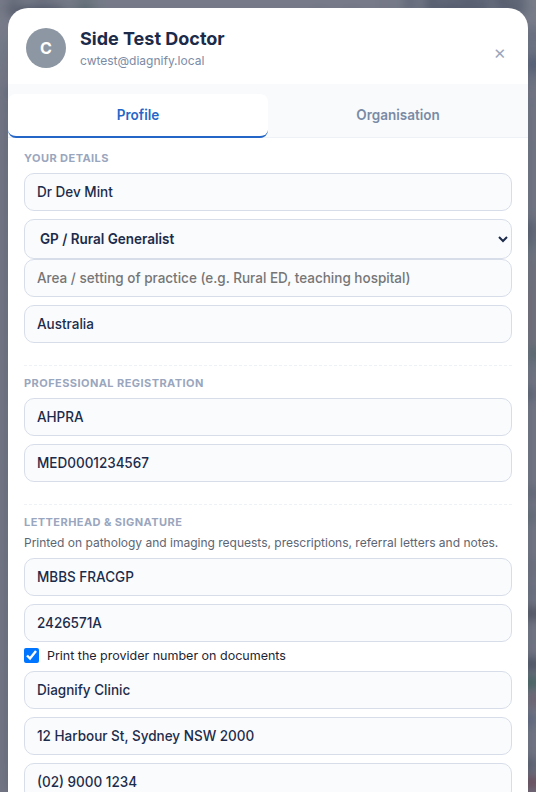
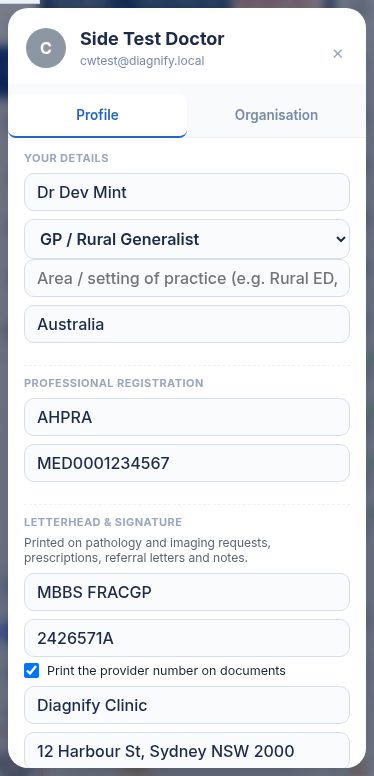
- Review and complete your practitioner details, qualifications, and clinic contact information.
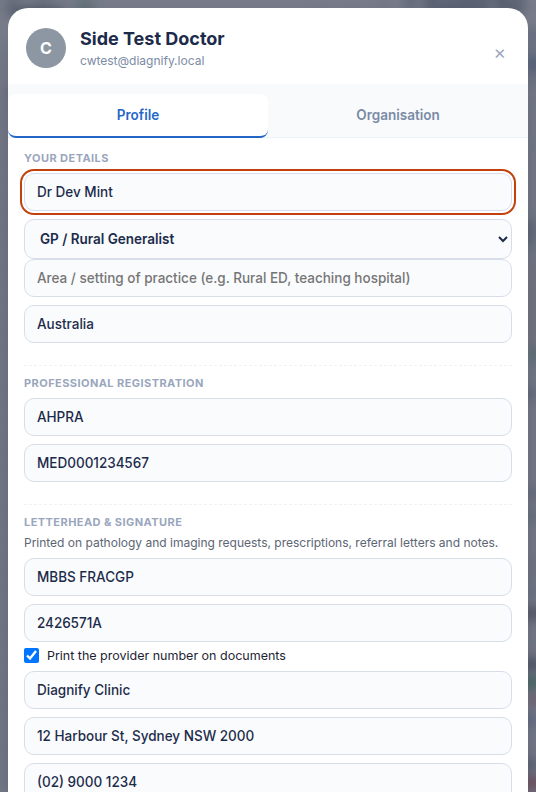
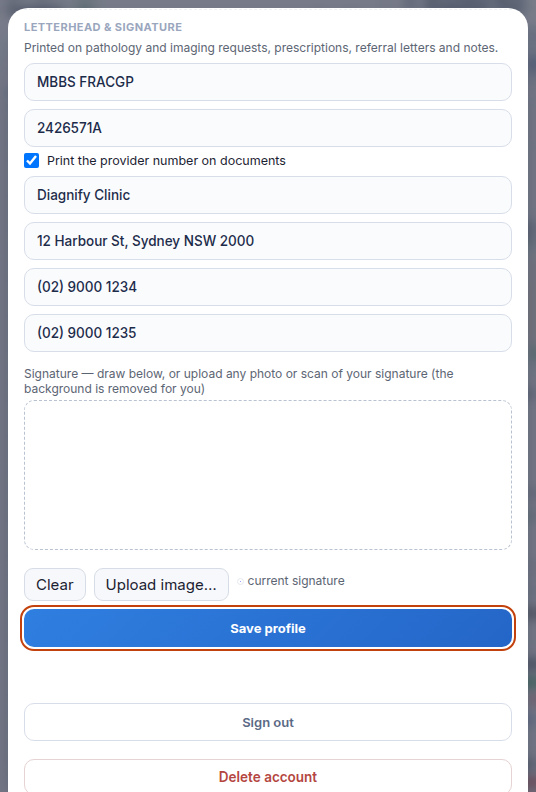
- Select Save profile to store your changes, or choose Sign out when ending your session.
Also on this screen
- Profile button: Located at the bottom of the left rail displaying your initials; opens the personal settings drawer.
- Full name: The practitioner name that prints on official prescriptions, referral letters, and encounter notes.
- Occupation: Your primary clinical discipline, such as General Practitioner or Specialist.
- Specialty: Specifies clinical sub-specialties when applicable to your primary occupation.
- Area of practice: Identifies the regional focus or clinic setting, such as urban practice or rural clinic.
- Country of practice: Sets the national jurisdiction for regulatory compliance and drug catalog indexing.
- Medical board: Specifies your registration authority, such as the national health practitioner board.
- Registration number: Your official medical practitioner registration number.
- Letterhead and signature heading: Explanatory section reminding you that details appear on issued paperwork.
- Qualifications: Post-nominal degrees and fellowships (such as MBBS, FRACGP) that print beneath your name.
- Provider number: Your Medicare provider number used on all claims and official request forms.
- Practice name: The trading or clinical name of your medical centre as shown on letterheads.
- Practice address: Street address printed on patient summaries, referrals, and lab forms.
- Practice phone: Main telephone number for patient contact and pharmacy inquiries.
- Practice fax: Secondary facsimile number for diagnostic services and specialist communication.
- Save profile: Stores all practitioner details and letterhead configurations in one step.
- Sign out: Securely ends the current user session and returns to the login screen.
- Delete account: Requires a two-stage confirmation to permanently delete your login and remove your access.
What Agent D can do
- Agent D reads your practitioner profile, active subscription, and user preferences using
settings_profile.get_me. - Agent D retrieves your clinic organisation name via
settings_profile.get_organisationto personalise clinical headers. - Agent D drafts profile and preference updates (
settings_profile.update_profile), presenting a Confirm card before changes are saved. - Agent D cannot sign out of your account or delete your profile.
Safety (what needs your Confirm)
- Updating your practitioner details, provider number, or clinic address updates subsequent legal medical documents.
- Profile changes are only written to the database when you explicitly select Save profile.
- Account deletion is protected by a two-step safeguard; the initial click arms the control, and a second click confirms permanent deletion.
Common questions
Where do my updated qualifications appear?
Your qualifications automatically print beneath your name on consultation summaries, electronic prescriptions, pathology orders, and medical referral letters.
How do I update our practice phone number?
Edit the Practice phone field in your profile and select Save profile. All subsequent documents will display the updated number immediately.
What happens if I click Delete account?
The button arms on the first click and turns red. Clicking it a second time permanently closes your account and revokes clinic access.
Related
Last reviewed: 03/10/2026.