Sign in
What it does
The patient app checks it is you by sending a one-time code to your mobile or your email.
When to use it
Use it every time you open the patient app.
Step by step
-
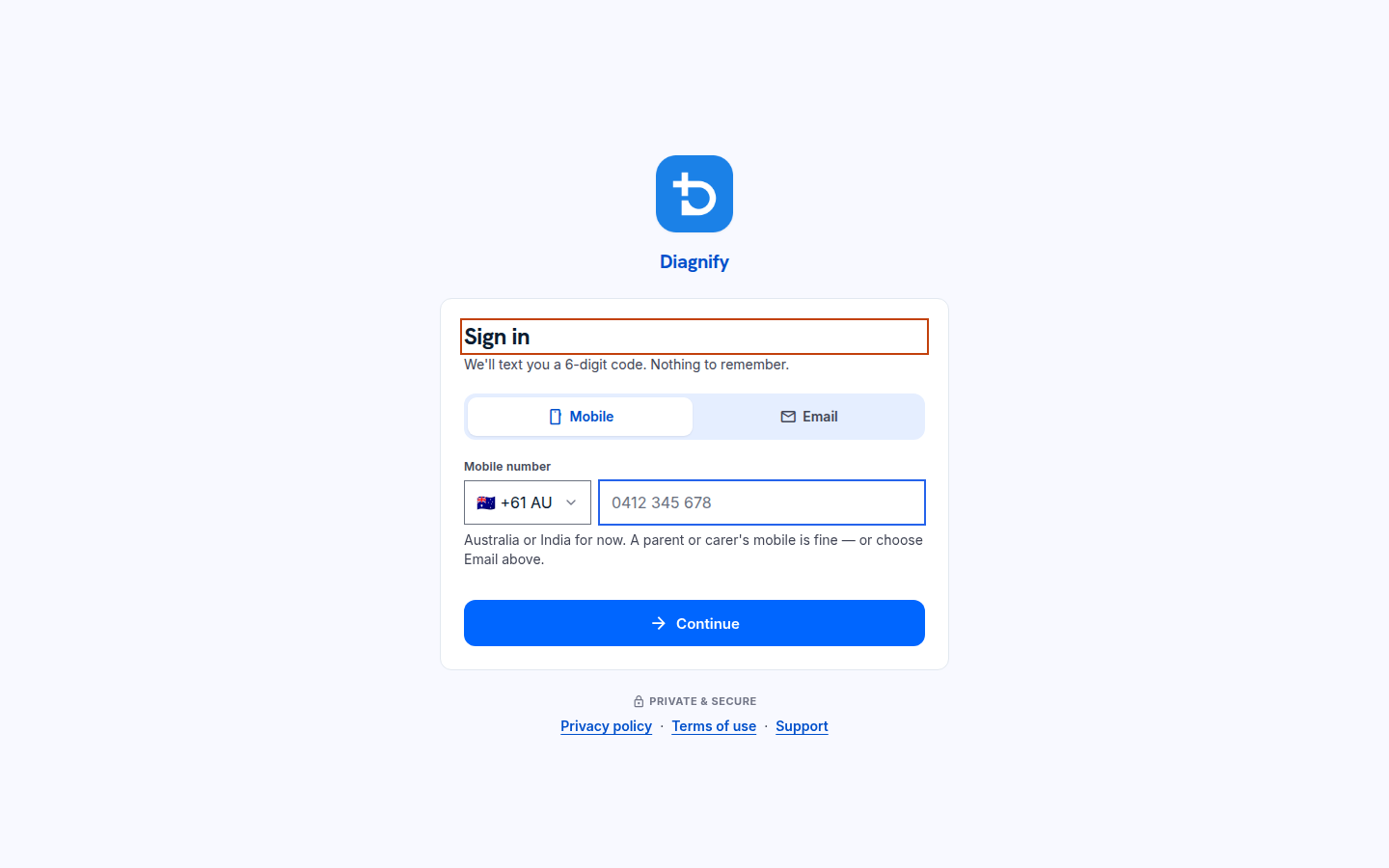
Open the patient app and look at Sign in. You can choose Mobile or Email.
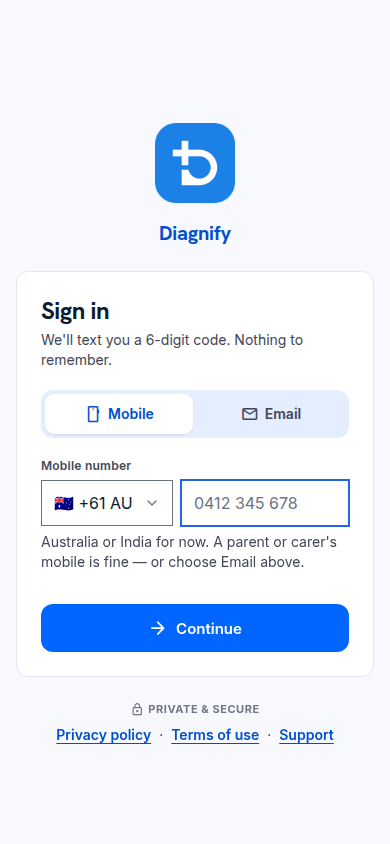
On a phone:
-
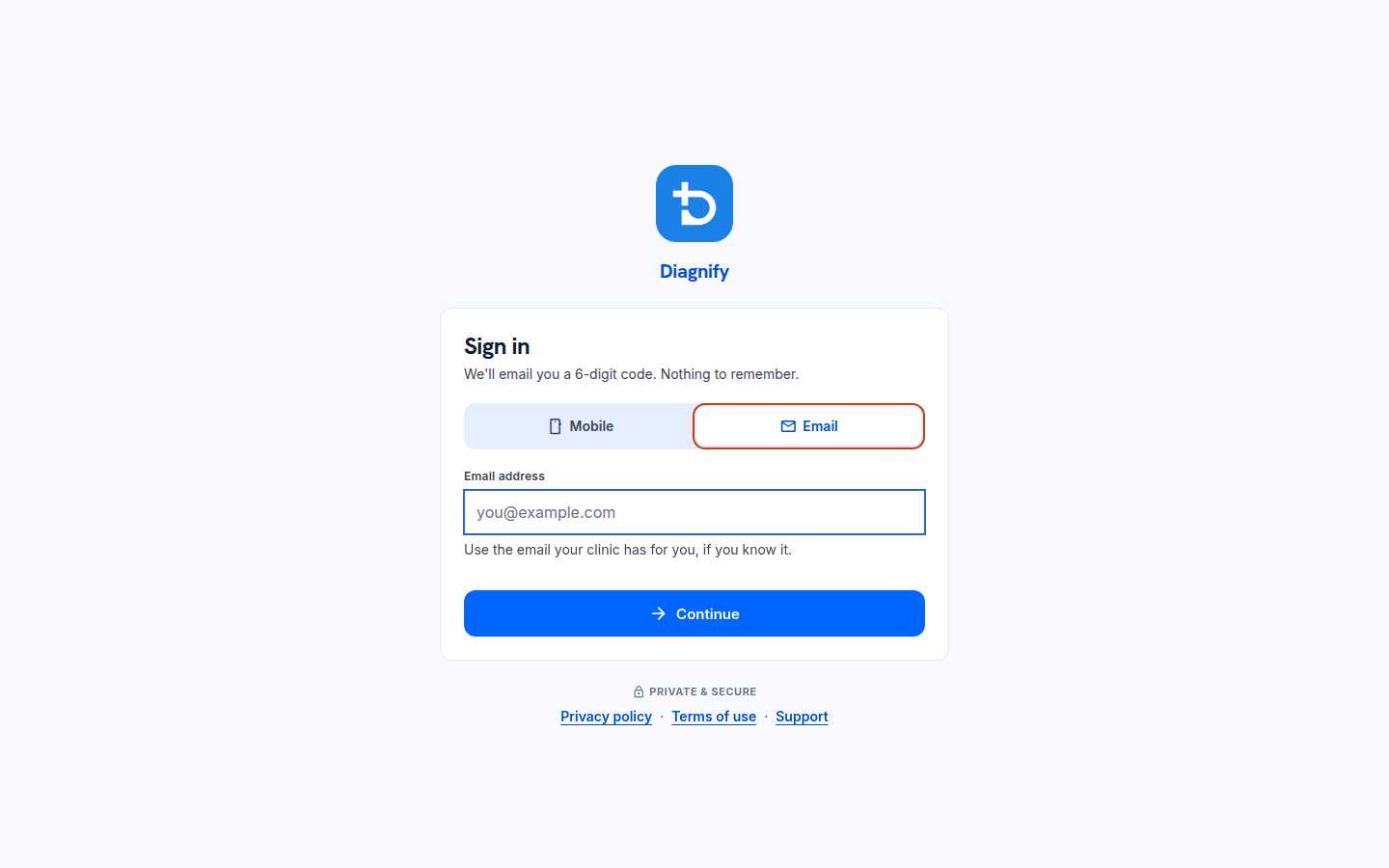
Press Email if you want the code by email. The box asks for the email the clinic has.
-
Type your mobile or email and ask for the code. Then see Code and link.
What Agent D can do
- Agent D works at the clinic, not in the patient app. The clinic chat helper on the Home screen is a separate thing.
Safety (what needs your Confirm)
- The code is how the app checks it is you. Do not share it with anyone.
- The clinic cannot see your code.
Common questions
Mobile or email — which one? The one the clinic has on your file. If both are on file, pick the one you can reach right now.
My code did not come. Check the number or email you typed, and ask the clinic to check what is on your file.
Related
Last checked: 03/10/2026.