Audit log
For staff
This page is for front-desk staff and people who manage clinic settings.
What it does
The Audit log records who did what, in a record that cannot be edited or deleted.
When to use it
Use it to check an unusual change, or when a review asks for the trail.
Step by step
-
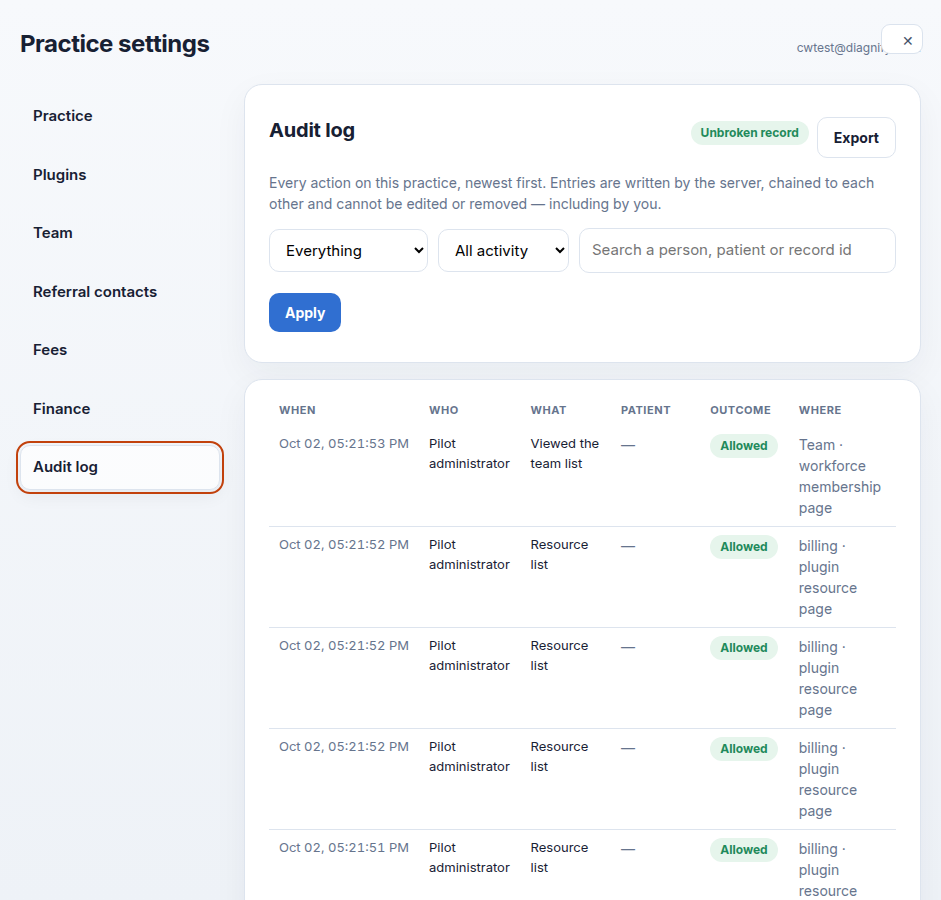
Press Audit log. The filters, the search, Apply and the table are here.
-
Pick an outcome — everything, refused only, failed only, or successful only — and an activity — looked at, created, changed, deleted, exported, or break-glass.
-
Type in the search to find a person, a patient or a record id. Press Apply. Clear puts it back to everything.
Also on this screen:
- A pill at the top says the log has not been changed, or that a filtered view cannot be checked.
- The table shows when, who, what, patient, outcome, and where. Names are used when the team list has them.
- Load more fetches the next page.
- Export audit log downloads up to 1,000 events as a JSON file. The export itself is written into the log.
What Agent D can do
- Agent D cannot read or export the audit log. Only people with the audit tick can.
Safety (what needs your Confirm)
- The log cannot be edited or deleted by anyone — that is the point of it.
- Export takes the trail out of Diagnify. Take care where you save it. The export is logged too.
Common questions
How far back does it go? The table pages through with Load more. The export takes up to 1,000 events.
What is break-glass? An emergency open of a record outside the normal path. It is always logged.
Can a filter hide a change? Filters only change what you see. The log itself keeps everything.
Related
Last checked: 03/10/2026.