The slash menu
What it does
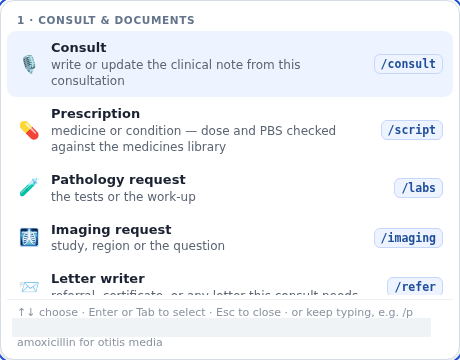
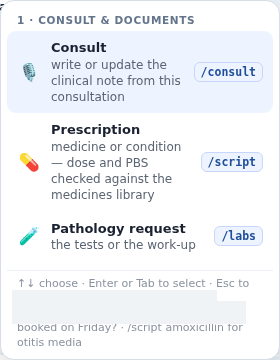
The slash menu provides quick keyboard access to Agent D commands. Typing a forward slash (/) in the composer opens a searchable popup list of commands for drafting documents, changing answer styles, and targeting specific clinic modules. You can navigate the menu using keyboard arrows and press Enter or Tab to select.
Also on this screen
- Slash menu keys (AD-069): Up and down move, Enter or Tab picks, Esc closes.
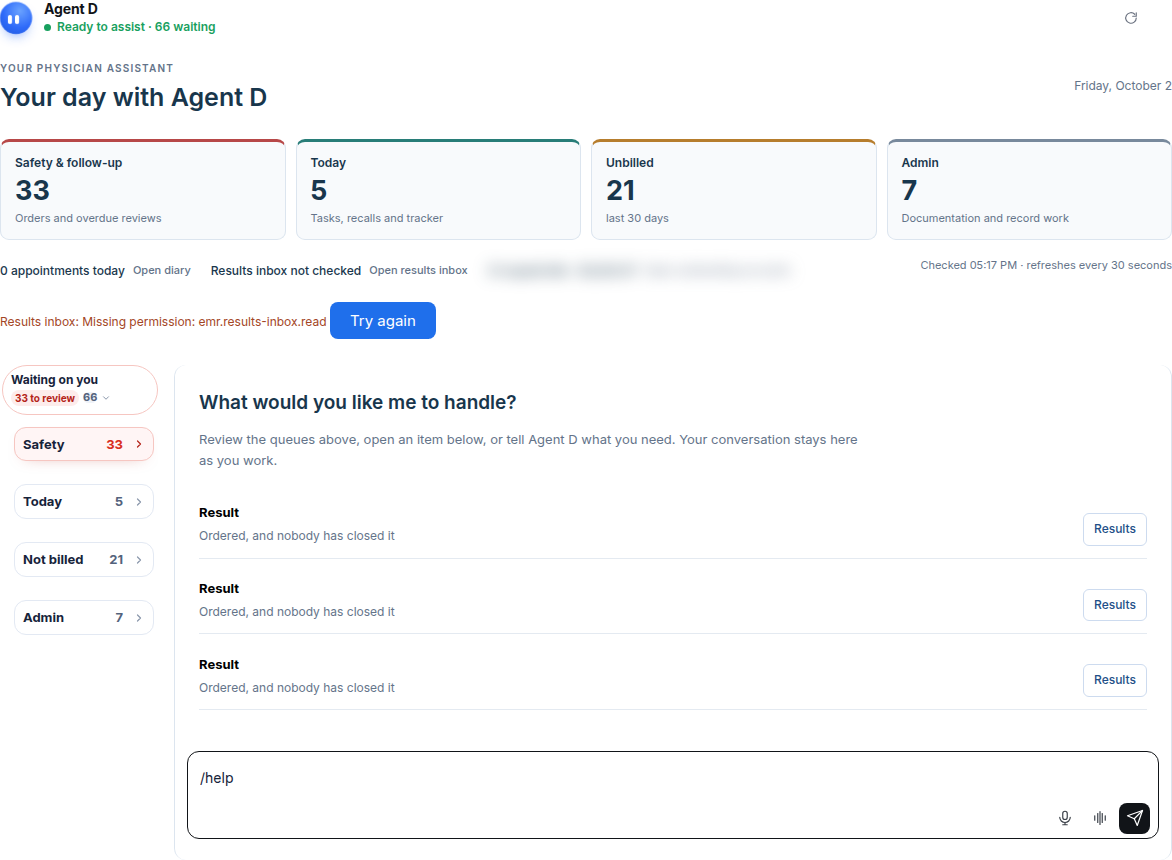
- Help command (AD-070): Type /help for a reminder of the main commands.
When to use it
Use the slash menu to draft consult documents, order tests, or switch answer modes rapidly without taking your hands off the keyboard.
Step by step
- Click the typing box and type a slash.
- Type help after the slash, then stop.
What Agent D can do
Agent D filters available commands as you type and displays brief command descriptions. It executes the selected workflow upon command submission.
Safety (what needs your Confirm)
Selecting a command from the slash menu prepares a draft. No command issues scripts, bills Medicare, or files notes without your review and confirmation.
Common questions
How do I close the slash menu without picking a command?
Press the Escape key (Esc) on your keyboard or delete the forward slash.
What does /help do?
Typing /help displays a reference list of common slash commands and their functions in chat.
Can I use arrow keys to navigate the menu?
Yes. Press the Up and Down arrow keys to highlight a command, then press Enter or Tab to select it.
Related
Last reviewed: 03/10/2026.