Patient list
The Patient list allows clinicians and front-desk staff to browse, search, and open patient records across the practice.
What it does
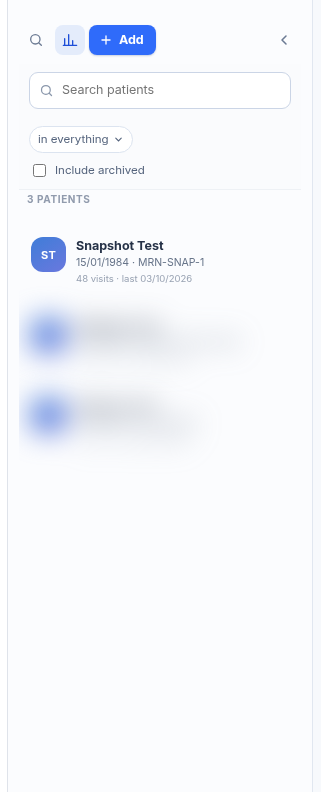
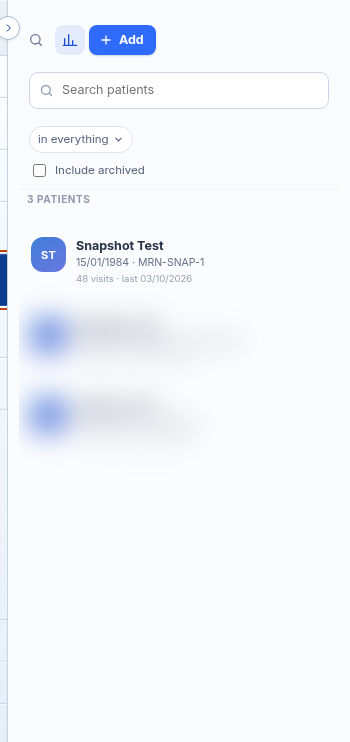
The patient list displays all registered patients in the practice directory. Staff can filter by patient name, view app registration chips, see how many records match a search, and load additional results. When a patient row is selected, their electronic chart opens in a dedicated file frame. Multiple patient records can be opened simultaneously as file tabs across the top strip. The list also supports collapsing into initials to maximise workspace area, and navigating directly via Agent D.
When to use it
Use the Patient list to look up a patient attending the clinic, switch between open patient files, or locate a record before starting a consultation.
Step by step
- Select Patients on the left navigation bar.
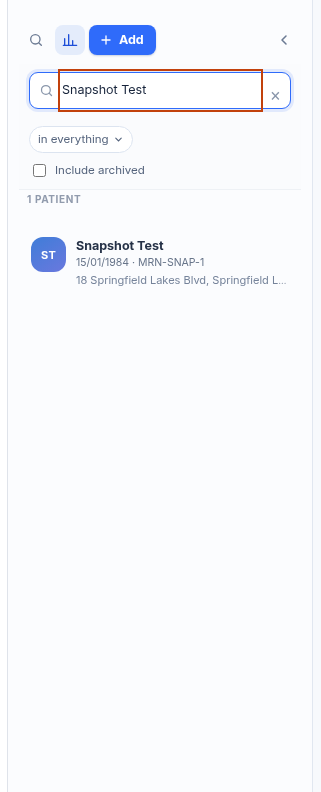
- Type a name into the Search patients box.
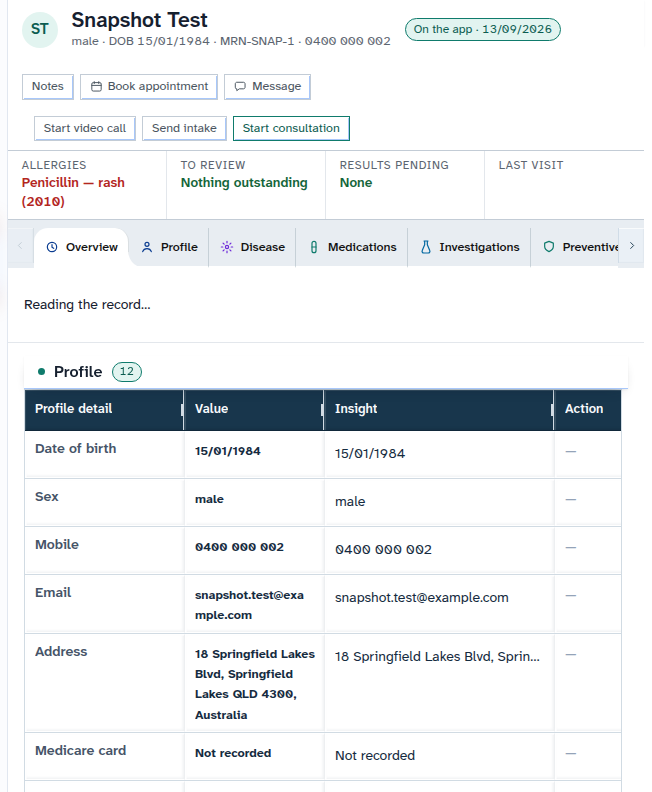
- Select the patient row (such as Snapshot Test) to open the record.
- In Agent D chat, type
/patientsto navigate directly to the register without sending.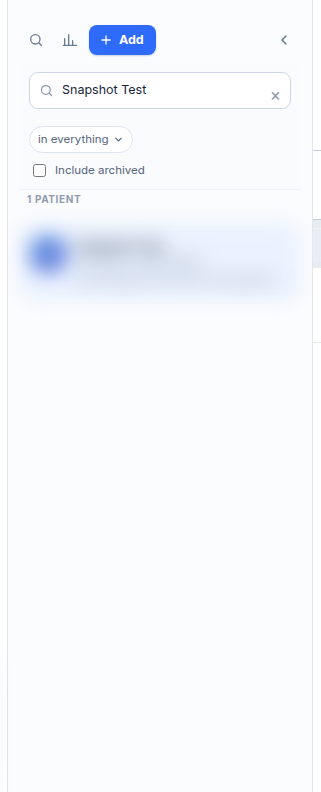
Also on this screen
- Patient file opens the console: Displays the patient chart within an organized file workspace.
- Open another patient file: The plus (+) icon on the top tab strip lets you open additional patient files side by side.
- Close a patient file tab: The cross (×) icon on any tab closes that patient record.
- Patients: Navigation link that reveals the patient register and report builder.
- Search patients: Interactive text filter that refines the displayed list in real time.
- Patient row: Clickable table row displaying name, date of birth, and record identifiers.
- App chip: Visual indicator showing whether the patient has registered on the Diagnify mobile app.
- How many patients: Informative label showing how many matching names are loaded out of the total practice count.
- Load more: Action link at the bottom of long lists to fetch the next batch of patient records.
- Collapse the list: Toggles the list between full names and compact initials to expand clinical workspace width.
- Back to all patients: Mobile-friendly navigation arrow returning from an open chart to the list view.
- No patients yet: Instructional empty state offering quick actions to add new patients.
- Patients blocked for this role: Notification banner shown when a user permissions do not allow reading patient registers.
- Slash command (/patients): Quick navigation command typed into Agent D to jump directly to this tab.
What Agent D can do
- Agent D searches the practice patient register using
patients.search_patients. - Agent D retrieves complete demographics and record jsonb data using
patients.get_patient. - Agent D resolves internal patient bindings with
patients.resolve_chart_bindingbefore opening clinical tools. - Agent D cannot delete patient files from the list.
Safety (what needs your Confirm)
- Opening a patient file is a read-only action that does not alter medical data.
- Closing a tab with unsaved clinical notes triggers a warning dialog to prevent accidental data loss.
Common questions
How do I open multiple patient charts at the same time?
Click the plus (+) icon on the top tab strip, or search and click another patient name from the list. Each patient opens in their own tab.
What does the green "App" chip mean beside a name?
The chip indicates that the patient has activated their Diagnify mobile app account and can receive secure messages, appointment reminders, and digital documents.
How do I close an open patient chart?
Click the cross (×) on the patient tab at the top of the screen.
Related
Last reviewed: 03/10/2026.