Document tools
The Document tools drawer provides centralized management for all clinical artifacts generated during a consultation.
What it does
Document tools allow clinicians to review, edit, reprint, download as PDF, email, or sign documents created during the encounter. You can manage multiple documents across tabs, format text with rich styling, use AI rewriting tools, and track document audit trails.
When to use it
Use this drawer before finalising a consultation to review all prepared scripts, pathology orders, imaging referrals, and letters.
Step by step
- Inspect the Action cards positioned beneath the consultation note.
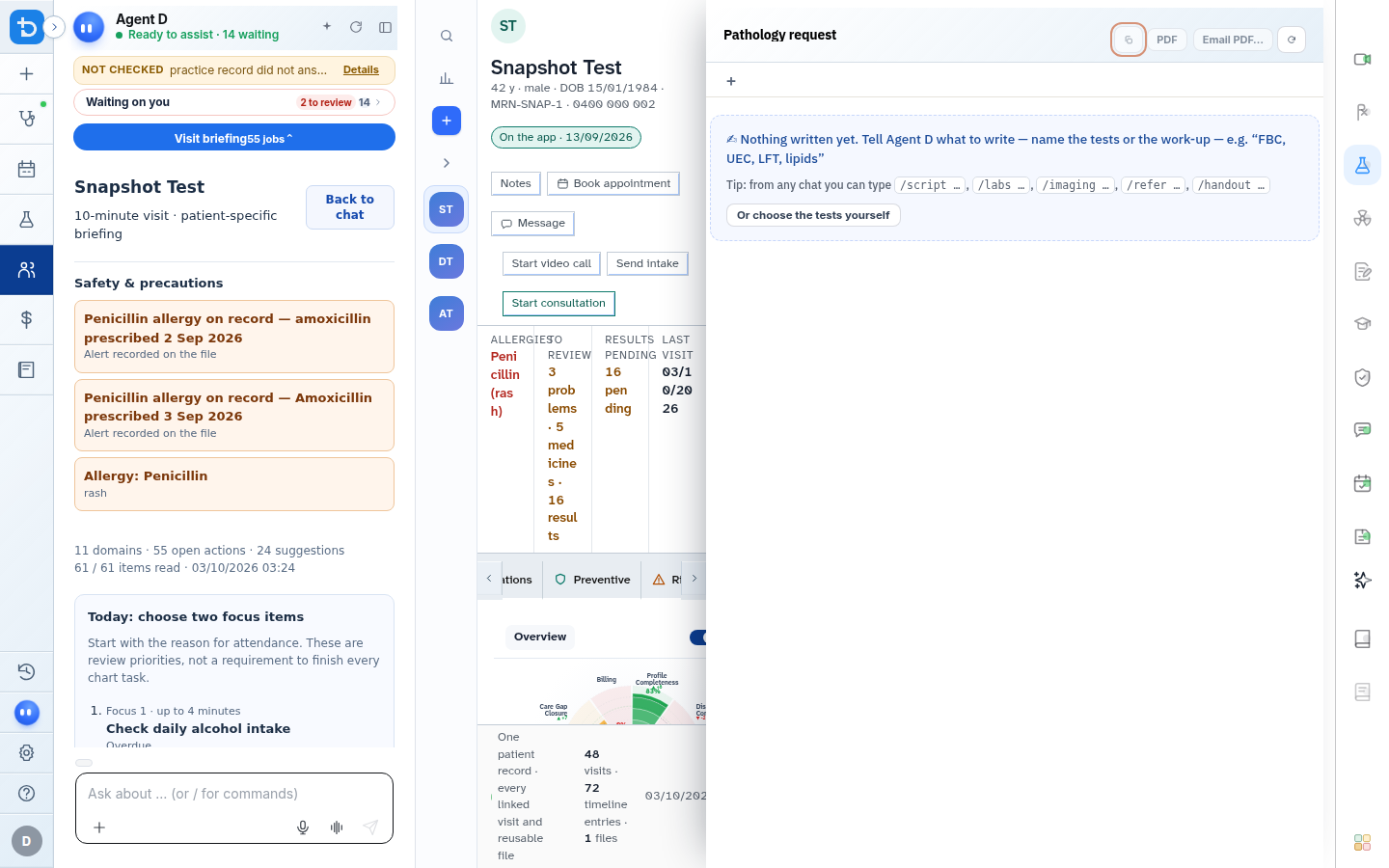
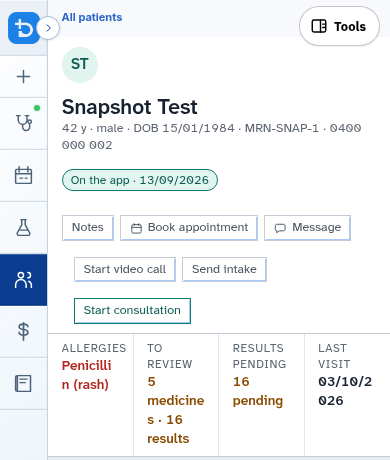
- Open any document card to edit text, download as PDF, email, or sign.
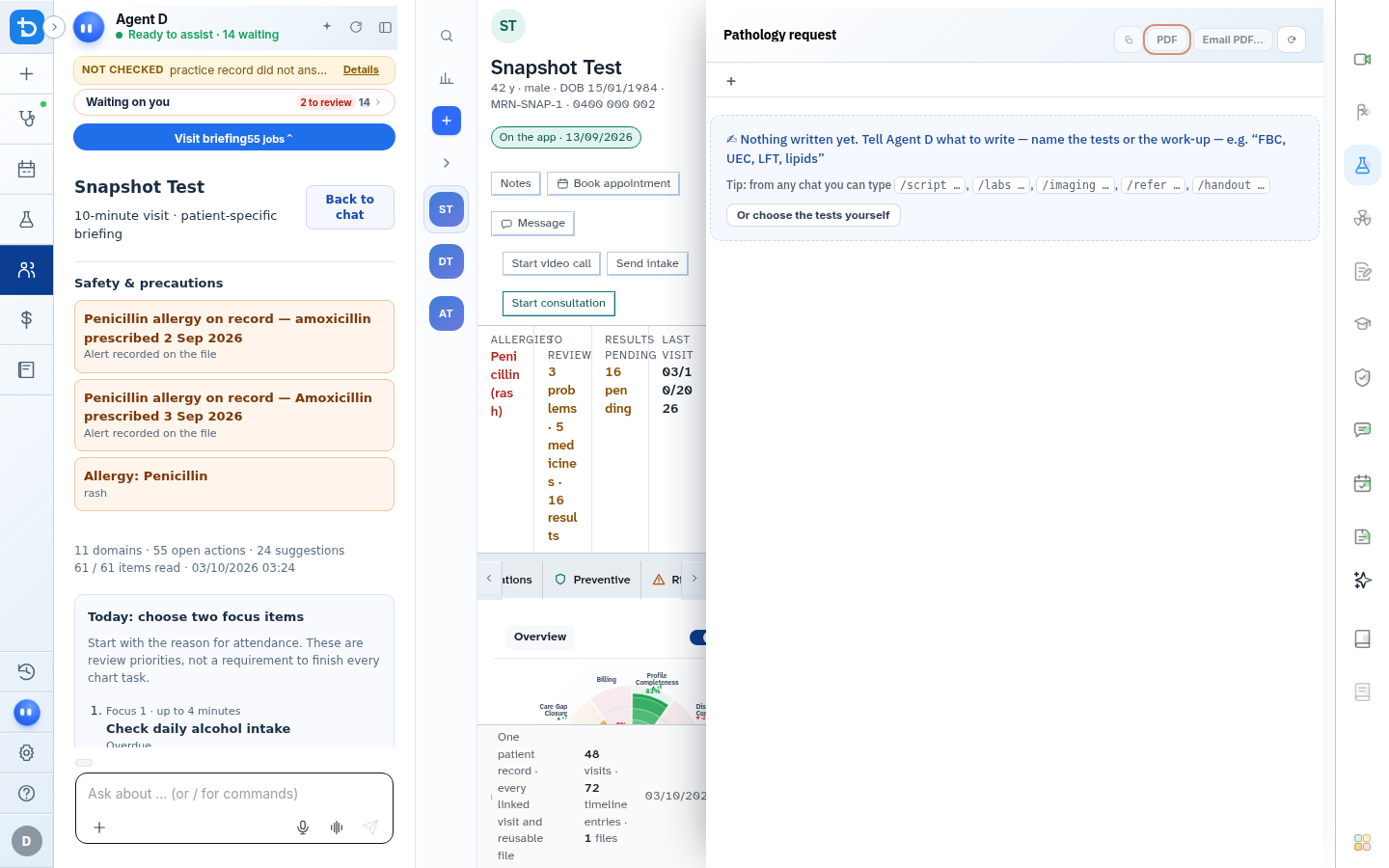
Also on this screen
- Action cards: Summary tiles displayed below the consult note representing drafted scripts, requests, and letters.
- Document tabs: Switch seamlessly between multiple documents of the same category.
- Sign: Formally approves and finalises the active document, locking it for sending.
- I have reviewed this note: Verification checkbox confirming clinical review before signing consult notes.
- Draft until you sign: Clear visual notice confirming documents remain uncommitted until signed.
- Copy: Copies document plain text directly to the system clipboard.
- PDF download: Renders and downloads a publication-grade PDF file with official practice letterhead.
- Email as PDF: Opens a secure sending dialogue to send the document as a password-protected PDF.
- Edit: Full formatting toolbar supporting bold, italic, bullet lists, numbered lists, undo, and redo.
- AI menu: Rapid transformation options to tidy, shorten, expand, improve grammar, or translate into plain English.
- Cancel document: Retracts or voids an unneeded draft document with an audit trail entry.
- Digital signature stamp: Embeds the doctor's approved digital signature asset onto official documents.
What Agent D can do
- Agent D applies selected AI edits (such as shortening or expanding) to refine document tone.
- Agent D synchronizes document contents when you adjust clinical findings during the consult.
- Agent D cannot sign, email, or transmit documents without your direct confirmation.
Safety (what needs your Confirm)
- Documents remain uncommitted drafts until you select Sign.
- Emailing documents to patients or external specialists requires explicit verification of recipient addresses.
Common questions
Can I edit a letter after Agent D drafts it?
Yes. Click Edit on any document card to type directly, modify sentences, or adjust clinical recommendations.
What happens when I click Cancel document?
The document is removed from the active consultation and marked as void in the practice audit register.
How do I print a document?
Open the document card and select PDF download to open the print dialogue in your browser.
Related
Last reviewed: 03/10/2026.