Chart sections
The Chart sections menu provides rapid navigation across all clinical domains within the patient electronic medical record.
What it does
Located directly beneath the patient header, this horizontal navigation menu links directly to the twelve core clinical domains: Overview, Profile, Disease, Medications, Investigations, Preventive, Risk factors, Vitals, Care team, Care gap, Files, and Billing. The menu features responsive overflow scroll arrows for smaller screens, highlights your current active section, and displays the patient clinical insight wheel score directly on the Overview tab.
When to use it
Use the Chart sections menu to jump smoothly between different parts of the medical record during consultations or record audits.
Step by step
- On the patient record, locate the horizontal section menu below the patient header.
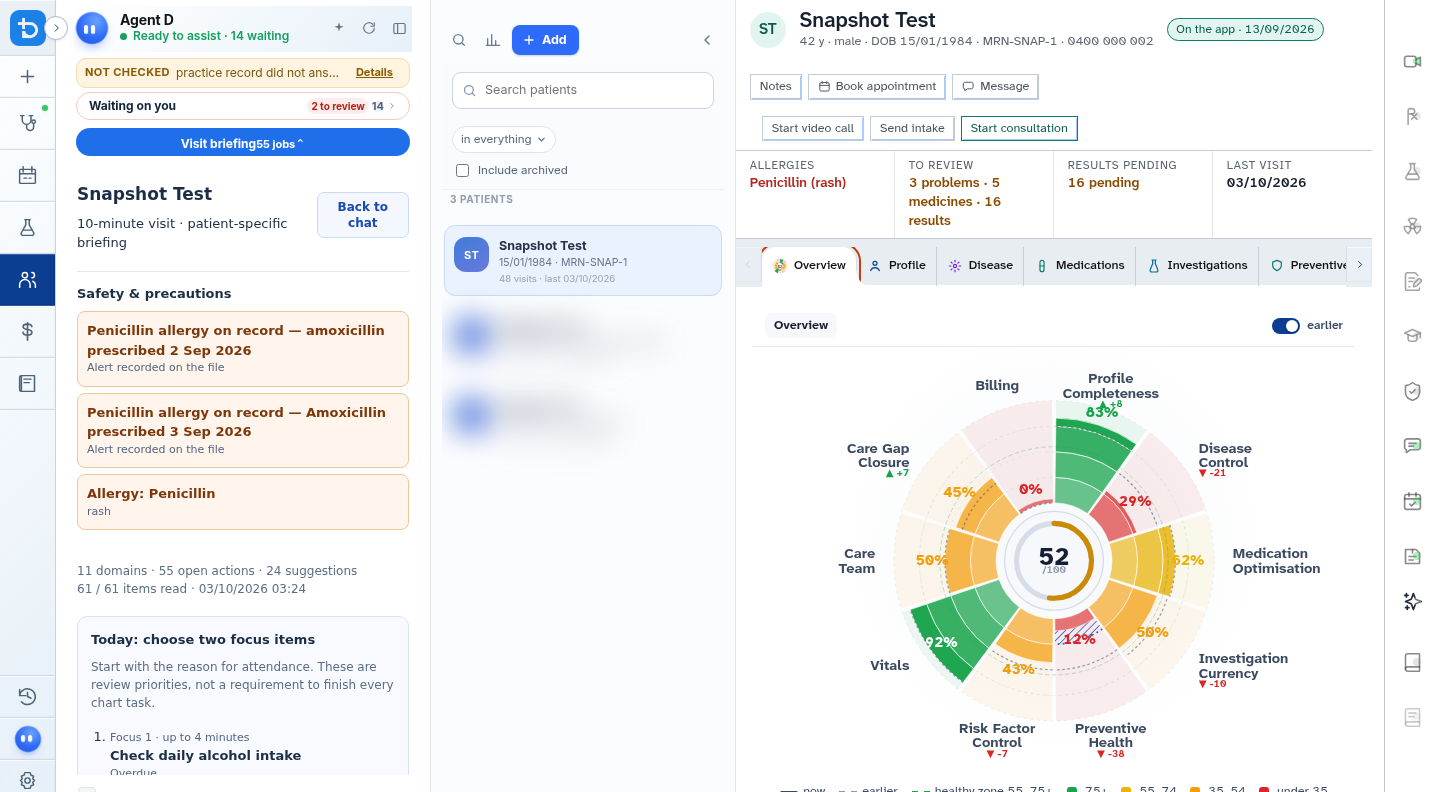
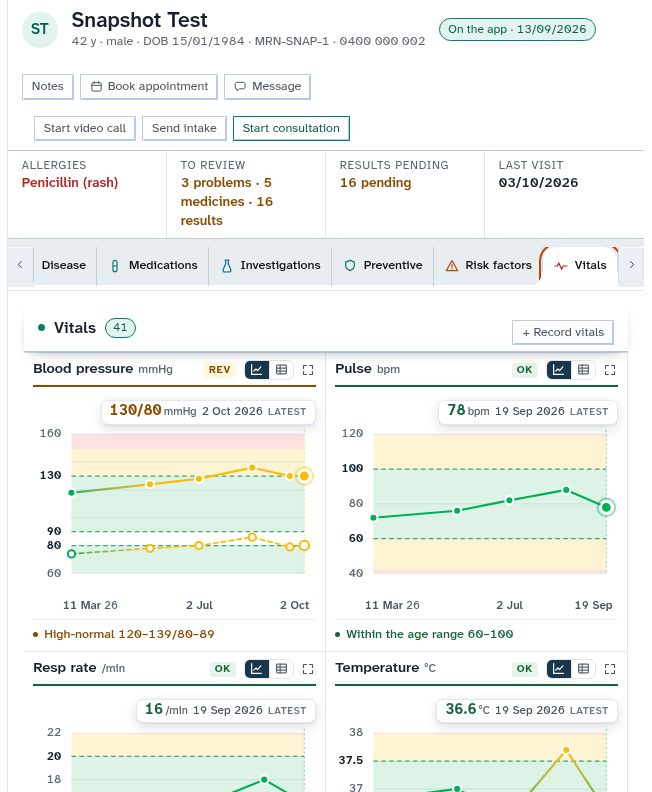
- Select any clinical domain, such as Vitals, to scroll directly to that clinical panel.
Also on this screen
- Overview through Billing: Comprehensive domain menu jumping to Overview, Profile, Disease, Medications, Investigations, Preventive, Risk factors, Vitals, Care team, Care gap, Files, and Billing.
- Earlier and later sections: Navigation arrows that appear when the display width is narrower than the full menu.
- Score on Overview: Live visual pill displaying the calculated insight score directly within the menu tab.
- Old Profile and identifiers dialog: Legacy read-only modal displaying patient demographics and identifiers.
- Classic Windows header: Optional alternate toolbar styling for legacy desktop configurations.
- Classic wheel: Previous generation diagnostic insight wheel with manual re-read controls.
- Snapshot tab: Unified summary displaying problems, active medicines, investigations, referrals, allergies, and timeline.
- Old tab bar: Legacy nine-tab navigation layout supporting traditional clinic workflows.
What Agent D can do
- Agent D monitors which chart section is active on screen to contextualize clinical suggestions.
- Agent D navigates between chart sections automatically when responding to queries (such as "/vitals" or "/meds").
- Agent D brings together data across all chart sections when preparing consultation briefings.
Safety (what needs your Confirm)
- Navigating between chart sections is a read-only browsing action that does not modify patient records.
- Any actions initiated within individual sections (such as prescribing or invoicing) require explicit clinician confirmation.
Common questions
How do I see all sections on a laptop screen?
Use the left and right navigation arrows at either end of the section menu to scroll through the full list of domains.
What does the number on the Overview tab mean?
The number represents the overall clinical insight health score calculated across all active domains.
Can I rearrange the order of sections in the menu?
Section ordering follows standard clinical priority and can be customized by practice administrators in clinic settings.
Related
Last reviewed: 03/10/2026.