Record header
The Record header sits at the top of every patient chart, displaying vital identity and clinical summary indicators.
What it does
The header provides immediate visibility of the patient identity: full legal name, calculated age, sex, date of birth (DD/MM/YYYY), and internal patient ID. Directly below the identity banner, a clinical status strip displays active allergy warnings, counts of items needing review, pending diagnostic results, and the date of the last recorded encounter. It also features an "On the app" indicator showing patient portal connectivity.
When to use it
Review the record header at the beginning of every patient encounter to verify you are on the correct patient chart, check for drug allergy warnings, and inspect pending test results.
Step by step
- Open a patient record (such as Snapshot Test) to view the primary identity banner.
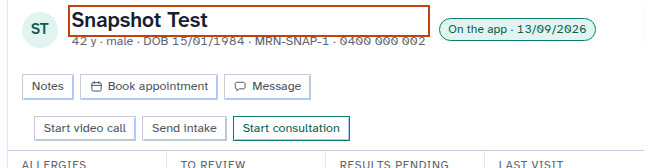
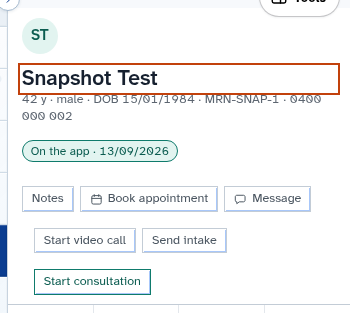
- Review the clinical status strip directly beneath the patient name.

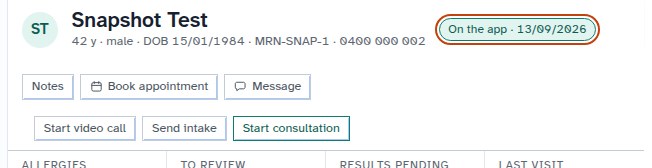
- Check the On the app chip to see whether the patient is connected digitally.
Also on this screen
- Name, age, sex, date of birth, ID: Prominent identity banner displayed across the top of the clinical chart.
- On the app: Badge indicating whether the patient has logged into the Diagnify patient app and the date they were last active.
- To review: Clinical counter highlighting recorded problems, medications, or results that require practitioner reconciliation.
- Results pending: Counter showing how many ordered pathology or radiology tests have not yet returned results.
- Last visit: Displays the date (DD/MM/YYYY) of the patient most recent consultation.
- Visits, timeline, files count: Footer line summarizing total consultations, timeline milestones, and attached files.
- Patient header blue title band: Distinct visual band ensuring clinical focus remains tied to the active patient.
What Agent D can do
- Agent D reads patient banner metrics via
patients.snapshotandpatients.get_patient. - Agent D alerts the doctor if the chart on screen does not match the patient being discussed in chat.
- Agent D brings together pending results and items needing review into the consultation briefing.
Safety (what needs your Confirm)
- The header serves as the primary safeguard against wrong-chart clinical errors.
- Always verify patient identity against the header before confirming prescriptions, ordering tests, or drafting letters.
Common questions
What does "To review" mean in the status strip?
It indicates that newly imported records, unresolved problems, or unconfirmed medication items are waiting for clinician review.
Why is the date of birth important?
Verifying the date of birth alongside the patient full name is the primary method for confirming patient identity before clinical care.
How do I invite a patient to connect to the app?
If the patient is not on the app, an "Invite to app" button appears in the header actions toolbar.
Related
Last reviewed: 03/10/2026.