Open, fold, and resize Agent D
What it does
Agent D resides in a flexible sidebar column on the left side of your screen. You can expand Agent D when asking questions or reviewing tasks, collapse it to maximize space for clinical charts, or drag its resize handle to adjust the column width to your preference.
Also on this screen
- Agent D button (AD-001): Opens or closes the left chat.
- Open Agent D edge bar (AD-002): A side tab that brings the chat back after you fold it.
- Resize handle (AD-003): Drag the edge to make the chat wider or narrower.
- Collapse (AD-010): Folds the chat column away.
When to use it
Resize or collapse Agent D whenever you need more screen space to examine complex test results, view timelines, or read long consult notes.
Step by step
- Press the Diagnify mark to come back to Agent D home.

- With a chart open, press Collapse the assistant.
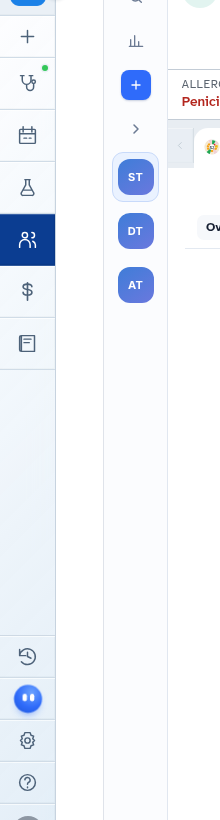
- Press the edge tab.

- Find the resize line on the edge of Agent D.

What Agent D can do
Agent D continues monitoring the active screen and chart in the background even when collapsed. It restores your conversation immediately when reopened.
Safety (what needs your Confirm)
Folding or collapsing Agent D does not dismiss or confirm pending items. Red safety counts remain visible on the edge tab so urgent items are never hidden.
Common questions
How do I bring Agent D back after collapsing it?
Click the edge tab on the left border of the screen to reopen the Agent D column.
Can I adjust the width of Agent D on smaller screens?
Yes. Click and drag the vertical resize handle between Agent D and the main workspace.
Does collapsing Agent D lose my typed question?
No. Any text in the composer box or open conversation is preserved when you collapse and reopen.
Related
Last reviewed: 03/10/2026.