Aim a question at one screen
What it does
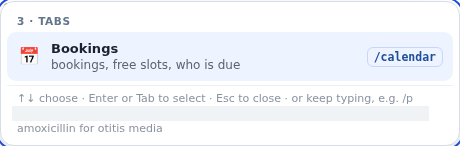
Slash aim commands allow you to direct inquiries to specific clinic modules without navigating away from your active screen. Use /calendar for Bookings, /worklist for Results, /patients for the patient register, /reports for Financials, /guideline for chronic disease plans, and /settings for clinic configuration.
Also on this screen
- /calendar (AD-085): Aims the question at Bookings.
- /worklist (AD-086): Aims the question at Results.
- /patients (AD-087): Aims the question at the patient register.
- /reports (AD-088): Aims the question at Financials.
- /guideline (AD-089): Aims the question at Guideline plans.
- /settings (AD-090): Aims the question at your profile and practice set-up.
When to use it
Use slash aim commands when you need quick facts from another part of Diagnify, such as checking tomorrow's booking availability while in a consultation.
Step by step
- Type /calendar
What Agent D can do
Agent D queries the targeted module and summarizes the requested information directly in the chat column. It cannot alter settings or schedules without confirmation.
Safety (what needs your Confirm)
Aim commands provide read-only information summaries. Any resulting changes (such as rescheduling an appointment or updating settings) require standard clinician confirmation.
Common questions
Can I check results while consulting a patient?
Yes. Type /worklist followed by your question to check incoming laboratory reports without closing the chart.
Does /calendar let me see upcoming appointments?
Yes. Typing /calendar followed by your question provides a quick schedule summary.
Do aim commands switch my screen?
No. The information appears directly in your Agent D chat column, keeping your active workspace intact.
Related
Last reviewed: 03/10/2026.