Conditions
The Conditions screen records and manages the patient active medical diagnoses, chronic disease problem lists, and resolved conditions.
What it does
This screen provides clinicians with an organized disease register. Conditions are categorized into active chronic problems, acute complaints, and resolved medical history. Selecting any condition row opens clinical details, onset dates, diagnostic coding, and associated treatment notes. The "Plan with Agent D" button allows doctors to launch automated care planning, generating evidence-based monitoring schedules and management goals tailored to that specific diagnosis.
When to use it
Use the Conditions screen when adding a new diagnosis, updating chronic disease management plans, reviewing past medical history, or preparing annual cycle of care assessments.
Step by step
- Select Disease in the chart sections menu to view the diagnostic problem list.
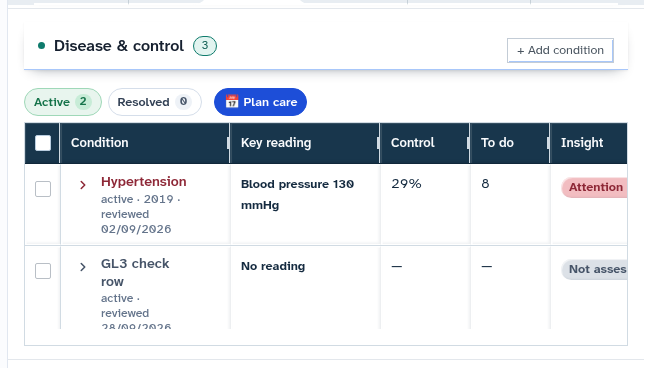
- Select Plan with Agent D on an active condition to draft a structured management plan.
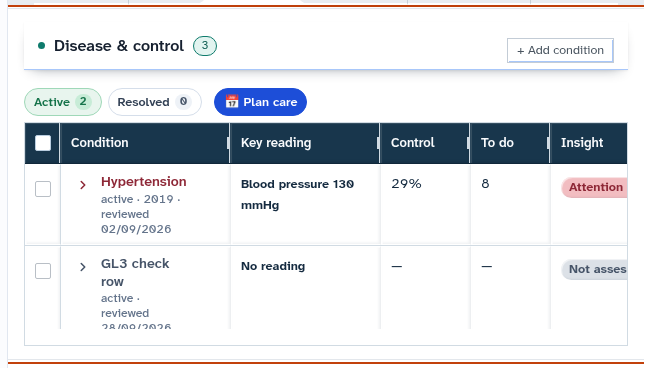
Also on this screen
- Disease table: Interactive table listing active, inactive, and resolved medical diagnoses with onset dates (formatted as DD/MM/YYYY) and clinical notes.
- Plan with Agent D: Automated clinical assistant feature that evaluates national guidelines and drafts disease monitoring plans.
What Agent D can do
- Agent D retrieves and drafts condition monitoring definitions using
patients.condition_definitions. - Agent D cross-references active conditions against national clinical guidelines.
- Agent D checks for drug-disease contraindications when prescribing new therapies.
- Agent D cannot add or resolve a condition without explicit clinician confirmation.
Safety (what needs your Confirm)
- Adding, editing, or resolving a condition modifies the patient legal medical record and influences automated clinical decision support.
- Selecting "Plan with Agent D" drafts monitoring targets and clinical schedules for your review; nothing is filed without your confirmation.
Common questions
How do I mark a condition as resolved?
Open the condition row, change the status dropdown from "Active" to "Resolved", record the resolution date, and confirm.
Can I link a condition to a national clinical guideline?
Yes. Active conditions automatically link to relevant national management guidelines on the Overview Guidelines tab.
How does recording a condition affect prescribing?
Diagnify checks all prescribed medicines against active diagnoses to warn about drug-disease interactions (such as beta-blockers in severe asthma).
Related
Last reviewed: 03/10/2026.