Today, week and month
What it does
Five tabs change how the diary looks: Today, Practice day, Week, Month and Availability. Arrows beside the date move you forward and back.
When to use it
Use Today while you work. Use Week to plan the week ahead. Use Month to see leave and busy weeks. Use Availability to set the hours patients can book.
Step by step
-
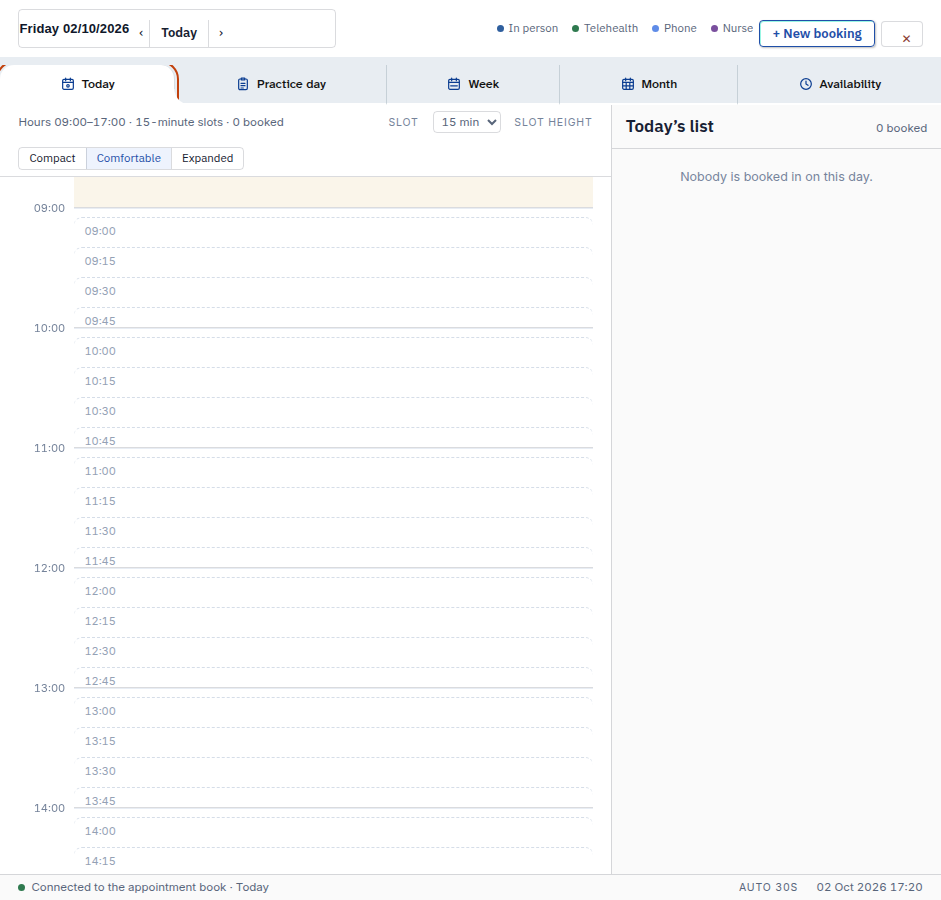
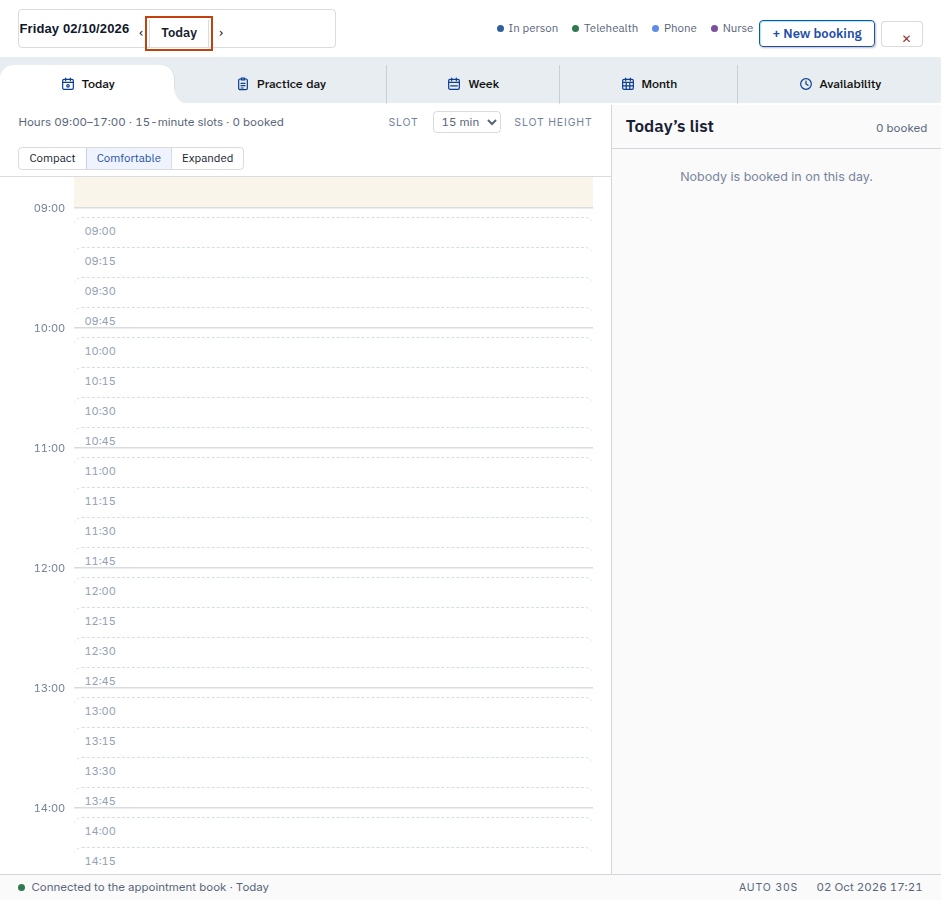
Press Today. The day grid shows booked time and free slots.
On a phone:
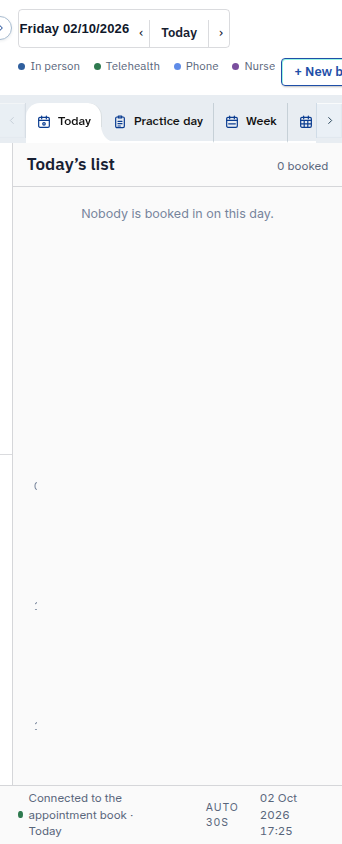
-
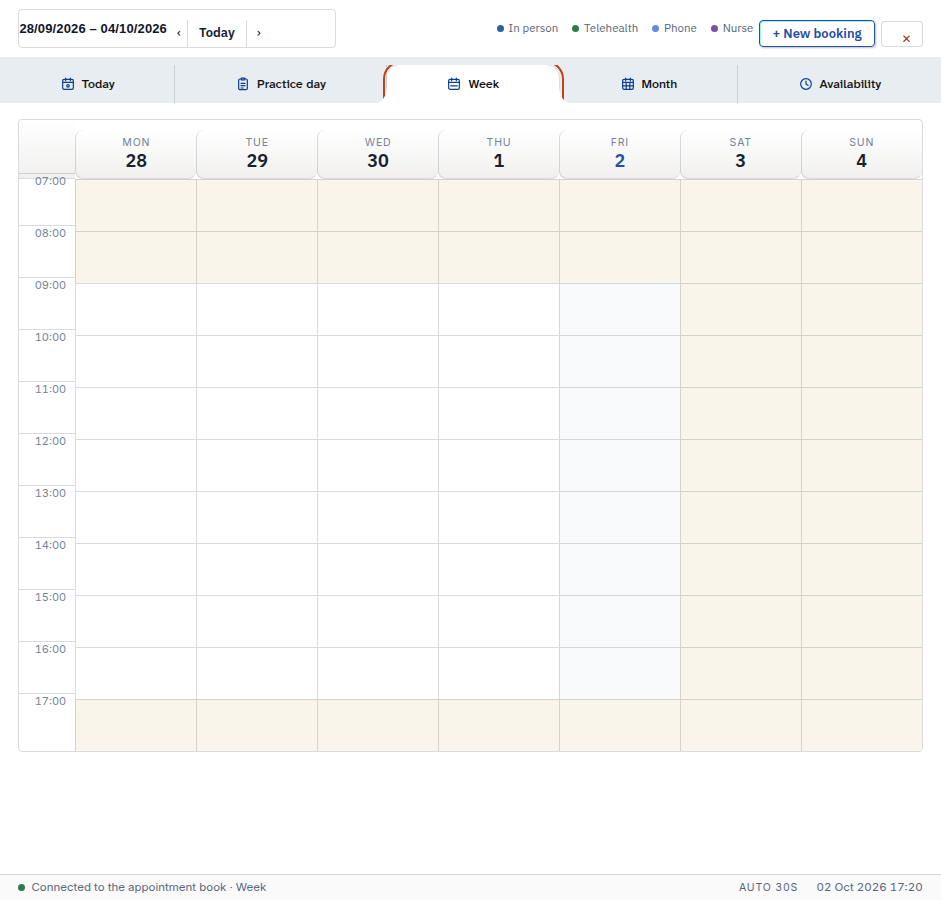
Press Week to see seven days side by side.
-
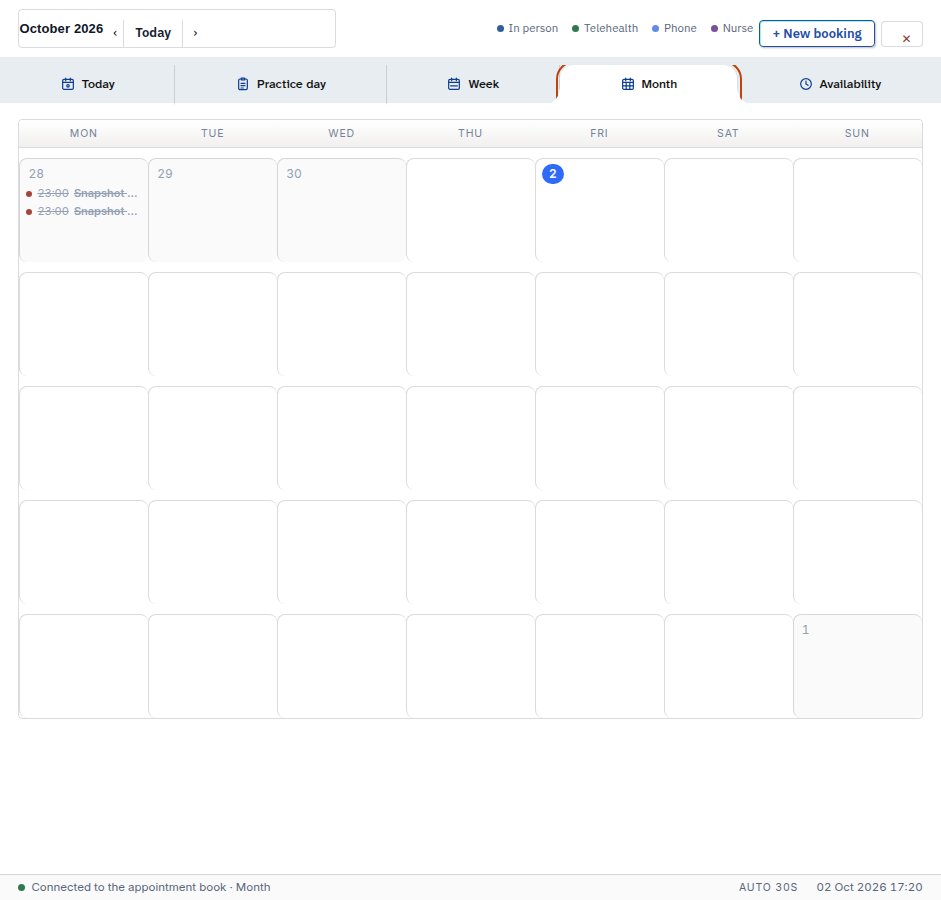
Press Month to see the whole month, one cell per day.
-
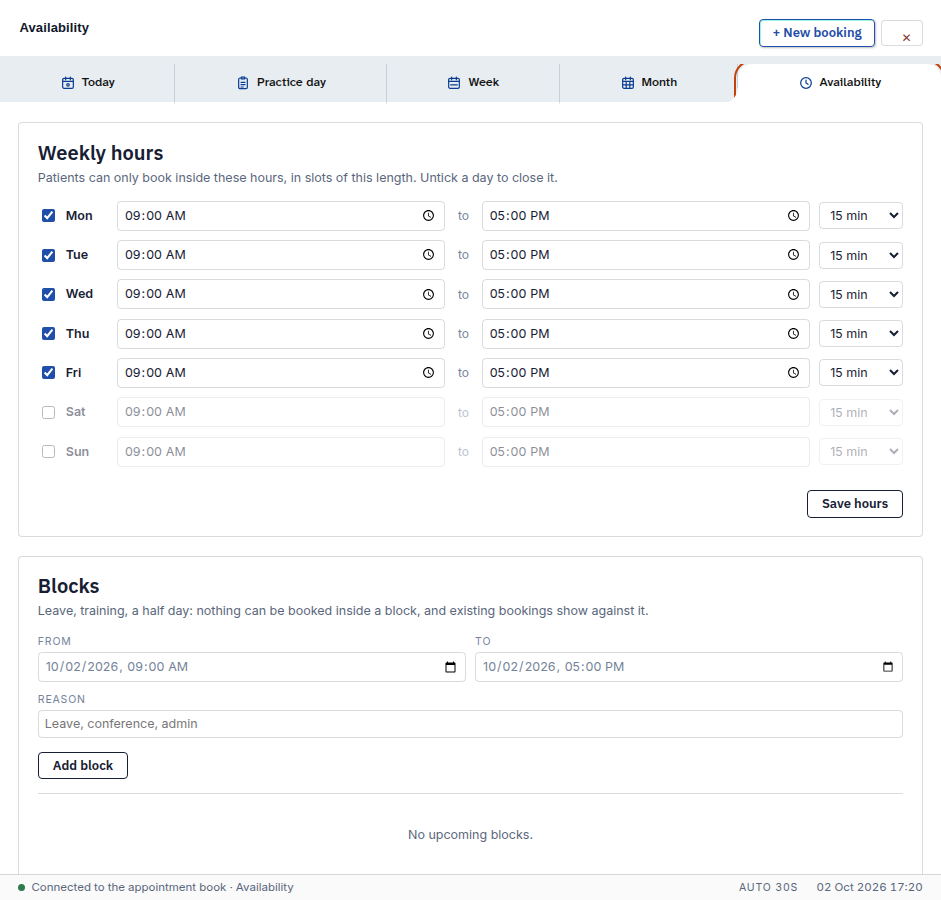
Press Availability to see your weekly hours and blocks.
-
Press Today to jump back to the present day. The arrows beside the date step one day, week or month at a time.
Also on this screen:
- A colour key sits by the view tabs. It shows the colour of each visit kind: in person, telehealth, phone and nurse.
- On the day view, zoom makes the day taller or shorter, and slot length sets how long a free slot is drawn.
- Clicking an empty time opens New booking at that time. Clicking a day in Month opens that day.
What Agent D can do
- Read the diary for a date range of up to 62 days.
- List the free slots on a date, after bookings and blocks are taken out.
Safety (what needs your Confirm)
- Clicking an empty slot only opens the booking form. Nothing is booked until you press Book.
- Changing view changes nothing.
Common questions
What do the colours mean? The key by the view tabs lists them: in person, telehealth, phone and nurse.
Why does the month look empty? Month shows one cell per day. Open a day to see its bookings.
How do I make the slots look longer on screen? Use the zoom and slot length controls on the day view.
Related
Last checked: 03/10/2026.