Practice identity
For staff
This page is for front-desk staff and people who manage clinic settings.
What it does
The Practice tab holds who the practice is: its name, web address, support email, legal facts, sites and branding.
When to use it
Use it when the practice details change, or to check what appears on documents.
Step by step
-
Press Practice. You see the practice URL, support email, legal name, sites and branding.
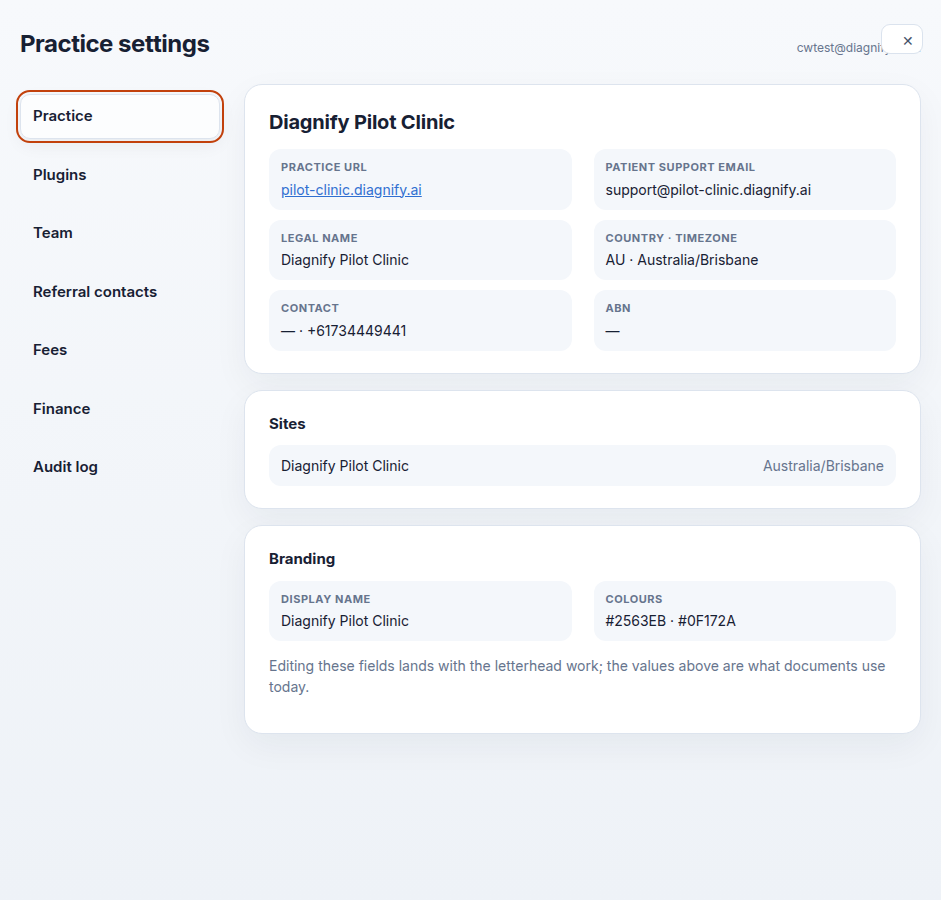
Also on this screen:
- The practice URL shows as a link.
- The patient support email is the mailbox patients write to.
- The legal name, country, contact and ABN are read-only facts from the practice record.
- The sites list shows each site name, its timezone, and whether it is active.
- The branding display shows the display name and colours. The screen says editing lands with the letterhead work, which is not ready yet.
- Practice identity and email is one row on the Plugins list.
What Agent D can do
- Read your profile, subscription, letterhead and console preferences.
- Read the organisation's trading and legal name for the window title.
- Save the letterhead — provider number, practice details, qualifications and a signature image — after your Confirm.
- Update your profile and console preferences after your Confirm.
Safety (what needs your Confirm)
- Identity values are what documents use today. Check before you change them.
- The signature image saved on the letterhead is used on every document. Store it with the same care as a signature on paper.
Common questions
Why can't I edit branding colours? The screen says editing lands with the letterhead work, which is not ready yet.
Where do these details appear? On documents, in the window title, and in patient-facing text such as the support email.
Can I change the ABN here? No. The legal facts are read-only on this tab.
Related
Last checked: 03/10/2026.