Tyro claims and settlement
For staff
This page is for front-desk staff and people who manage clinic settings.
What it does
The Tyro claims and settlement report lines up every Tyro claim beside its invoice: charged, decided, recorded, deposited, and an Exception column when something is off.
When to use it
Use it to check that Medicare claims through Tyro were paid, and to find claims that stopped halfway.
Step by step
-
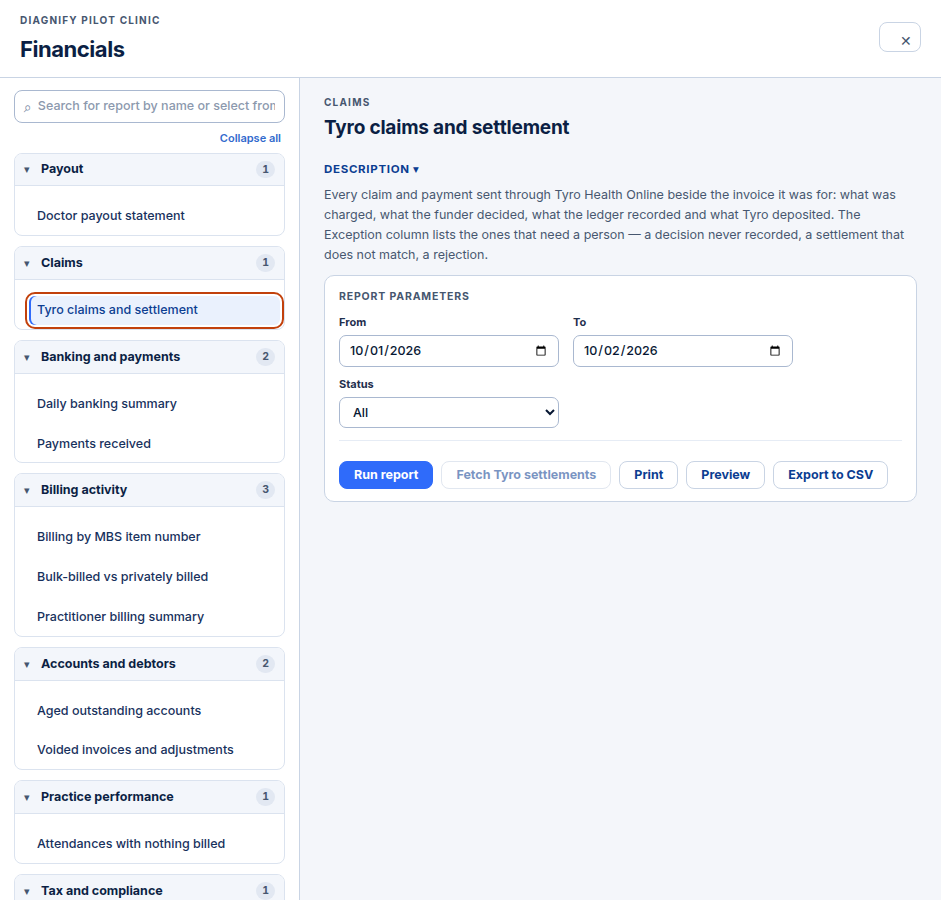
Press Tyro claims and settlement. The status filters sit beside the report.
-
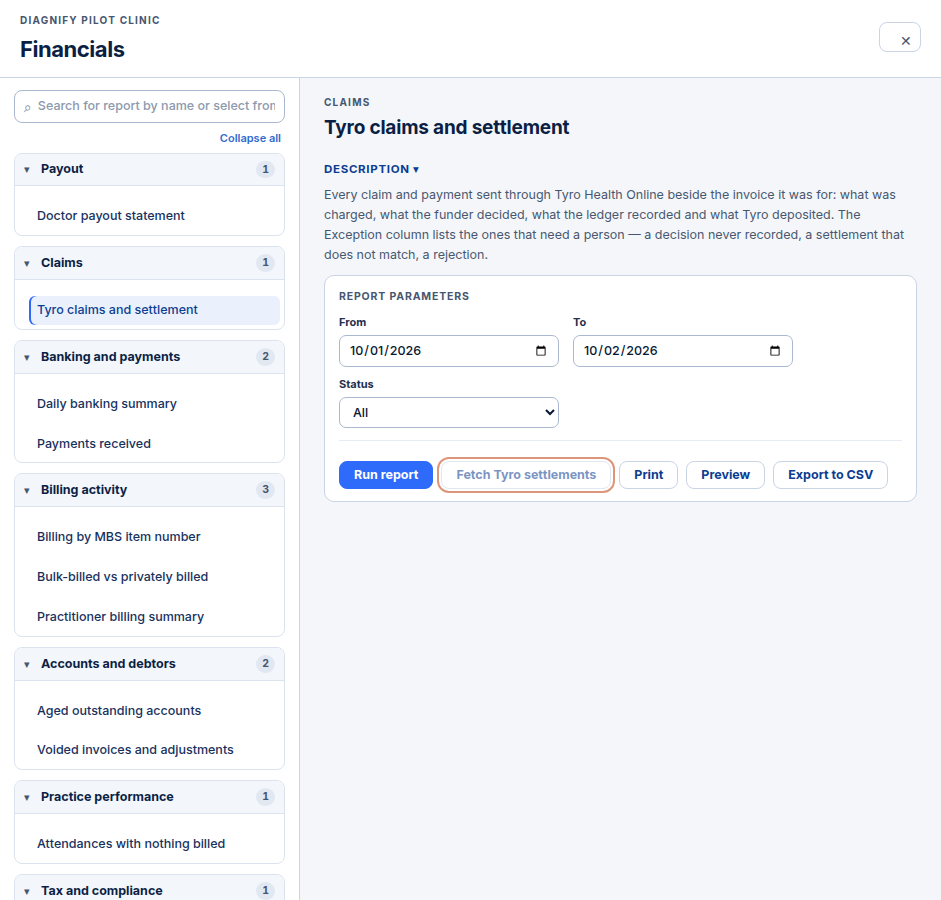
Press Fetch Tyro settlements when you want the latest payment file from Tyro.
Also on this screen:
- The status filter limits the report to lodged, decided, recorded, settled, or rejected claims.
- The ledger updates on its own as Tyro webhooks confirm approved or completed claims.
These parts are on the test site only:
- A patient statement PDF for a Tyro claim. New (test site)
- Terminal hardware connection for the report. New (test site)
What Agent D can do
- Run the report and read the rows back to you, like any other report.
Safety (what needs your Confirm)
- This screen stays read-only. Fetching settlements asks Tyro for a file; it does not claim or charge anything.
- No card number is stored or shown here.
Common questions
What do the statuses mean? Lodged means sent. Decided means Tyro answered. Recorded means the answer is on the invoice. Settled means the money is in. Rejected means it failed — check the Exception column.
How do the rows update? By themselves. When Tyro confirms a claim by webhook, the row updates in the ledger.
Where do I set up Tyro? In Settings, on the Finance card. See Tyro in settings.
Related
Last checked: 03/10/2026.