The typed consult note
The typed consult note provides the core documentation canvas for recording presenting complaints, clinical examination, and treatment plans.
What it does
The typed consult note allows clinicians to write encounter notes manually, select coded reasons for visit, monitor encounter duration with a pauseable timer, and benefit from continuous background autosave. When finished, notes can be finalised directly or parked for completion later.
When to use it
Use the typed consult note for direct typing during patient consultations, when adding clinical addenda, or when reviewing notes generated by ambient scribing.
Step by step
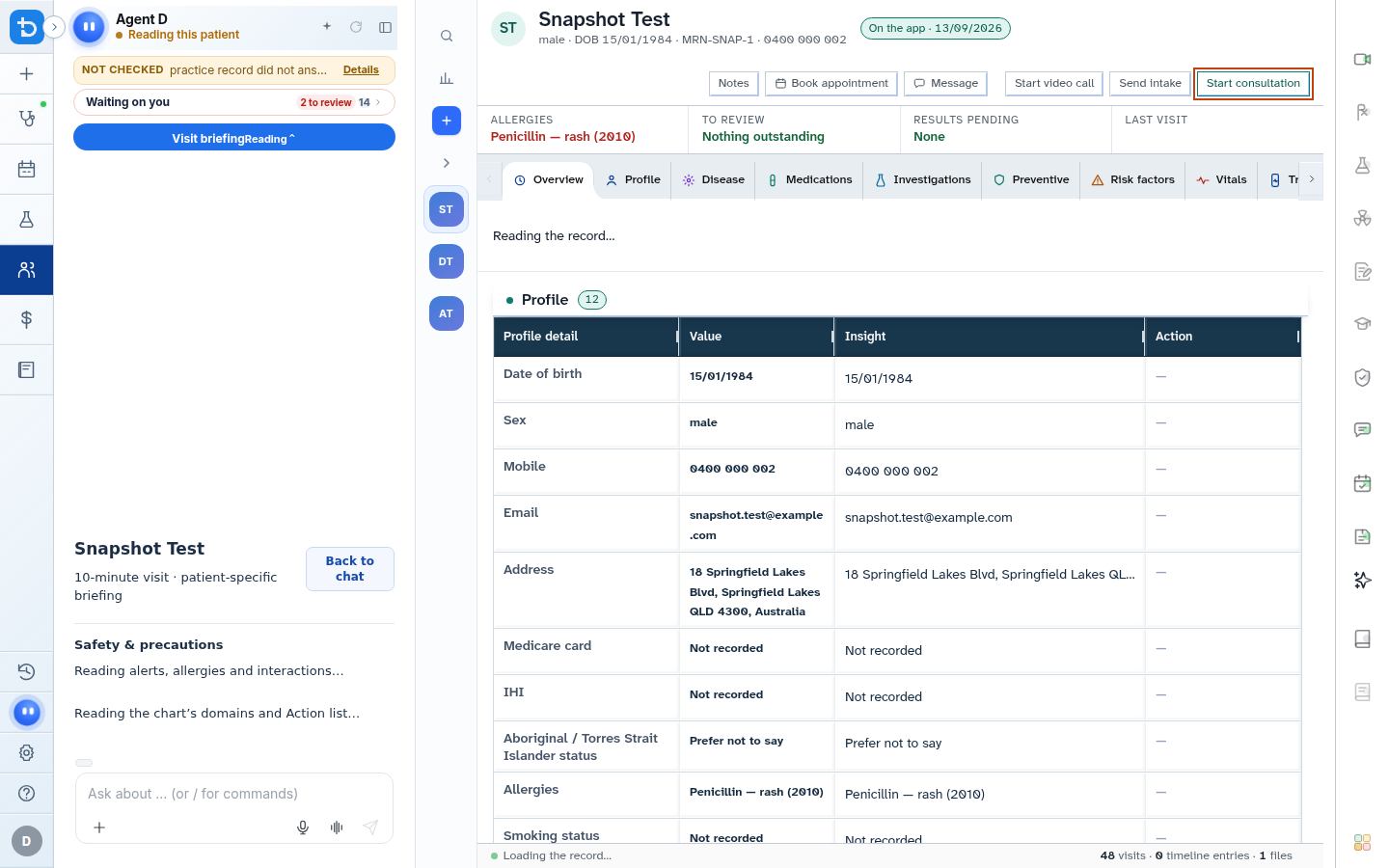
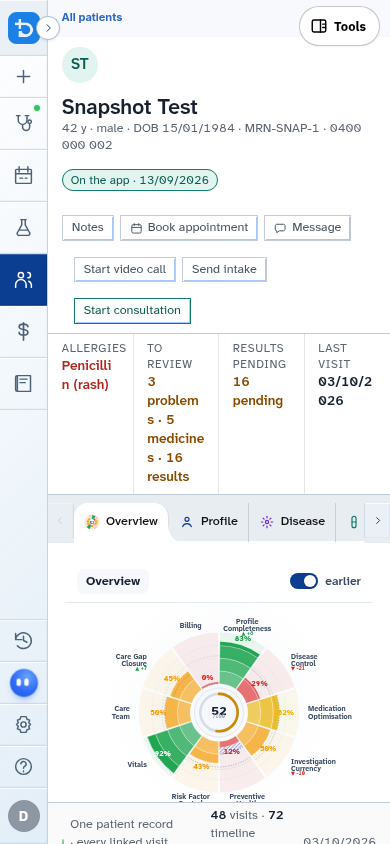
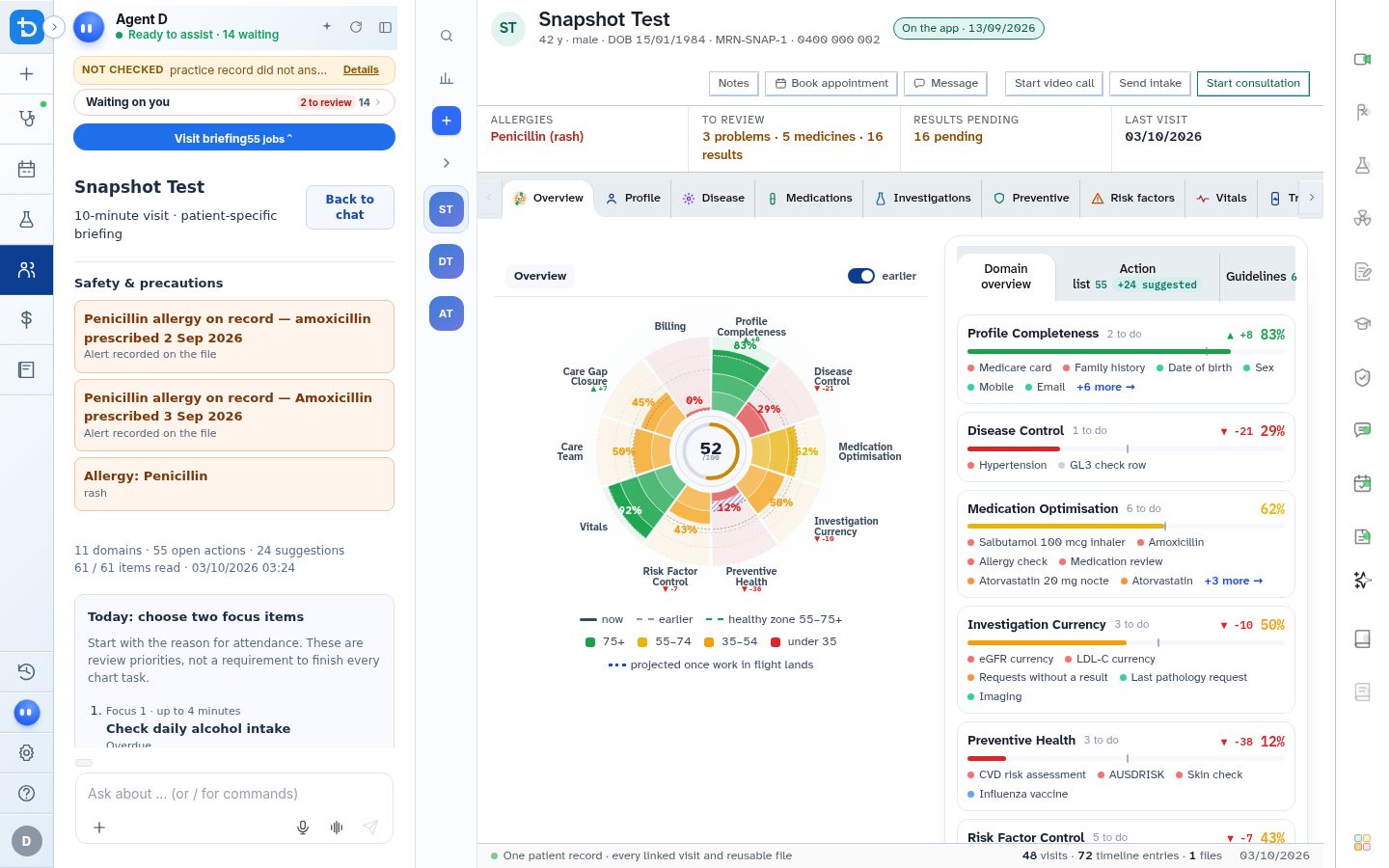
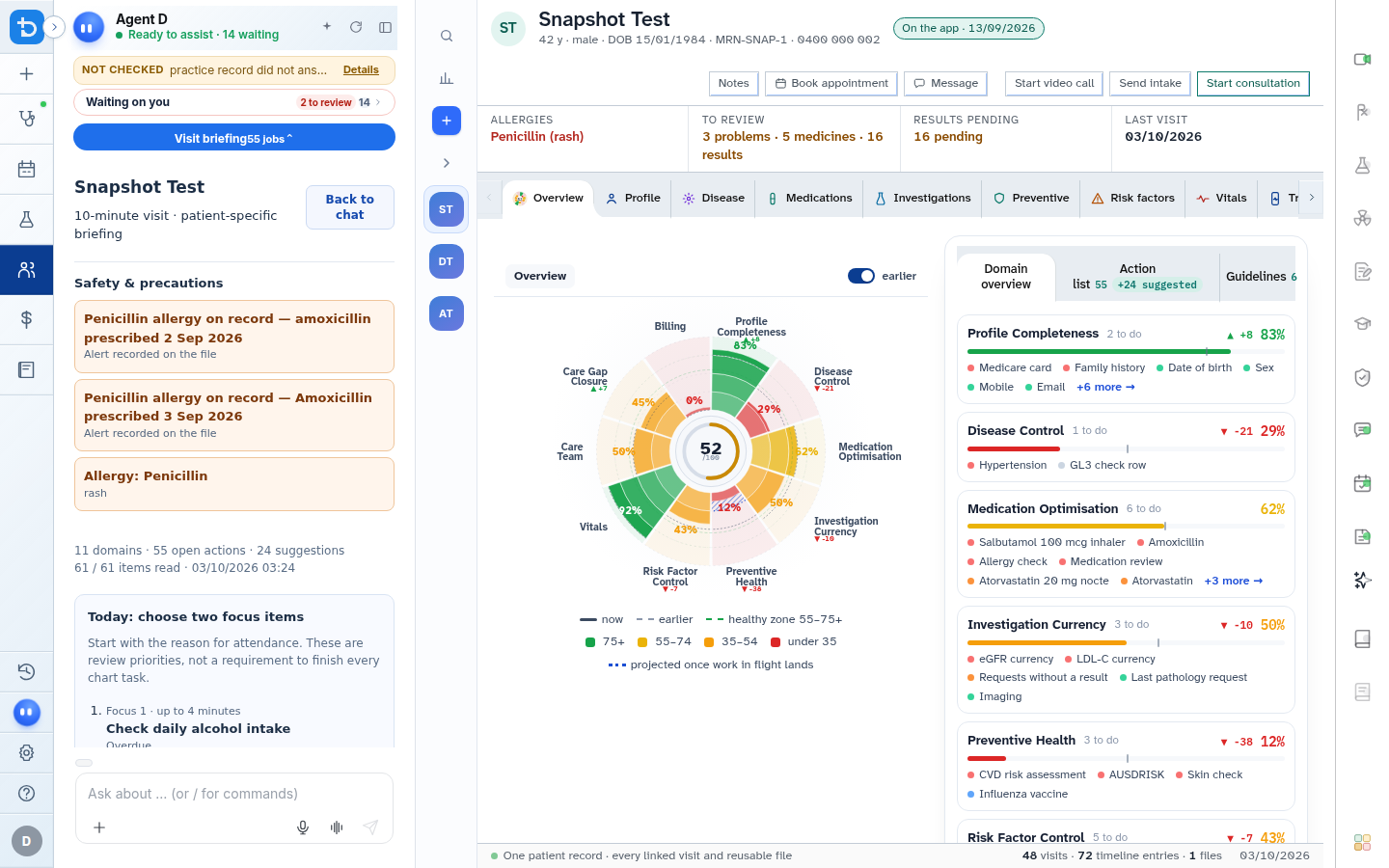
- Select Start consultation to open the typed note workspace.
- Use the reason search box to add coded symptoms or diagnoses.
- Type your clinical findings and plans into the main consultation text area.
- Check the footer status and select Park visit or Finalise consult when finished.
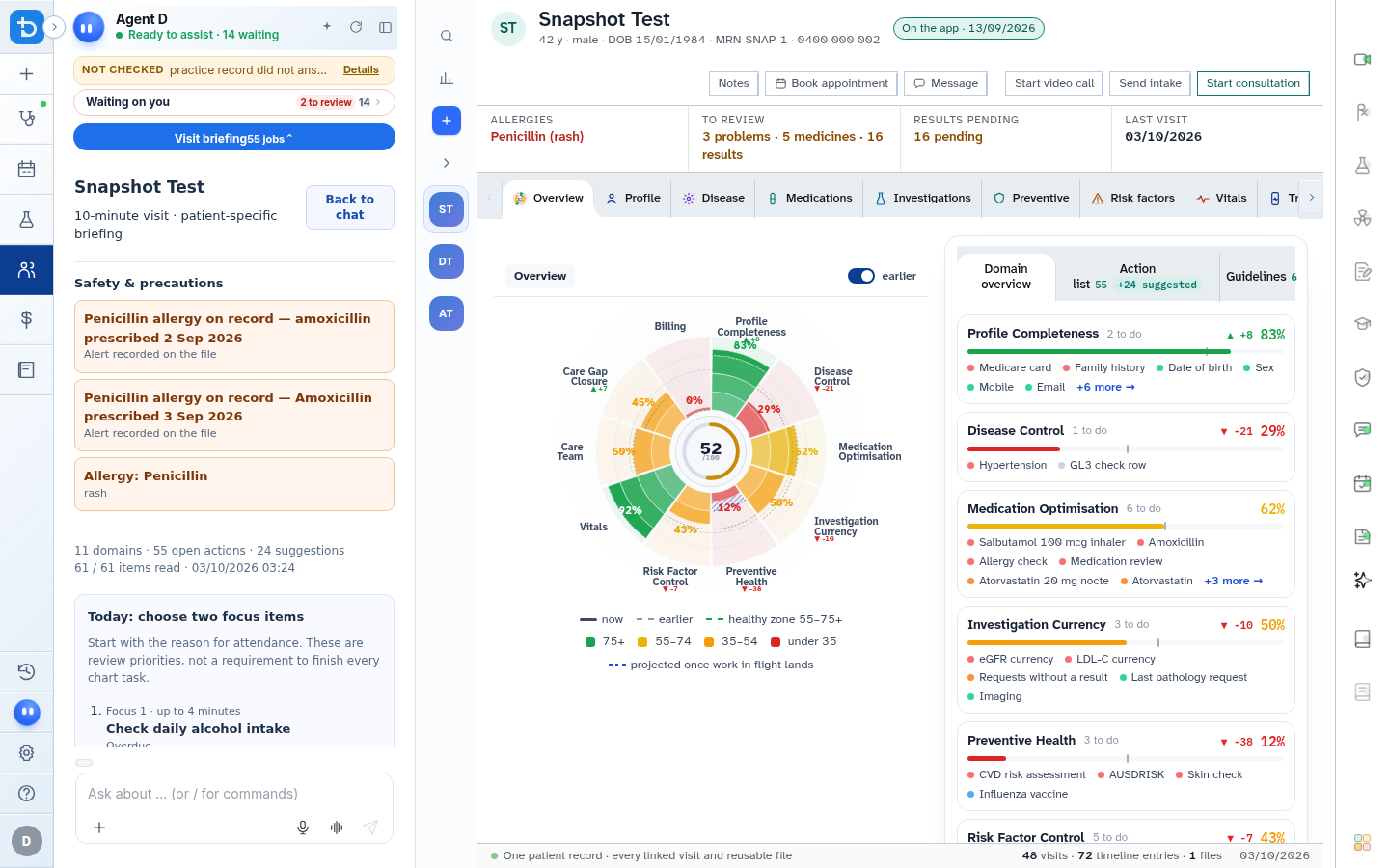
Also on this screen
- In-progress dot: Visual indicator showing whether the consultation is active, paused, or ended.
- Consult timer: Tracks encounter duration in real time, automatically halting when paused.
- Pause and Resume: Halts the consult timer during interruptions or phone calls.
- End consultation: Stops the timer and appends a consultation conclusion timestamp into the note.
- Reason for visit search: Predictive search matching symptoms and conditions against standard classifications.
- Add custom reason: Enter unlisted presenting complaints and press Enter to save.
- Remove a reason: Remove a tagged reason by clicking its delete icon.
- Word count: Real-time counter monitoring total words entered.
- Autosave of reasons: Automatically persists added reasons 500ms after you stop typing.
- Autosave of note text: Saves consultation text to the server 1000ms after typing ceases.
- Footer status: Displays requirements for closing the visit (such as "Add Billing" or "Add consult notes to finalise").
- Park visit: Safely closes the visit to let you see another patient without losing unfinalised work.
- Finalise consult: Locks and signs the clinical note, making it a permanent part of the patient medical history.
- Agent D activity notes and co-sign: An audit section beneath the note showing Agent D contributions, with one-click Co-sign to accept or Edit before co-sign to revise.
What Agent D can do
- Agent D reads typed notes to propose matching billing item numbers and draft follow-up recalls.
- Agent D inserts formatted SOAP summaries into the note when instructed.
- Agent D cannot finalise notes or sign legal records without your explicit approval.
Safety (what needs your Confirm)
- Notes remain editable until you select Finalise consult. Finalising creates an immutable, signed legal entry.
- Parking a visit preserves draft notes without marking the consultation as completed.
- Co-signing an Agent D activity summary requires an explicit clinician click.
Common questions
What happens if my browser crashes while typing?
Diagnify runs continuous background autosave. Reopening the consultation restores your text exactly where you left off.
Can I park a consultation to attend to an urgent walk-in?
Yes. Click Park visit to close the current screen safely. You can resume the parked consultation at any time from your recent visits list.
Why is the Finalise consult button disabled?
The button remains disabled until minimum documentation requirements are met, such as entering consultation notes and selecting a billing item.
Related
Last reviewed: 03/10/2026.