Scribe
Diagnify ambient AI Scribe listens to patient consultations in real time, drafting structured, comprehensive clinical notes while you focus on patient care.
What it does
The Scribe records conversation during in-person consultations, telehealth sessions, or dictation. It transcribes spoken dialogue securely, detects clinical facts, screens for red flags, and generates structured SOAP (Subjective, Objective, Assessment, Plan) consultation notes. You can pause, resume, select note templates, and regenerate drafts at any time.
When to use it
Use the Scribe during consultations where you want to minimize computer screen distraction, capture complex patient narratives, or dictate post-consultation summaries.
Step by step
- Select Scribe from the consultation header or tool rail to open the ambient recorder.
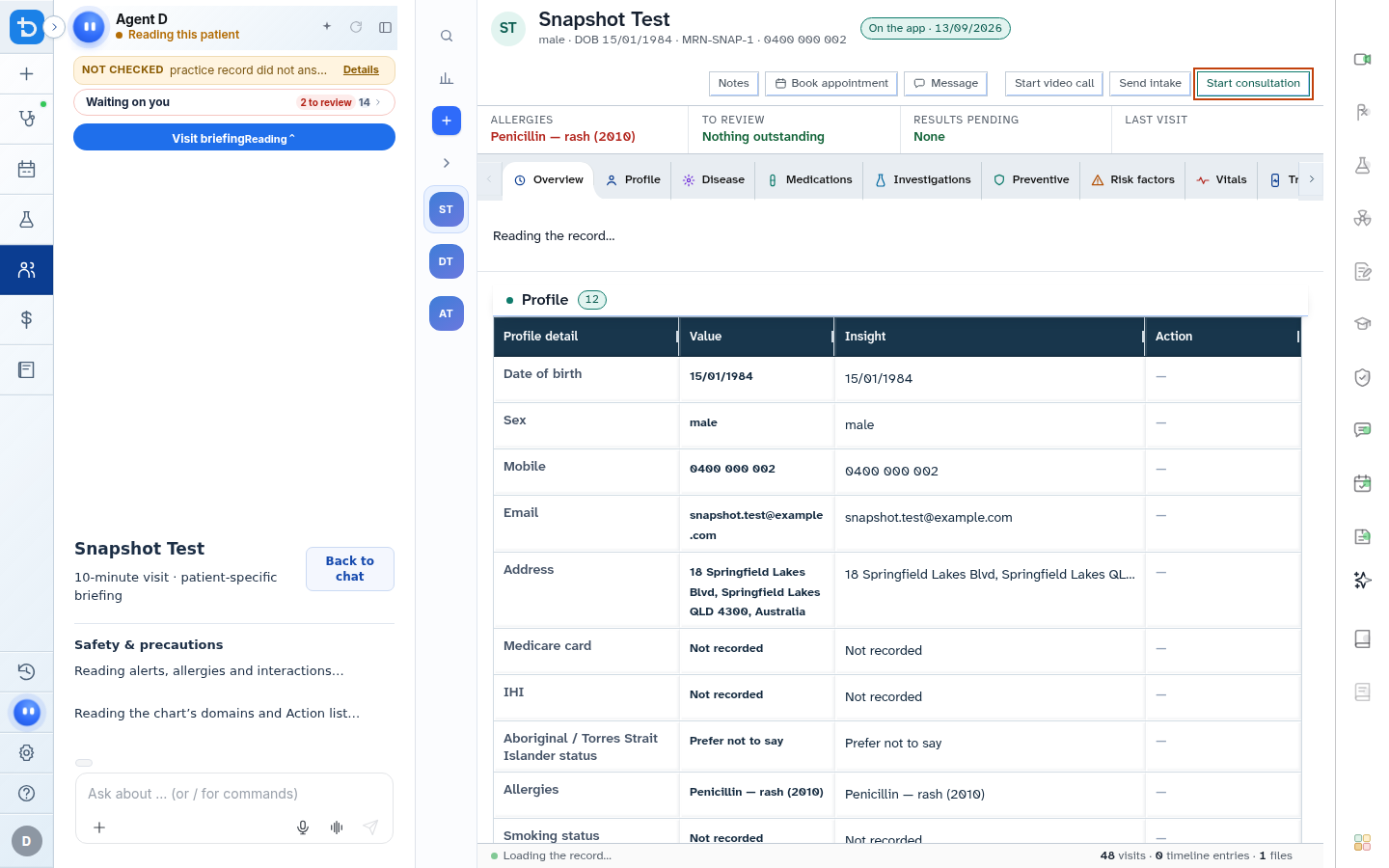
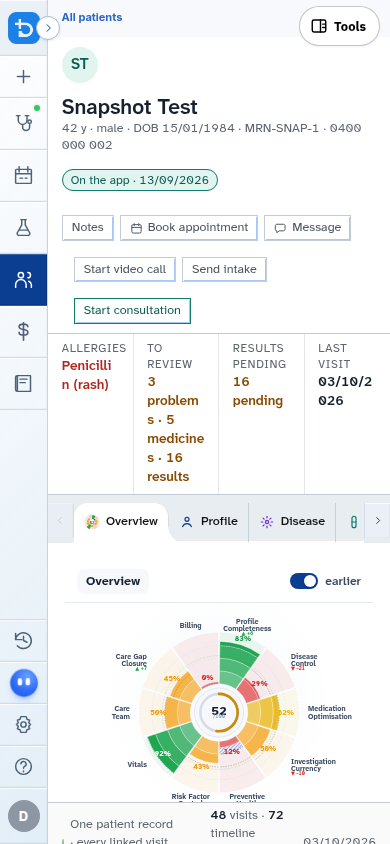
- Verify patient consent, select your microphone, and select Start scribe to begin recording.
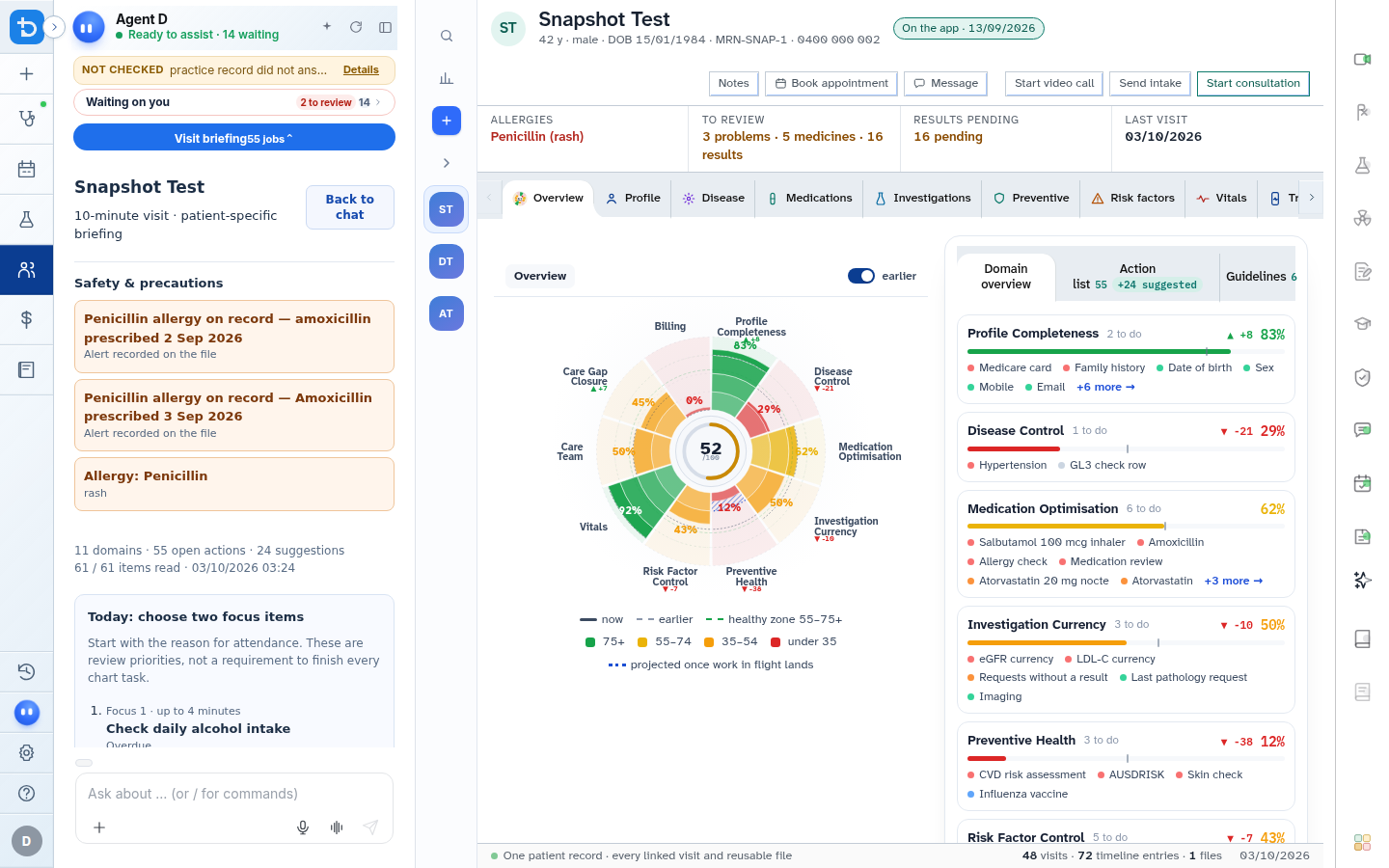
Also on this screen
- Consultation mode: Select between In room, Telehealth, or Dictate. Dictate mode is for clinician-only summaries and bypasses patient consent prompts.
- Microphone picker: Choose from connected internal or external audio input devices.
- Test mic: Live volume level meter to verify audio pickup before starting.
- Note template picker: Select clinical formats, such as standard SOAP, GP Problem-Oriented, Psychiatry, or Paediatric templates.
- Language selector: Choose consultation spoken language for accurate multilingual transcription.
- Consent verification: Mandatory confirmation checkbox confirming the patient has consented to AI scribing.
- Start scribe: Initiates secure ambient audio capture.
- End and draft note: Concludes recording and generates a structured clinical note.
- Resume scribe: Resumes audio recording to capture follow-up discussion after an initial draft.
- Regenerate note: Re-analyzes the recording transcript using an alternative note template.
- Type note toggle: Switches back to manual typing mode while preserving the recording transcript.
- Recording tab: Displays real-time audio transcription as words are spoken.
- Note tab: Displays the structured clinical note drafted by Agent D.
- Red flags tab: Highlights critical clinical safety warnings detected during the conversation.
- Saved consults tab: Lists locally cached consultation audio files and transcripts.
- Scribe timer: Displays elapsed recording duration.
- Listening status indicator: Visual badge indicating recording status, active template, and patient consent timestamp.
What Agent D can do
- Agent D converts free-flowing doctor-patient dialogue into formatted, professional medical notes.
- Agent D extracts prescribed medications, ordered tests, and follow-up intervals for fast action.
- Agent D never stores raw audio permanently after note generation, protecting patient privacy.
Safety (what needs your Confirm)
- Mandatory Patient Consent: You must obtain and document patient consent before starting ambient recording.
- Clinician Review Required: The drafted note is presented for your review. You must inspect all facts before inserting or finalising.
- Audio transcription never replaces the doctor's legal responsibility for documentation accuracy.
Common questions
Is patient audio stored permanently on the server?
No. Audio streams are processed in secure transient memory to generate transcription and are discarded immediately once notes are compiled.
What should I do if a patient declines to be recorded?
Do not tick the consent box. Select Type note to record the consultation manually using the typed note canvas.
Can I edit the drafted note before accepting it?
Yes. You can edit text directly inside the Note tab, regenerate with a different template, or transfer the draft into the main consult note for editing.
Related
Last reviewed: 03/10/2026.