Timeline views
The Timeline provides a chronological record of every patient encounter, showing past visit notes, diagnoses, and attached documents.
What it does
Timeline views allow clinicians and practice staff to review a patient encounters in either expanded or compact form. You can switch between a detailed view of every consultation, a condensed one-line summary view, or your practice day view. It also provides controls to filter out empty visits, refresh the record, and quickly jump to specific dates using the visit tick scale.
When to use it
Use Timeline views when you need to review a patient medical history before or during a consultation. The Full view helps you read notes and see what medications or investigations were ordered. The Compact view helps you scan many years of care quickly.
Step by step
- With a patient record open, select Timeline on the left navigation bar.
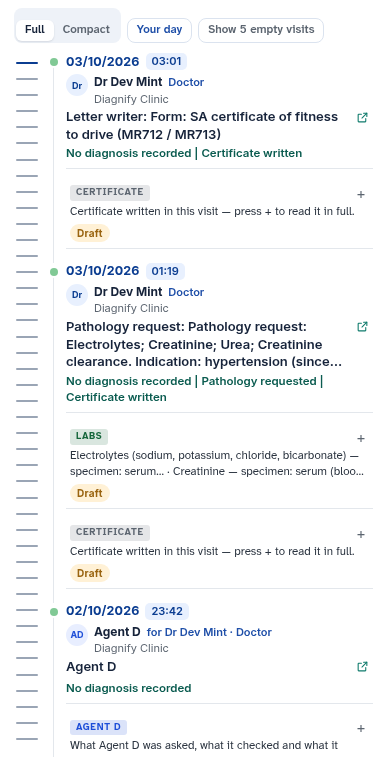
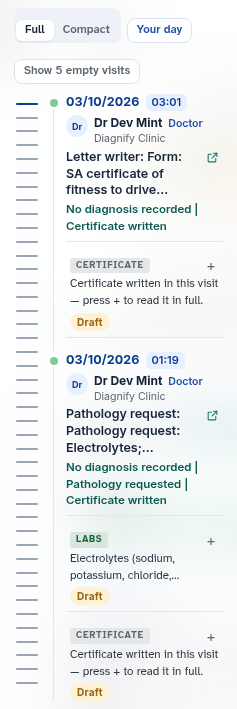
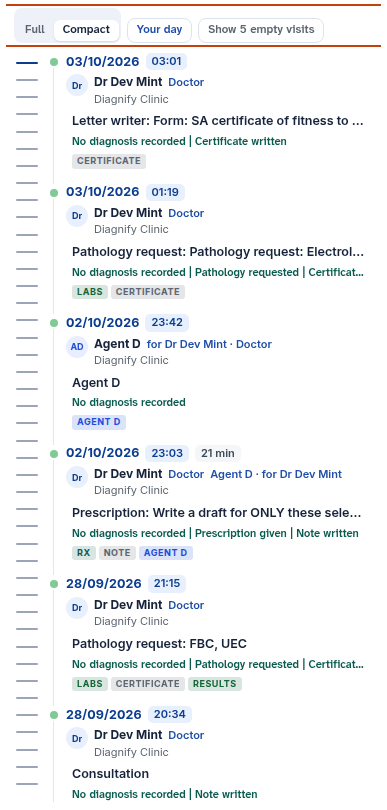
- Select Compact to condense visits into single lines, or use Show empty visits and Refresh to adjust the display.
Also on this screen
- Timeline button: Opens the visit history for the active patient.
- Full view: Expands every encounter card to show reason, diagnosis, notes, and documents.
- Compact view: Reduces each encounter to a single summary line for rapid scanning.
- Your day: Switches the rail from the patient history to your daily clinic schedule and pending jobs.
- Show or hide empty visits: Toggles whether visits without clinical notes or documents are displayed, showing an exact count of hidden items.
- Refresh: Reloads the patient record from the database to capture any recent updates.
- Collapse: Folds the timeline column to give more space to the central consultation workspace.
- Visit ticks: Vertical timeline tick marks indicating past encounter dates; clicking or dragging moves directly to that point in time.
- Reading and empty lines: Informative status indicators that show while data loads or when no past encounters exist.
- Error line: Displays clear troubleshooting details if the encounter history cannot be fetched.
What Agent D can do
- Agent D reads past encounters and summarizes clinical history across visits when asked.
- Agent D switches between the patient visit list and your clinic day list.
- Agent D cannot delete or modify past visits without explicit user instruction and confirmation.
Safety (what needs your Confirm)
- Changing timeline views, expanding notes, and refreshing the list are read-only actions that do not alter the medical record.
- Reopening a previous visit or initiating new actions from past notes creates drafts that require your explicit Confirm before saving.
Common questions
Why are some visits not visible in the list?
Empty visits that contain no notes or documents may be hidden to reduce clutter. Click the "Show empty visits" button to reveal them.
How do I quickly find an encounter from several years ago?
Drag along the vertical visit tick scale on the edge of the timeline column, or use your keyboard arrow keys to jump between encounter dates.
What happens when I click Your day?
The timeline column switches from the active patient historical encounters to your clinic day overview, showing today appointments and outstanding clinical tasks.
Related
Last reviewed: 03/10/2026.