Plugins
For staff
This page is for front-desk staff and people who manage clinic settings.
What it does
The Plugins tab lists every part of Diagnify: what is included with your practice, what you can install, what you added, and what is still coming.
When to use it
Use it to switch a part on or off for the whole practice, or to see what a part does before you turn it on.
Step by step
-
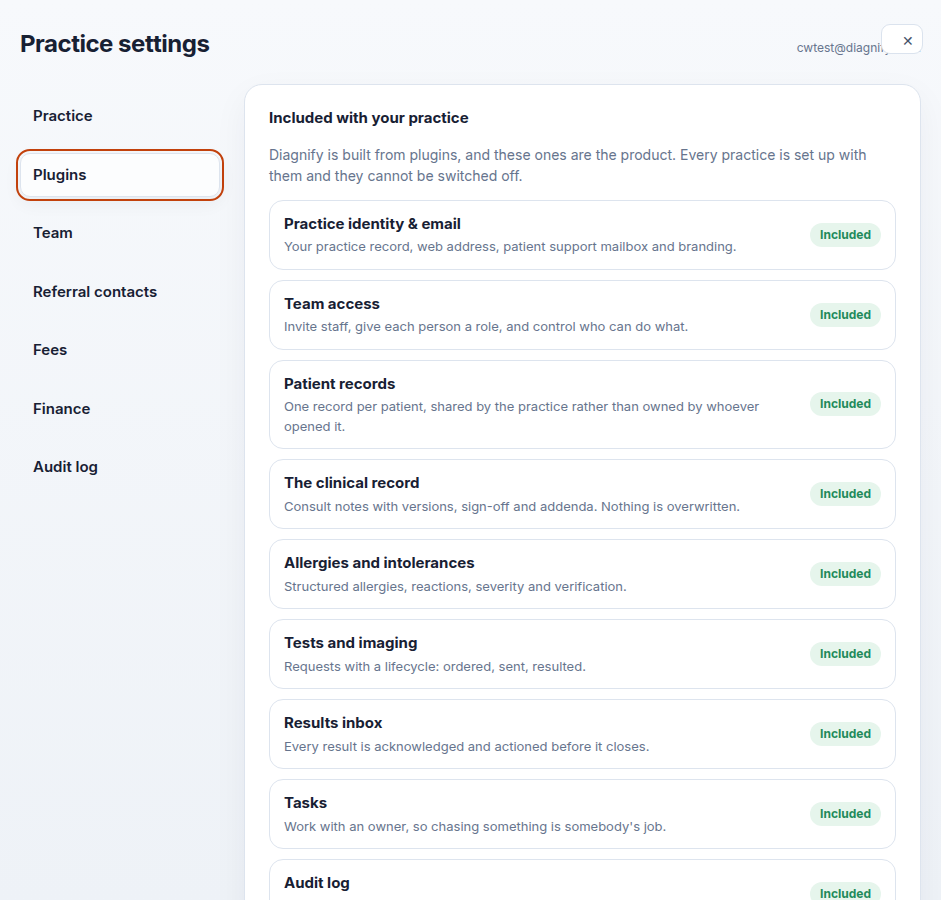
Press Plugins. Included, available and coming parts are listed. Install and Turn off sit on each row.
-
Press Install on a row to turn on a part that is available. Press Turn off on a row the practice added. Check the name before you press.
Also on this screen:
- Included with your practice parts are on for every practice and cannot be switched off.
- Turn off keeps the part's data. Turning it back on later brings the data back.
- The Coming list shows parts that are not switched on for this practice yet. Each row says why.
- A Parchment connection card, for pasting an organisation id and matching doctors, exists in the list of parts but was not a card on this screen today.
The parts on the list cover:
- Core records: team access, patient records, healthcare identifiers, consent and directives, the clinical record, allergies and intolerances, problem list, medication reconciliation, immunisations, family and social history.
- Documents: procedures and care plans, clinical templates, clinical drawings, letters, correspondence.
- Tests and referrals: tests and imaging, results inbox, referral contacts, referrals, secure messaging.
- Daily work: tasks, recalls, population health, scheduling, waiting room, patient portal, forms and e-signatures, telehealth governance, automated calls, SMS.
- Money: billing, claims, financial reconciliation, practice finance.
- Prescribing: electronic prescribing, QScript.
- Registers: Australian Immunisation Register, My Health Record.
- Practice tools: interoperability, reporting and quality, inventory and vaccines, integration marketplace, audit log, admissions, case management, workflow automation, internal communications.
What Agent D can do
/emr-pluginsopens this screen.- Agent D does not install or turn off parts. Those presses are yours.
Safety (what needs your Confirm)
- Install and Turn off change the practice for everyone. Check the row name before you press.
- Turning a part off keeps its data, but people lose the screen until it comes back on.
- Included parts have no Turn off button, so the essentials cannot be lost by accident.
Common questions
Where is the Parchment connection card? It was not a card on this screen today. It is part of the wider list.
If I turn a part off, is the data lost? No. The data stays and comes back when you install the part again.
What does the Coming list mean? Parts your practice cannot switch on yet. Each row says why.
Related
Last checked: 03/10/2026.