Letterhead and signature
Letterhead and signature settings configure how your professional identity and electronic signature appear on medical documents.
What it does
This screen allows clinicians to configure provider number display options, draw a digital signature using an interactive signature canvas, or upload a scanned image of their handwritten signature. It applies automatic image filtering to remove paper background noise and provides a live preview of the stored signature. Saved signatures are automatically stamped onto electronic prescriptions, pathology requests, radiology referrals, and specialist letters.
When to use it
Use this screen when first setting up your Diagnify account, when renewing your Medicare provider number, or when updating your digital signature image.
Step by step
- Open your profile and scroll down to the Letterhead and signature section.
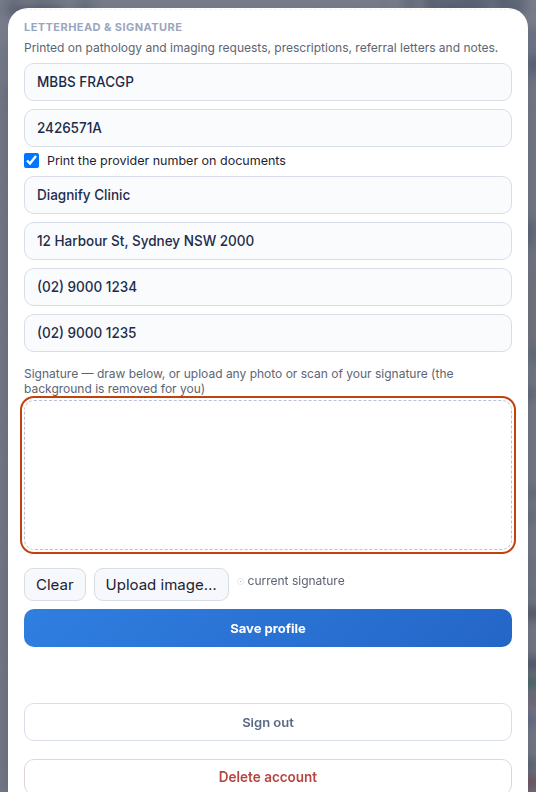
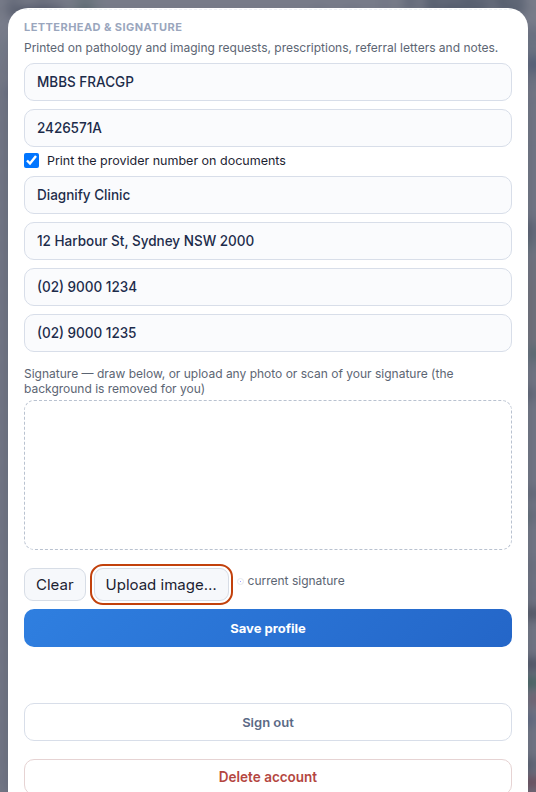
- Sign on the canvas with your mouse, finger, or stylus, or select Upload image to import a clean digital photo of your signature.
Also on this screen
- Print the provider number: Checkbox determining whether your Medicare provider number is printed on official patient referrals and requests.
- Draw a signature: Interactive drawing canvas that captures your signature using mouse, touchscreen, or digital pen input.
- Clear: Erases the drawing canvas so you can start over if a stroke is incorrect.
- Upload image: Imports an image file of your signature and processes it using Clean scan, Photo, or Strict filtering modes with adjustable sensitivity.
- Current signature: Displays the active signature stored in your account, or indicates that no signature has been registered.
- Standalone pen button: Shortcut button located on consultation toolbars allowing immediate access to signature configuration.
- Download menu path: Allows opening letterhead and signature settings directly from the download dialog of any generated document.
What Agent D can do
- Agent D reads current letterhead and signature status via
settings_profile.get_me. - Agent D drafts updates to letterhead configuration and signature images (
settings_profile.save_letterhead), presenting a Confirm card for your approval. - Agent D cannot stamp or sign clinical documents without your explicit instruction.
Safety (what needs your Confirm)
- Affixing your electronic signature to prescriptions, pathology orders, and referrals carries legal responsibility.
- A signature is only saved to your account when you select Save profile.
- Individual consultation documents and orders are never signed or transmitted automatically; each requires your explicit confirmation before issuance.
Common questions
What file formats are supported for signature upload?
You can upload standard image files including PNG, JPEG, and WEBP formats. The built-in scanner cleans up paper backgrounds automatically.
Why is my provider number missing from printed referral letters?
Make sure the "Print the provider number" checkbox is ticked in your Letterhead settings, then select Save profile.
Can I clear a signature if I make a mistake?
Yes. Click the Clear button beneath the drawing canvas to erase the drawing and sign again.
Related
Last reviewed: 03/10/2026.