Find your way around the screen
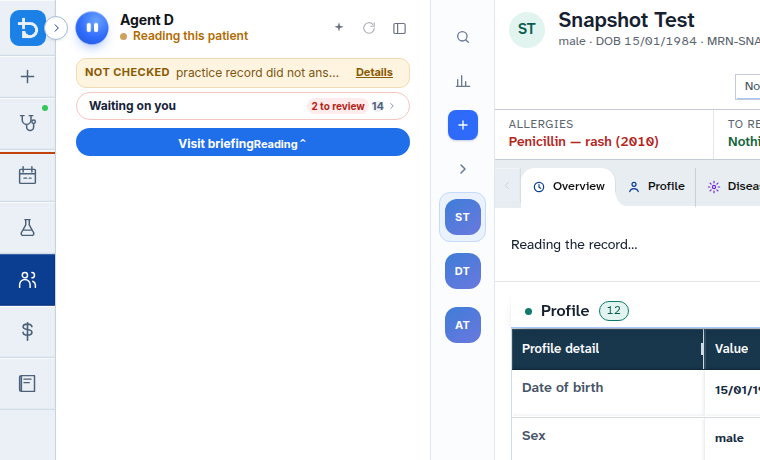
Diagnify groups clinical work into three main screen areas: navigation on the left, consultation workspace in the centre, and clinical tools with Agent D on the right.
What it does
The workspace layout gives clinicians immediate access to patient records, active consultations, diagnostic decision support, and administrative modules without navigating away from the clinical context. You can switch between modules, expand or collapse panels, and toggle display themes.
When to use it
Review this guide on your first day using Diagnify, when training new practice staff, or whenever you need to locate specific clinical or administrative tools.
Step by step
- Use the left navigation rail to move between Consult, Bookings, Results, Patients, Financials, Timeline, Settings, and Profile.
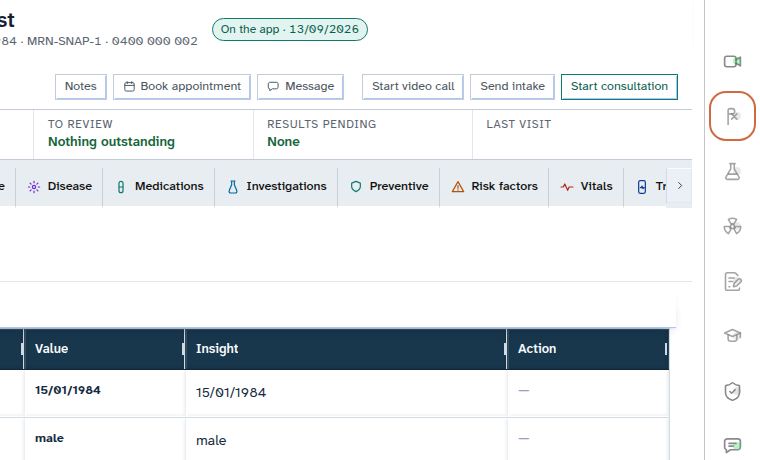
- Select any tool icon on the right tool rail to open its slide-over drawer.
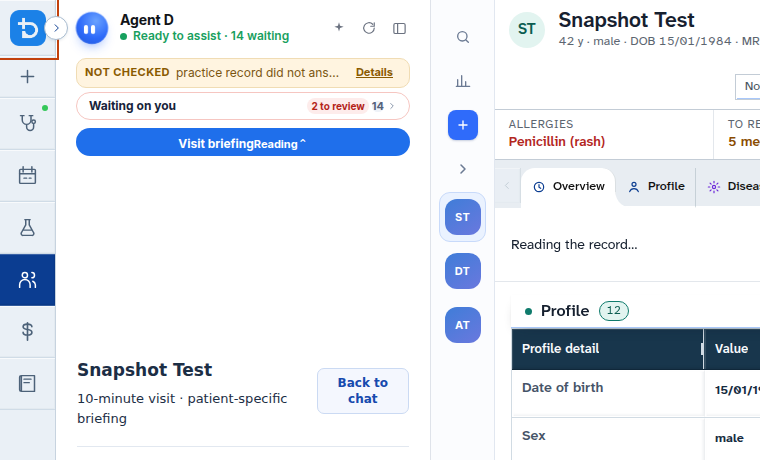
- Use the Agent D drawer on the right to review clinical suggestions, run slash commands, or ask questions.
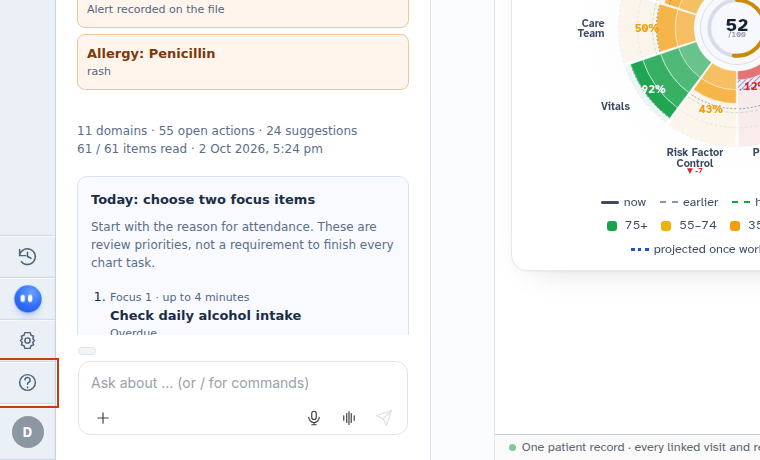
- Use the window controls in the top header to toggle between light and dark modes or collapse the side rail.
Also on this screen
- Navigation tabs: Quick-switching links on the left bar providing access to all primary practice sections.
- Right tool rail: Vertical tool buttons for Prescriptions, Pathology, Imaging, Letters, Recalls, Education, and Billing. Clicking an active tool icon closes its drawer.
- Agent D drawer: An expandable assistant panel that can be folded into a slim bar or dragged horizontally to resize columns.
- Window controls: Theme switch (light or dark mode), left sidebar collapse button, and tab drag-and-drop customisation with a Reset option.
What Agent D can do
- Agent D reads context from the open consultation note and patient banner to offer relevant clinical suggestions.
- Agent D opens right-hand tool drawers (such as Prescriptions or Pathology) directly when you run slash commands.
- Agent D cannot close consultations or submit billing without your explicit action.
Safety (what needs your Confirm)
- Navigating between workspace tabs, opening tool drawers, and resizing columns are purely visual actions that do not change patient records.
- Any clinical draft created within a tool drawer remains unfinalised until you explicitly confirm it.
Common questions
How do I maximize screen space for writing consult notes?
Click the collapse icon on the left navigation rail and drag the Agent D drawer border to the right to minimise side panels.
How do I switch to dark mode?
Click the theme toggle icon (sun or moon) in the upper window chrome to switch between light and dark display modes.
What happens if I accidentally drag navigation tabs out of order?
Click the Reset option in the navigation settings to restore the default tab layout.
Related
- Sign in and open your practice
- Check the patient and the Confirm card
- The consult screen
- Resize and fold the columns
Last reviewed: 03/10/2026.