Prescriptions
The Prescriptions drawer enables clinicians to search pharmaceutical listings, verify PBS authority rules, check drug-allergy interactions, and generate valid prescriptions.
What it does
The Prescriptions tool provides comprehensive prescribing support. You can search medicines by brand or generic name, customize directions, specify quantities and repeats, add pharmacist notes, and perform automated allergy and interaction checks. It supports electronic prescriptions (eScripts) and traditional paper formats.
When to use it
Use this drawer whenever initiating new pharmacotherapy, issuing repeat prescriptions, adjusting dosages, or reviewing active medications.
Step by step
- Select Prescriptions on the right tool rail, or type
/scriptin the Ask Agent D box.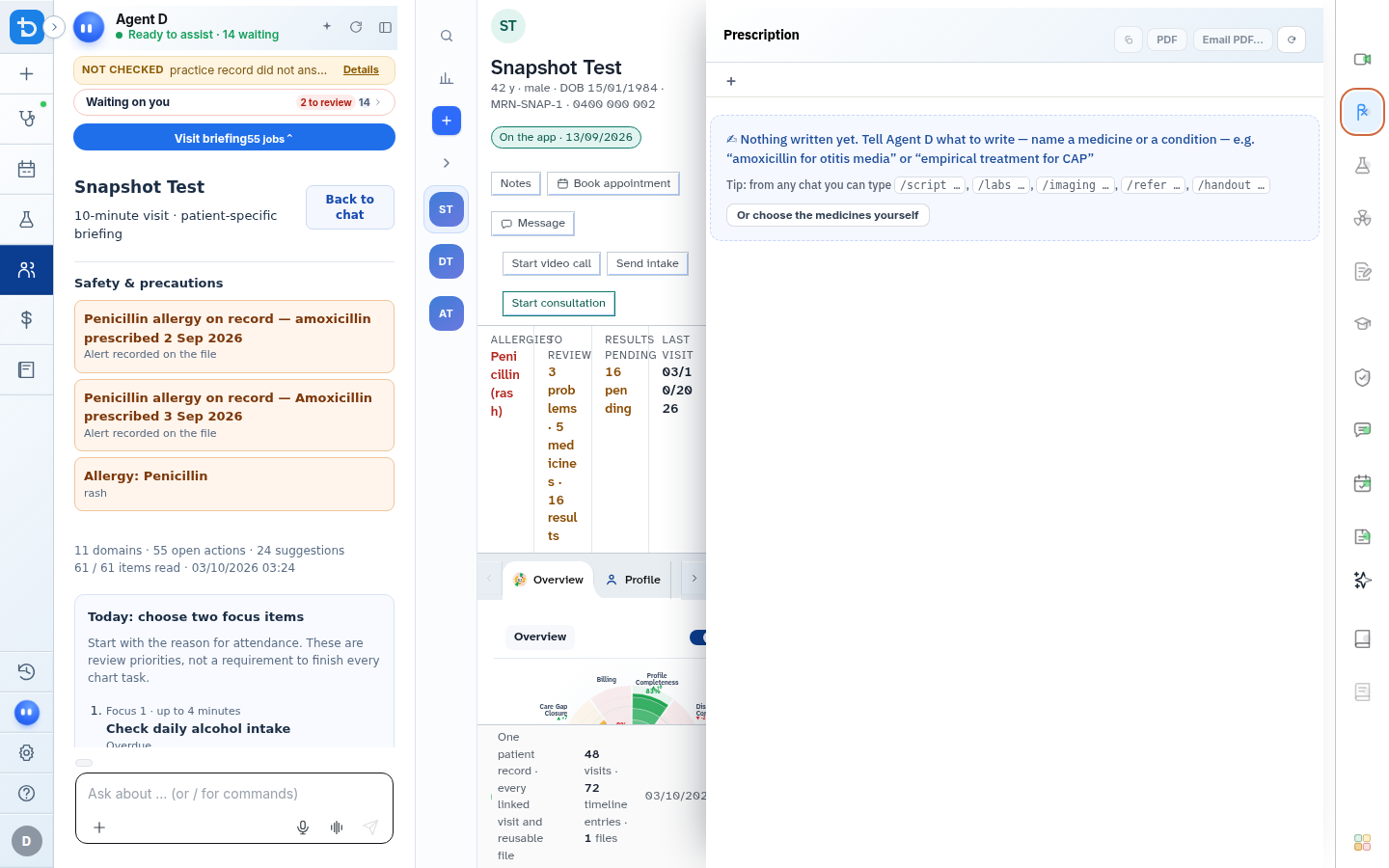
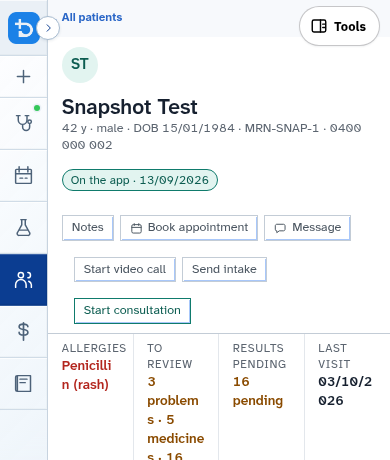
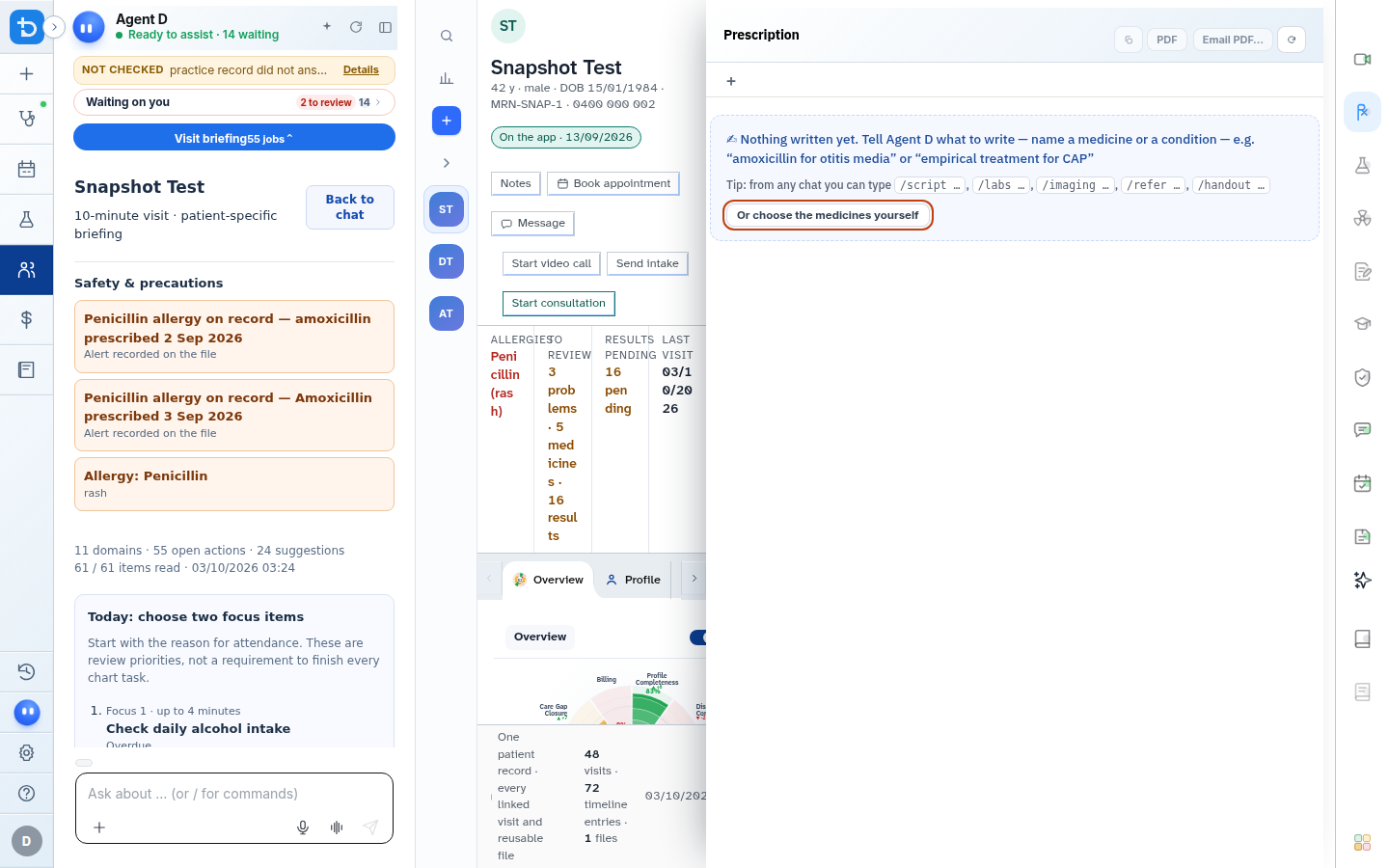
- Search for a medicine, configure directions, quantity, and repeats, and review safety alerts.
Also on this screen
- Formulary search: Fast lookups matching brand names, generic substances, formulations, and strengths.
- Prescription fields: Dosage, frequency, administration instructions, quantity, repeats, and private vs PBS markers.
- Allergy contraindication stop: Automatically halts prescribing if a selected medicine matches a recorded patient allergy until a clinical override reason is entered.
- Allergy management dialog: Quickly add, edit, or retract coded patient allergies directly from the prescription banner.
- Remove a medicine: Removes a drug from the current drafting list with one click.
- Write the script: Compiles the draft prescription and stages it on a Confirm card.
- Script table: High-density summary table showing all medications prescribed during the current encounter.
- eScript drawer: Dedicated panel for generating electronic prescriptions tokenized via Australian prescription delivery services.
- Open in new tab (eScript): Launches the electronic prescription portal in an isolated browser tab.
- Pharmacist instructions: Dedicated field for confidential or compounding instructions directed to the dispensing pharmacist.
What Agent D can do
- Agent D checks dosage calculations against patient age, weight, and renal function parameters.
- Agent D cross-references active medications to flag potential adverse drug interactions.
- Agent D prepares prescription drafts but cannot sign, issue, or transmit an eScript without your explicit confirmation.
Safety (what needs your Confirm)
- Mandatory Clinician Signature: Every prescription requires your explicit review and signature.
- Allergy Overrides: If a clinical override is necessary (e.g., verifying a historical reaction was not an IgE-mediated allergy), you must enter a written justification.
- Prescriptions are never transmitted to pharmacies or national repositories automatically.
Common questions
How do I prescribe a medicine under the PBS?
Search for the generic or brand name. If the medicine is PBS-subsidized, PBS indication criteria and authority requirement prompts appear automatically.
What happens if the patient has a recorded allergy to the medication?
Diagnify displays an unmissable red allergy banner. You cannot proceed to sign the prescription without either selecting an alternative or recording a formal override reason.
Can I issue an electronic prescription directly to the patient phone?
Yes. When eScript is selected, the patient verified mobile number receives an SMS token upon signing.
Related
Last reviewed: 03/10/2026.