New booking
What it does
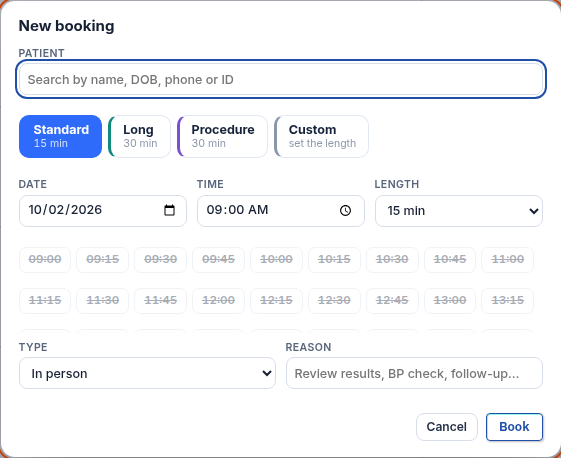
New booking opens a card with everything one appointment needs: who is coming, how long, when, what kind of visit, and why.
When to use it
Use it when a patient asks for a time, or when you click an empty slot in the diary.
Step by step
-
On Practice day, press + New appointment. On the other diary views, press + New booking.
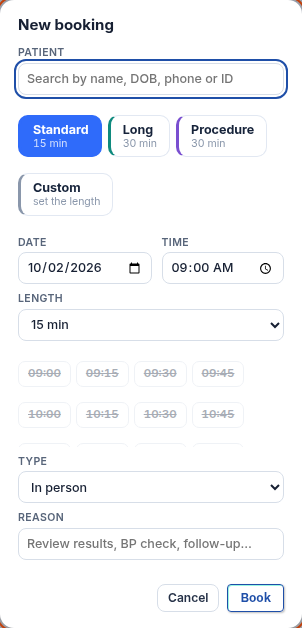
On a phone:
-
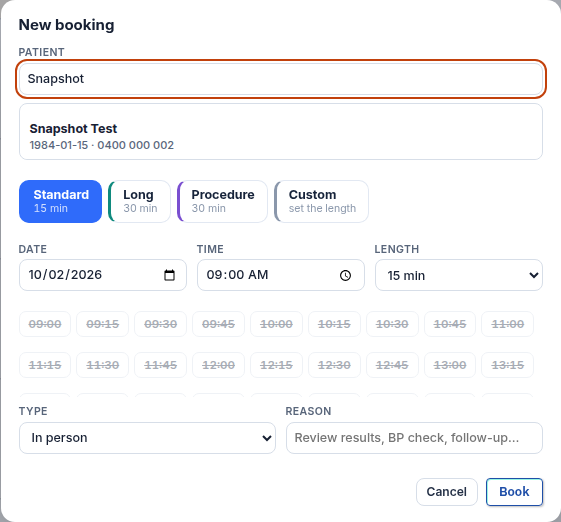
Type the patient's name in the patient box. We use Snapshot Test. Pick the person from the list.
-
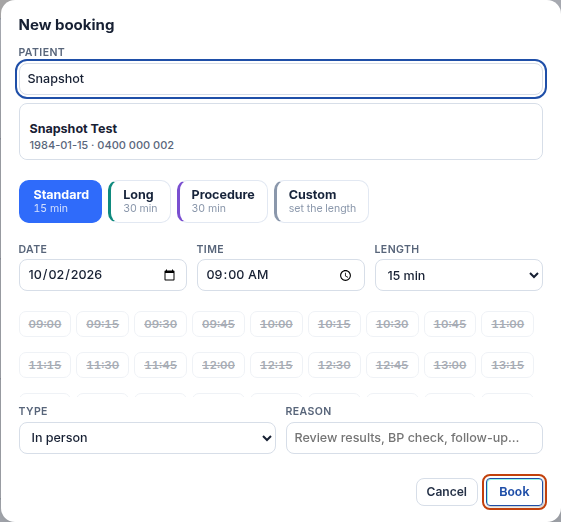
Check the length, date, time, type and reason. Press Book only when the card is right.
Also on this screen:
- Visit length: Standard 15 min, Long 30, Procedure 30, or Custom with your own length.
- Type: in person, telehealth, phone or nurse. Free slots are offered for the time you pick.
- If the name matches nobody, Add a new patient appears. It asks for name, date of birth, sex, mobile and address.
- You can search for a patient by name, date of birth, phone or ID.
What Agent D can do
- Search for the patient by name, date of birth, phone or ID.
- List the free slots that fit the visit.
- Add a quick patient record, or save the booking — both only after your Confirm. A time that overlaps a booking or a block is refused.
Safety (what needs your Confirm)
- Book is yours to press. A half-filled card books nothing.
- Agent D never saves a booking without your Confirm.
- The text that invites a new patient to the app is sent by you, never by Agent D.
Common questions
The patient is not on file. What now? Choose Add a new patient and fill in name, date of birth, sex, mobile and address.
Can Agent D book for me? It can fill the card and suggest slots. You press Confirm, and the booking only saves then.
The time I want is taken. Why? Times that overlap a booking or a block are refused.
Related
Last checked: 03/10/2026.