Header actions
Header actions provide quick-access controls for patient communication, appointment scheduling, video consultations, and encounter initiation.
What it does
Situated on the right side of the patient header banner, these action buttons allow clinicians and staff to execute key tasks without navigating away from the chart: - Book appointment: Launches the scheduling drawer pre-filled for the active patient. - Message: Drafts secure SMS, mobile app, or email messages. - Invite to app: Texts a one-time registration link to the patient mobile number. - Start video call: Initiates an encrypted telehealth video call directly to the patient app. - Send intake: Sends pre-consultation medical questionnaires. - Start consultation: Opens an active consultation note and visit timer. - Recall and booking: Manages recall intervals and follow-up booking. - Letter writer: Opens the clinical correspondence drawer on wide displays.
When to use it
Use header actions during or between consultations to schedule follow-ups, dispatch quick SMS notifications, start telehealth visits, or open a new consultation.
Step by step
- On the active patient record (such as Snapshot Test), review the action buttons on the right side of the header.
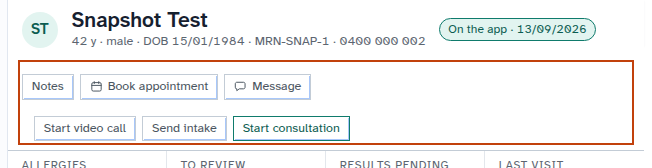
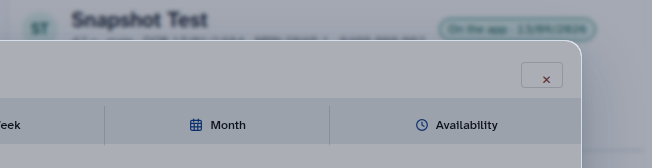
- Select Book appointment to open the scheduling drawer for this patient.
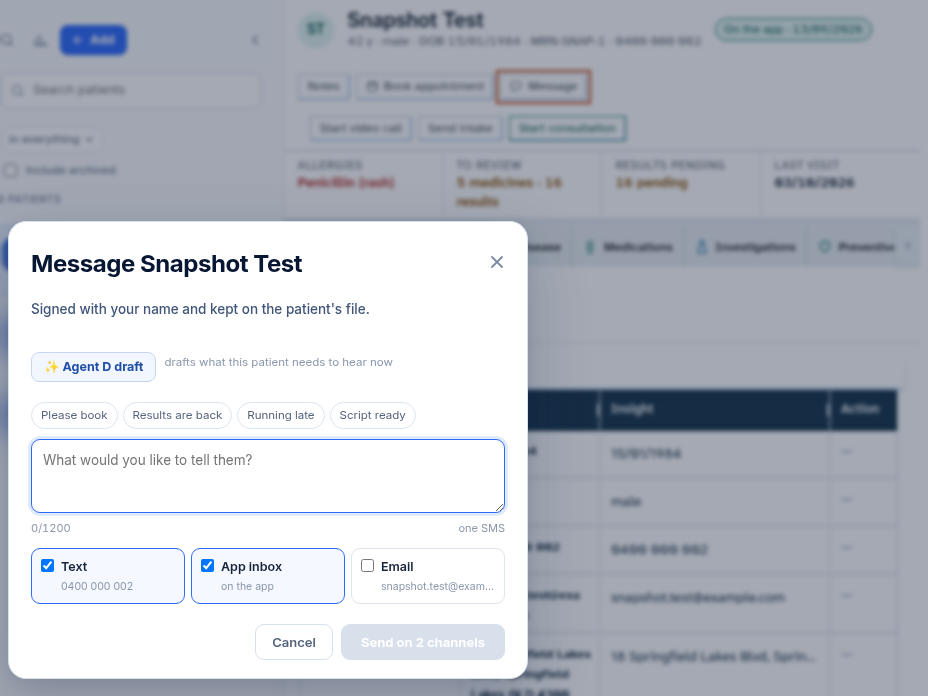
- Select Message to open the draft communication card.
Also on this screen
- Book appointment: Opens the appointment booking workflow for the active patient; requires confirmation before saving.
- Message: Opens a draft messaging card with support for SMS, email, and patient app delivery channels.
- Invite to app: Appears when the patient is not yet connected to the app, allowing quick dispatch of an invitation link.
- Start video call: Launches an integrated telehealth consultation session with video and audio controls.
- Send intake: Dispatches clinical questionnaires (such as intake forms or risk screeners) to the patient.
- Start consultation: Begins an official consultation encounter, activating the clinical note editor and consultation timer.
- Recall and booking: Opens the recall management drawer to schedule future follow-up intervals.
- Letter writer from Patients screen: Opens the correspondence tool directly beside the record on wide screens.
What Agent D can do
- Agent D drafts signed patient messages via
patients.send_message. - Agent D drafts app invitation text messages using
patients.text_app_invite. - Agent D constructs purpose-specific SMS notifications (
patients.text_purpose) such as appointment confirmations or recall notices. - Agent D cannot dispatch SMS messages or book appointments without your explicit confirmation.
Safety (what needs your Confirm)
- Selecting Message or Book appointment opens a draft card; no message is sent and no appointment is scheduled until you confirm.
- Routine text messages adhere to Australian telecommunications messaging hours (08:00 to 20:00 weekdays, 09:00 to 17:00 Saturdays). Urgent recall notifications are exempt from hourly restrictions.
Common questions
Can I choose whether a message goes by SMS or app notification?
Yes. In the Message composer, you can toggle between SMS, patient app inbox, and email channels.
What happens when I click Start video call?
Diagnify establishes an encrypted WebRTC video room and rings the patient Diagnify mobile app. The video window sits neatly alongside your clinical notes.
How do I start a consultation without booking an appointment?
Click the "Start consultation" button in the header toolbar to immediately open today progress note.
Related
Last reviewed: 03/10/2026.