Results inbox
The Results inbox displays incoming pathology and radiology investigation reports awaiting clinical review.
What it does
The inbox presents a table of incoming diagnostic reports received through electronic messaging networks. Clinicians can filter reports by priority (All, Critical, Abnormal, Normal), search by patient name or test description, and filter by ordering practitioner or diagnostic status. You can toggle AI clinical insight readings on or off, hover over results to view historical trends, and select multiple items for batch triage.
When to use it
Use the Results inbox daily to review new lab feeds, give priority to urgent or critical findings, and ensure all diagnostic tests ordered by your clinic receive prompt clinical attention.
Step by step
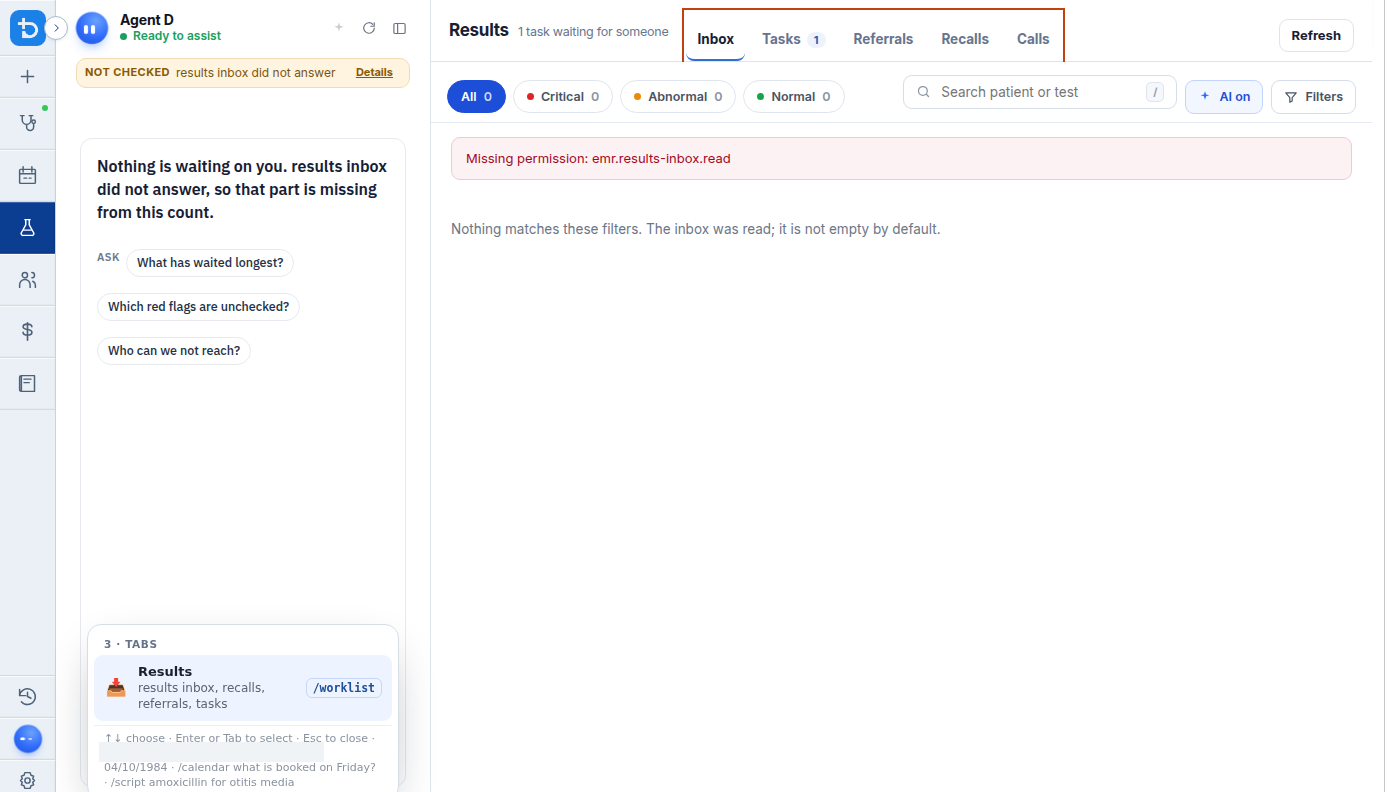
- Open Results from the left bar; the Inbox tab opens by default.
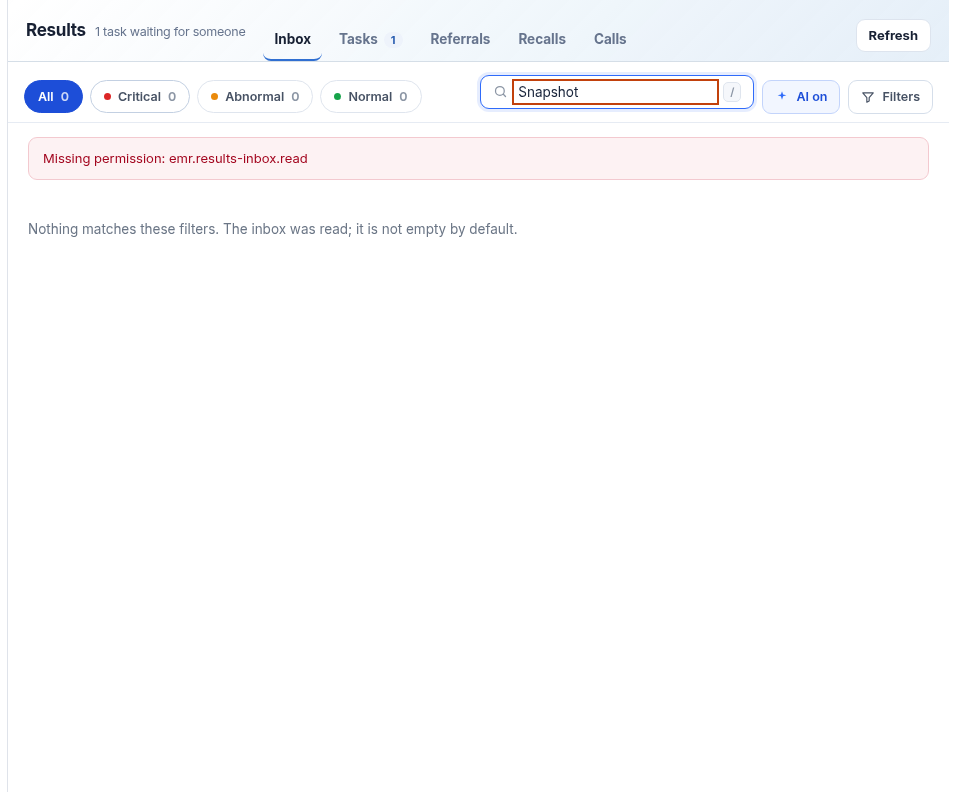
- Type a patient surname or test name into the search box to filter matching reports.
Also on this screen
- Inbox tab: Main navigation tab displaying incoming pathology and radiology reports.
- Priority chips: Quick filter chips allowing you to isolate All, Critical, Abnormal, or Normal findings.
- Search: Interactive search field that filters results in real time by patient identity or test code.
- AI on / off: Toggle switch enabling or disabling AI clinical insight summaries alongside open reports.
- Filters: Dropdown options allowing filtering by report status, investigation type, and treating doctor.
- Results table: Primary data grid listing patient name, test description, numerical findings, status, insights, and collection date (DD/MM/YYYY).
- Tick results: Multi-select checkboxes that allow applying bulk triage actions across several reports at once.
- Hover card: Hovering over a result row for half a second displays a pop-up showing prior numerical values for that test.
- CC and unmatched marks: Indicators showing whether your clinic was copied on the result, or if the report requires manual matching to a patient chart.
- Results inbox panel: Full-screen table container providing complete column visibility.
- Refresh inside Filters: Secondary refresh button located within the advanced filter popover.
- Lab Results Inbox title: Section heading with integrated close icon for easy dismissal.
What Agent D can do
- Agent D reads inbox listings with totals and filter counts via
worklist.inbox_list_items. - Agent D maps sidecar inbox records to the main patient chart with
worklist.inbox_chart_idandworklist.list_patient_bindings. - Agent D fetches cumulative historical results for the same patient using
worklist.inbox_patient_history. - Agent D generates clinical readings and guideline comparisons for open reports (
worklist.inbox_insight). - Agent D cannot clear or file reports without explicit clinician review.
Safety (what needs your Confirm)
- Critical or abnormal results are flagged prominently, but clinical triage decisions remain the responsibility of the reviewing doctor.
- Ticking results and selecting an action stages the triage decision; nothing is finalised until you confirm.
Common questions
What does the "Unmatched" mark mean on a result row?
An unmatched mark means the patient identifiers in the electronic lab message did not match an existing record with sufficient certainty. You can manually assign the result or use Agent D automated matching flow.
Can I turn off AI insights if I prefer to read raw lab reports only?
Yes. Click the "AI on / off" toggle above the table to switch off automated clinical interpretations.
How do I view earlier lab results for the same patient?
Hover your mouse over the result value to view a hover card of earlier readings, or click the row to open the full cumulative report with range charts.
Related
Last reviewed: 03/10/2026.