Patient banner
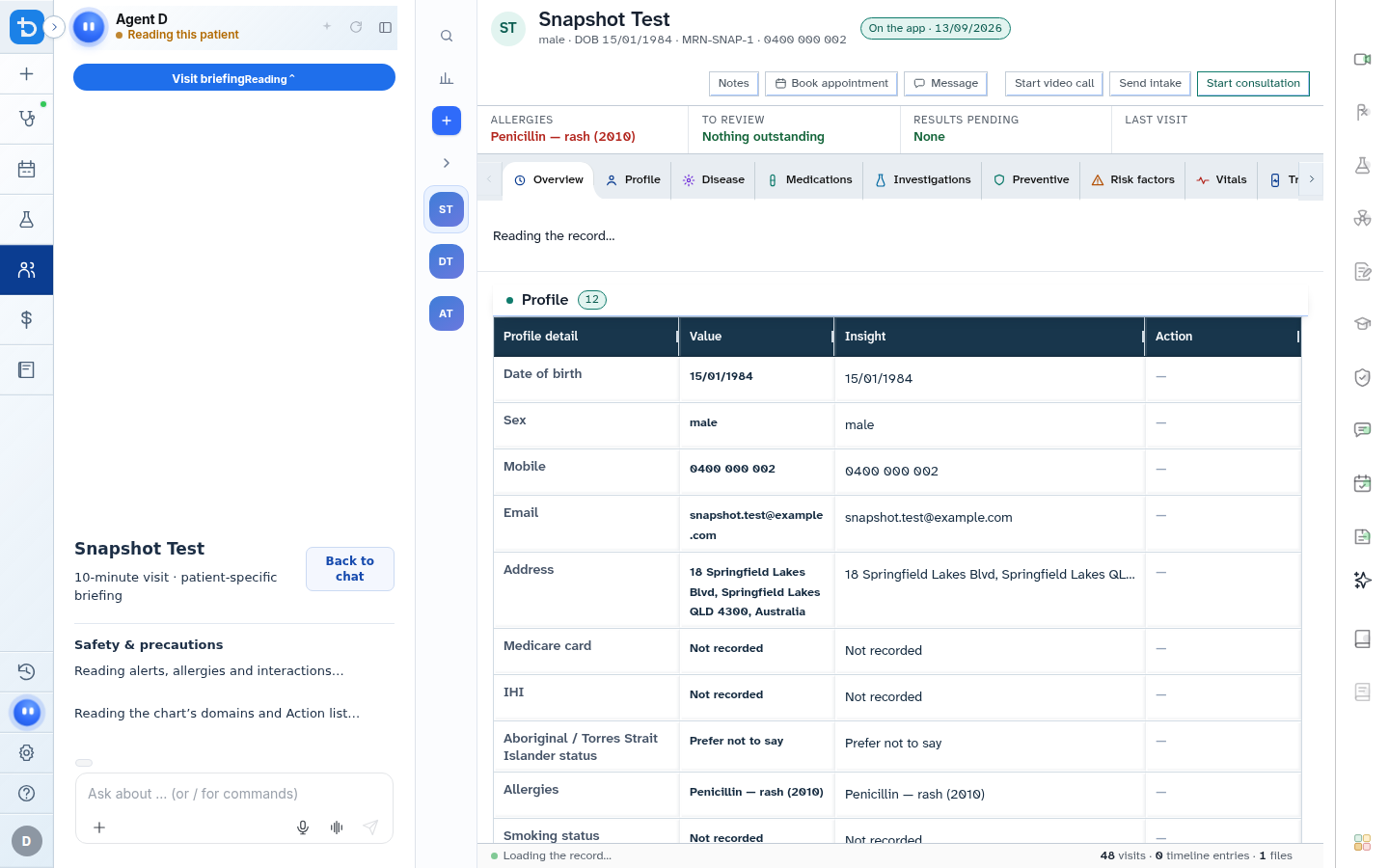
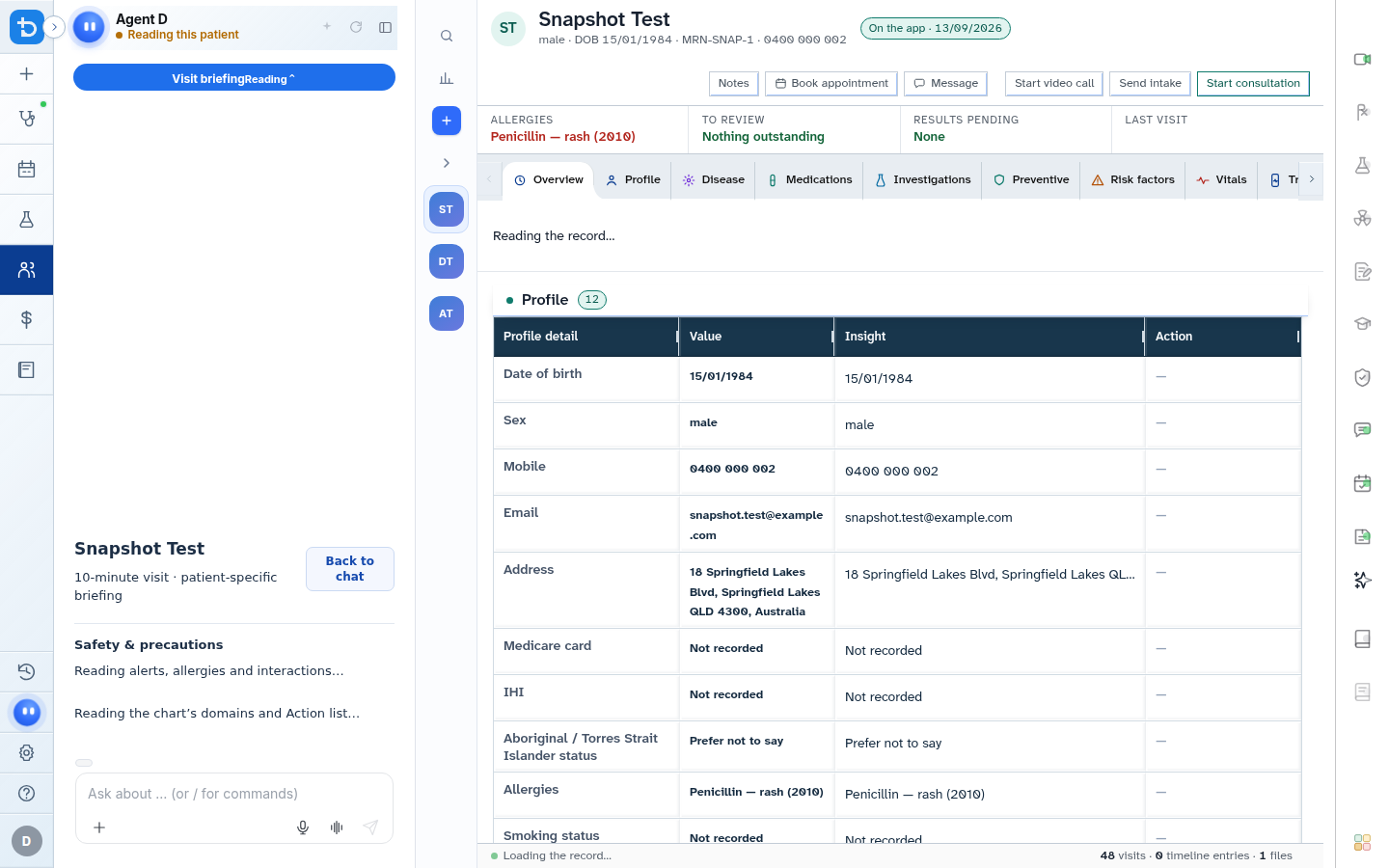
The patient banner remains anchored at the top of the consultation screen, displaying verified patient identity details and Medicare status.
What it does
The patient banner ensures continuous three-point patient identification. It displays the patient full name, date of birth, age, sex, phone number, address, and Medicare card number. It also features integrated Online Patient Verification (OPV) alerts and flags for overseas visitors or card number updates.
When to use it
Verify the patient banner at the beginning of every encounter and before signing prescriptions, printing referrals, or submitting Medicare claims.
Step by step
- Inspect the patient banner at the top of the consultation workspace.
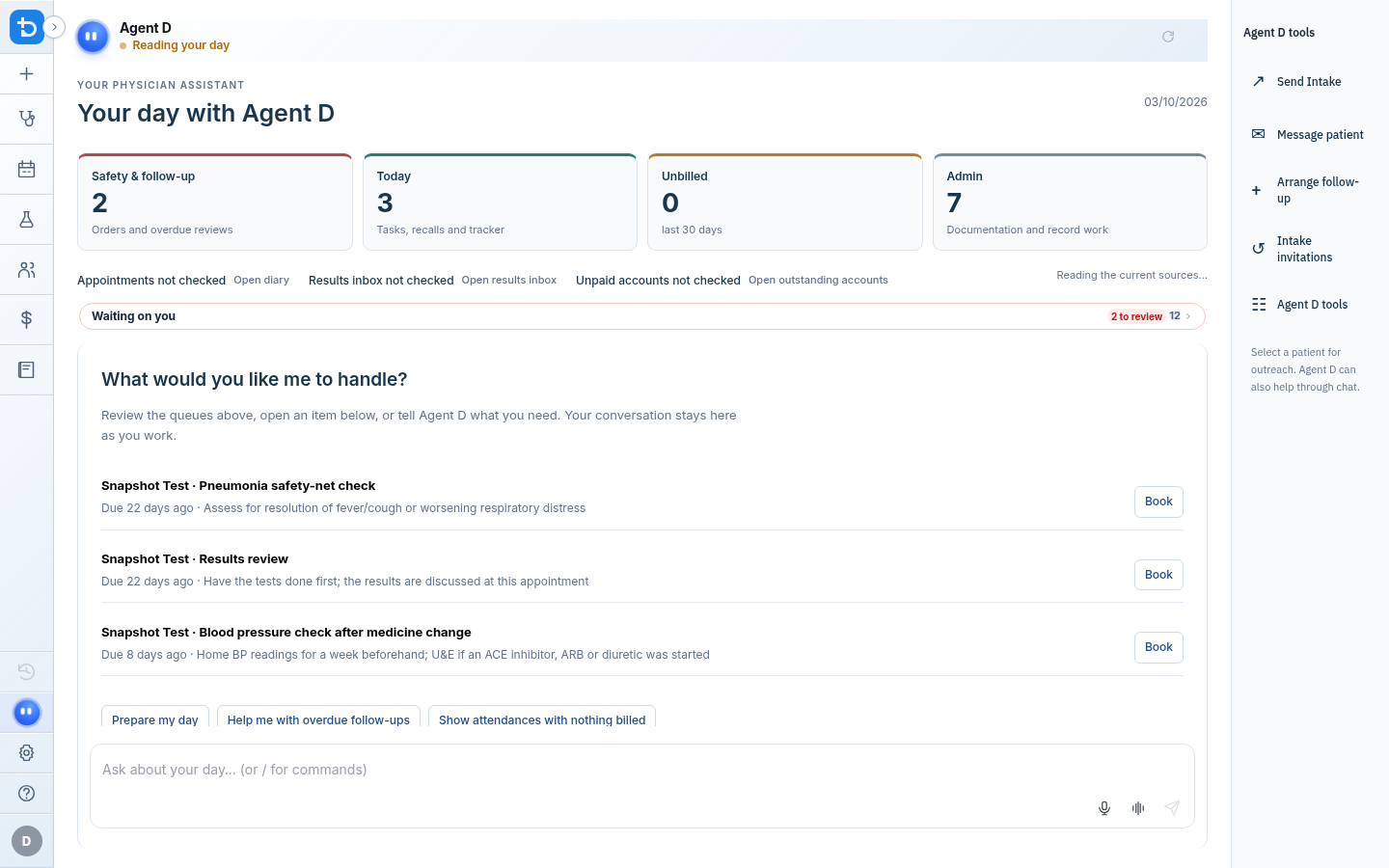
- Review the verified patient name, date of birth, age, and contact phone number.
- Check Medicare OPV status badges and notification alerts.
Also on this screen
- Three-point identification: Name, date of birth, and Medicare identifier displayed prominently to avoid wrong-chart errors.
- OPV card number update: If Medicare returns a newly issued individual reference number (IRN) or card number, an update button lets you save it with one click.
- OPV overseas visitor notification: Highlights reciprocal healthcare agreements or private billing requirements for overseas visitors.
- Allergy and alert indicators: Color-coded badges indicating recorded drug allergies and safety alerts.
- Decade date-of-birth selector: Quick-scroll tool for jumping dates of birth by ten-year intervals during record editing.
What Agent D can do
- Agent D checks the patient age, sex, and allergy badges in the banner when reviewing clinical proposals.
- Agent D alerts you if a drafted medication conflicts with an allergy shown in the patient banner.
- Agent D cannot modify patient demographic details or Medicare numbers autonomously.
Safety (what needs your Confirm)
- Updating a Medicare card number from an OPV alert requires your explicit click.
- Always cross-reference the patient in the consulting chair with the banner before confirming clinical orders.
Common questions
What does a yellow OPV badge indicate?
A yellow OPV badge indicates that Medicare details could not be verified automatically, or that a new card number has been reported by Services Australia.
How do I update an expired Medicare card?
Click the Use new card number? prompt directly inside the banner to update the patient record and re-verify immediately.
Can I click the patient name to view their full demographics?
Yes. Clicking the patient name in the banner opens the patient demographic card and registration details.
Related
Last reviewed: 03/10/2026.