Weekly hours and blocks
What it does
Availability sets the days and hours patients can book with you. Blocks shut out leave, training or a half day so nothing new lands there.
When to use it
Set your weekly hours once, then change them when your week changes. Add a block for leave or meetings.
Step by step
-
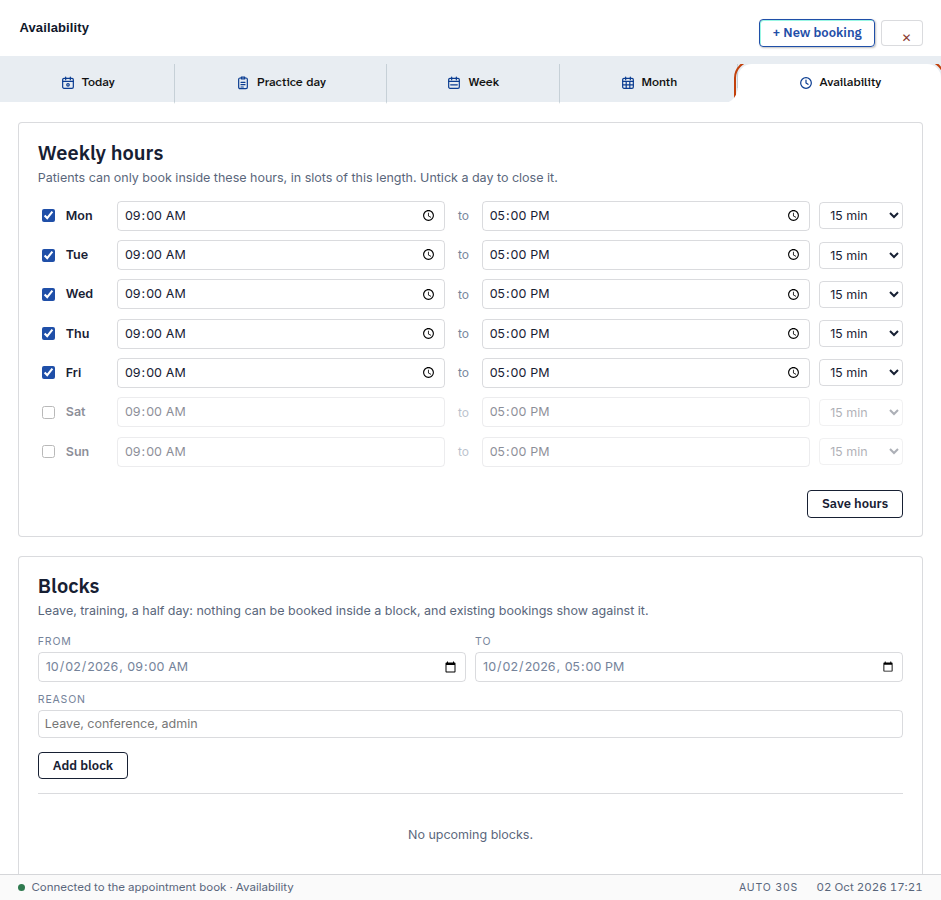
Press Availability. Your weekly hours are listed. Patients can only book inside the hours you tick.
-
Tick a day and set its hours, or fill a block's From, To and Reason. Save hours and Add block are yours to press.
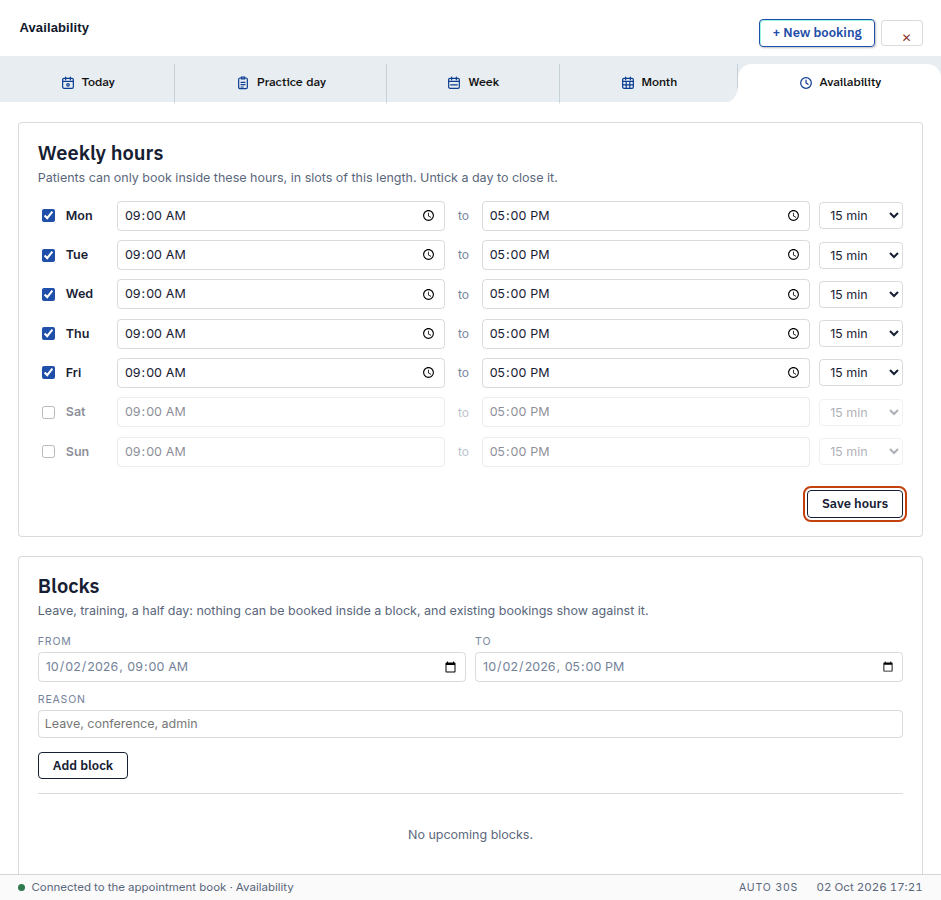
Also on this screen:
- Slot length here sets how long each bookable slot is.
What Agent D can do
- Save your weekly hours after your Confirm.
- Add a block, such as leave or a meeting, after your Confirm.
- Agent D cannot delete blocks. That tool is blocked.
Safety (what needs your Confirm)
- Saving hours or a block writes to the diary straight away, so check the days and times before you press.
- Deleting a block is done by you on this screen. Agent D will not do it.
Common questions
Why can't patients book on Tuesday? The Tuesday hours are not ticked, or a block covers them.
Should I use a block or shorter hours? Use shorter hours for a steady change to your week. Use a block for one-off leave or a meeting.
What happens to booked visits when I add a block? Bookings already made stay on the diary. The block only stops new bookings.
Related
Last checked: 03/10/2026.