Run a report
What it does
Every money report works the same way: pick it, set the dates, run it, then preview, print or export the rows.
When to use it
Use it for end-of-day banking, month-end checks, or any question about what was billed and paid.
Step by step
-
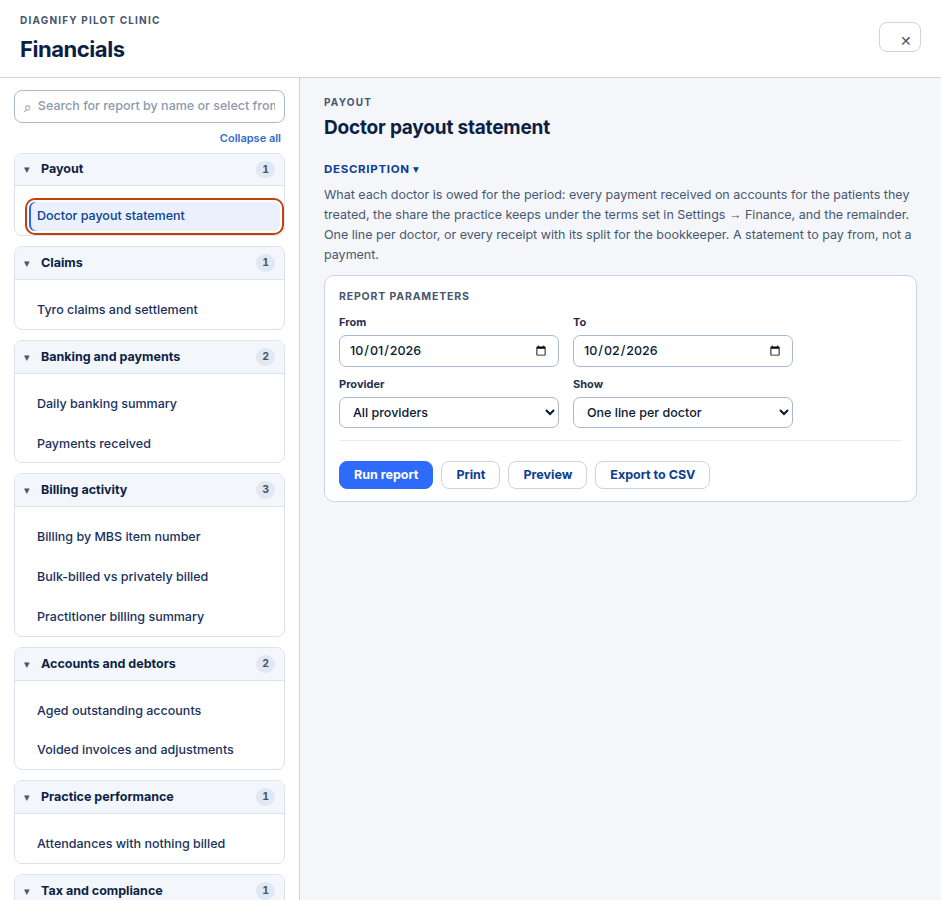
Press a report name. The title, a plain-language description and the date boxes appear on the right.
-
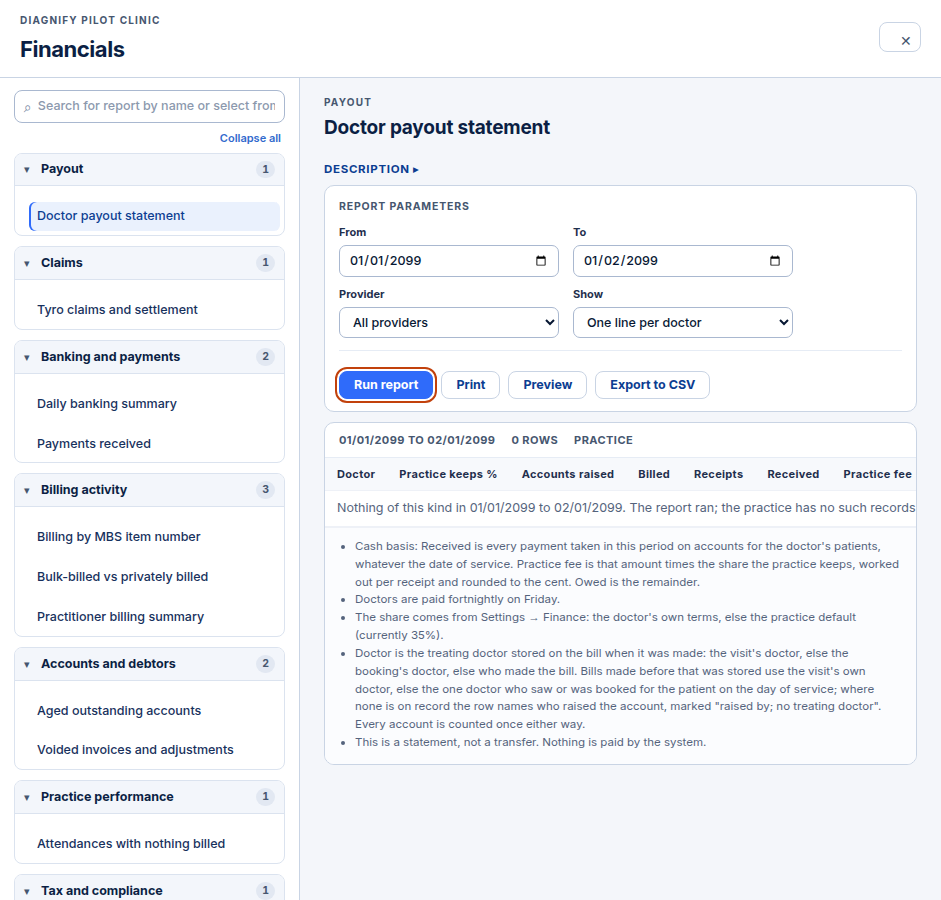
Set the dates and press Run report. A period with nothing in it says so — the guide example uses 01/01/2099 so no patient rows show.
-
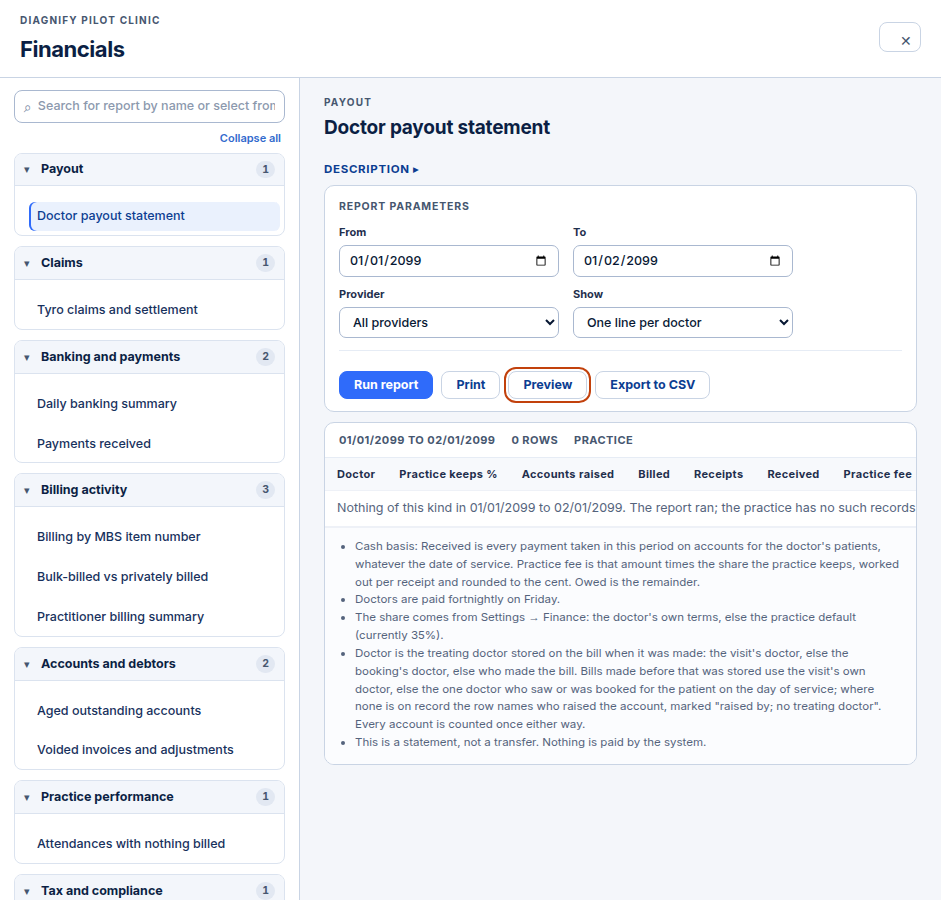
Press Preview, Print or Export to CSV when you want a copy.
Also on this screen:
- The description fold shows or hides the plain-language description of the report.
- Some reports have an extra filter of their own, beside the From and To dates.
- Notes under the table explain how to read the numbers.
- Subheadings fold and expand, so long reports are easier to browse.
- When a period has no rows, the report says it ran and there is nothing of that kind.
What Agent D can do
- List the reports you can run.
- Run a report for a period or as-at date and read the table back to you.
- Export a report as a CSV file — the same run, delivered as a file.
Safety (what needs your Confirm)
- Running a report changes nothing. It only reads.
- Print and Export to CSV take patient and money data out of Diagnify. Take care where they go.
Common questions
Why does my report show nothing? The period has no rows of that kind. Try a wider date range.
What is the difference between Preview and Print? Preview opens the printable page on screen. Print sends it to your printer.
What is in the CSV file? The same rows as the report on screen, as a spreadsheet file that opens in Excel or Numbers.
Related
Last checked: 03/10/2026.