Guideline screen
The Guideline screen allows doctors to generate structured evidence-based treatment plans for medical conditions.
What it does
This screen provides access to the clinical treatment engine. You can enter any medical condition or select an example condition to generate a structured fourteen-section management plan. It displays previous runs on the left panel so you can revisit past protocols, and it allows you to choose between different clinical writing styles when available.
When to use it
Use the Guideline screen when you need clinical management recommendations for an acute presentation, when reviewing management protocols for complex presentations, or when refreshing your approach to condition monitoring and drug tapering schedules.
Step by step
- Select Guideline on the left navigation bar.
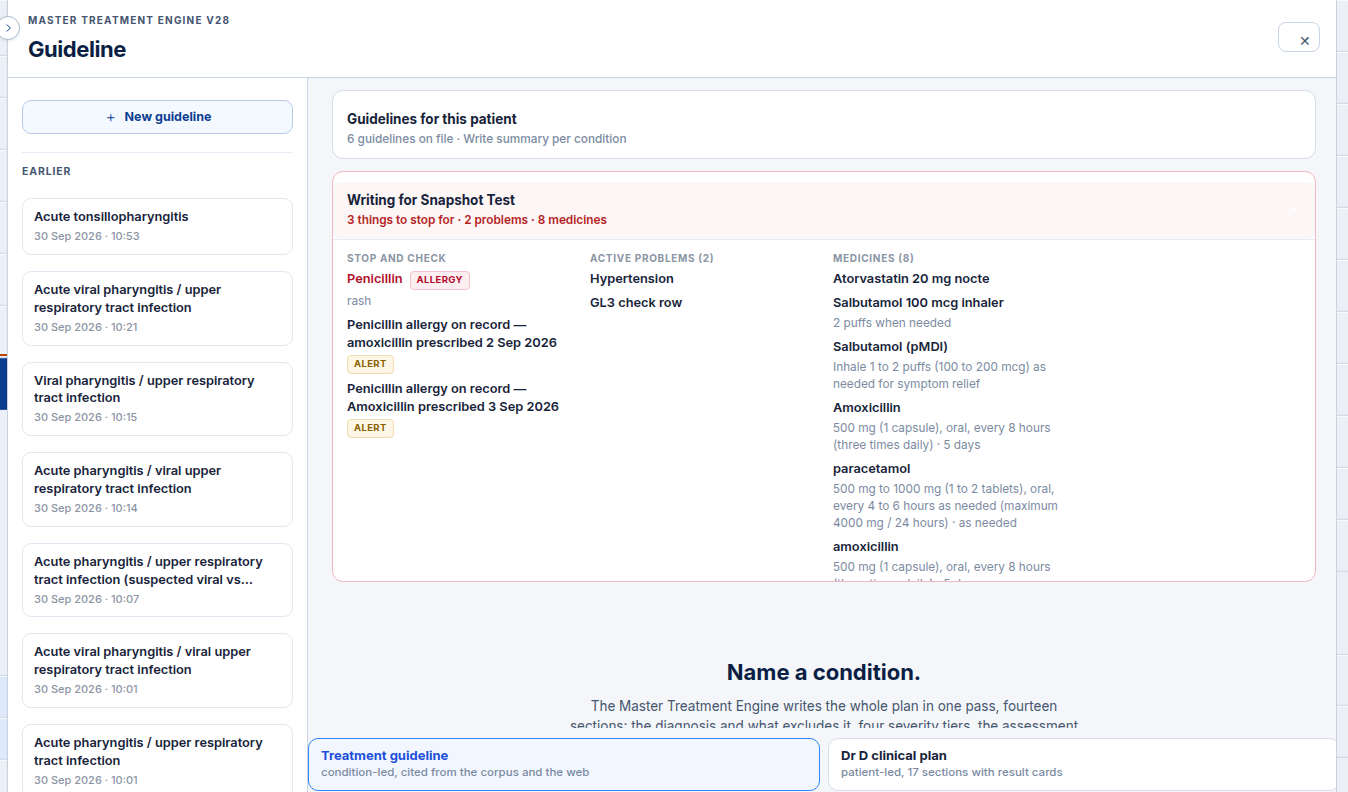
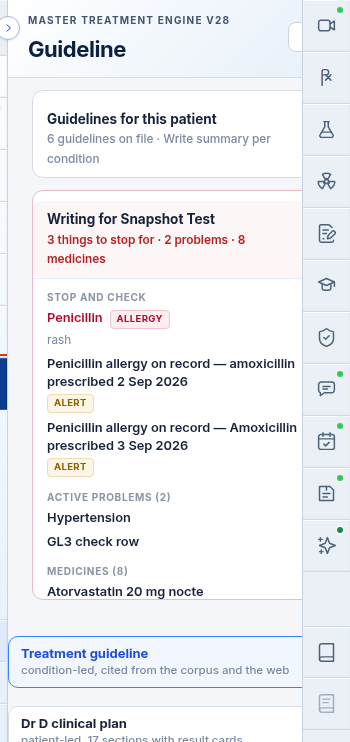
- Enter a medical condition into the condition box or click an example condition, then select Write it.
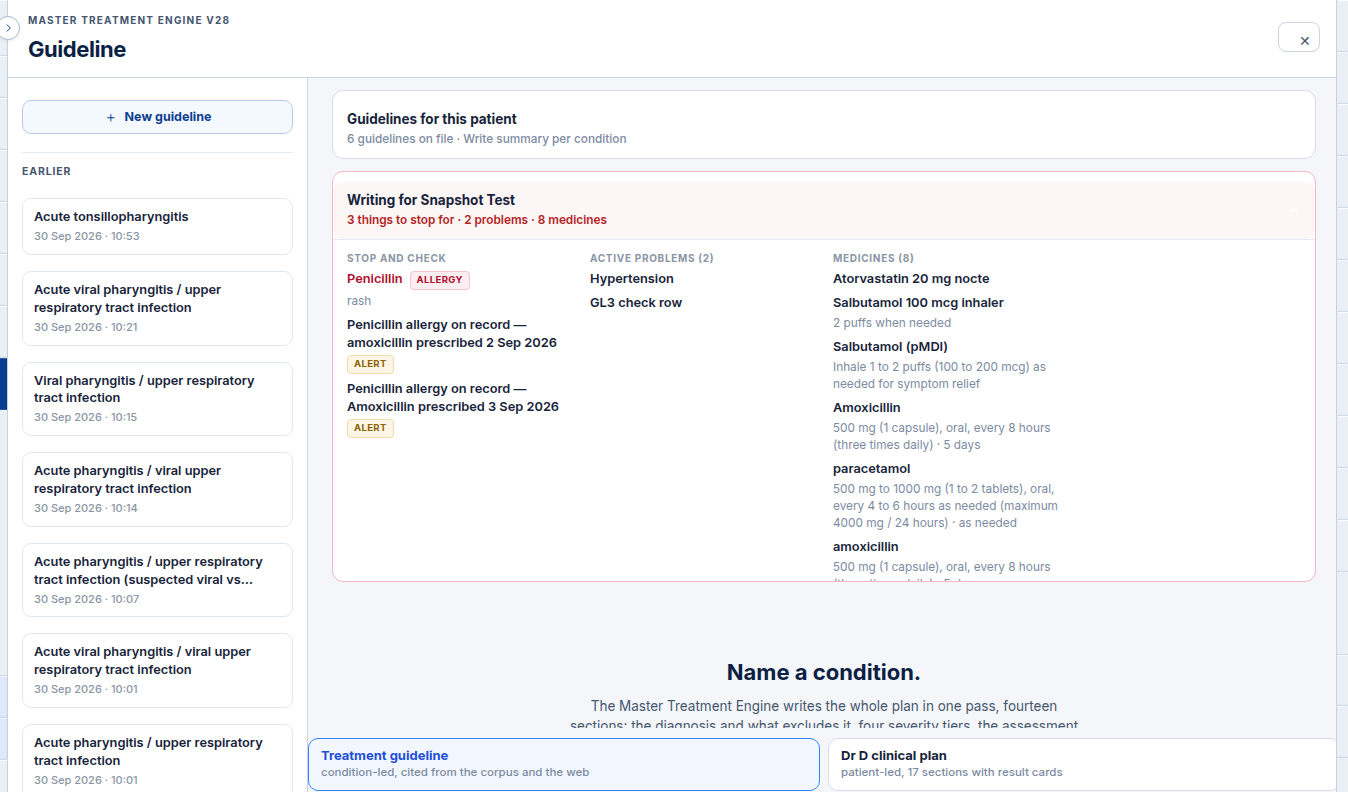
Also on this screen
- Guideline button: Navigation button on the left rail that opens the full-screen treatment engine.
- Title: Displays the Guideline heading alongside engine version metadata.
- Close: The × button in the top corner that closes the panel and returns to the previous screen.
- New guideline: Clears the active output panel so you can enter a new condition.
- Earlier runs: Side list displaying previously generated protocols with condition names and generation dates.
- Name a condition: Instructional empty-state guidance outlining the fourteen sections generated by the engine.
- Example conditions: One-click condition chips (such as Community-acquired pneumonia, Giant cell arteritis, Acute pyelonephritis, or Strep throat) that prefill the input.
- Condition box: Text field where you type the medical condition or clinical query.
- Write it: Executes the treatment engine; the button indicates progress while generating recommendations.
- Writing style: Dropdown selector allowing you to switch between different guideline prompt styles when multiple models are configured.
- Earlier guidelines list: Chronological history of previous guideline queries stored on the local server.
- Footnote: Decision support disclaimer stating that all guidance is advisory and requires the treating clinician independent medical judgement.
- Error line: Clear notification banner displayed if a network or model generation issue prevents the plan from loading.
What Agent D can do
- Agent D lists earlier treatment engine runs using
guideline.list_runs. - Agent D fetches streaming text and markdown content of active runs using
guideline.get_run. - Agent D drafts a new treatment plan run using
guideline.start_runwhen requested by the doctor. - Agent D cannot make clinical prescribing decisions on its own.
Safety (what needs your Confirm)
- Treatment protocols generated by the engine are clinical decision support tools. They do not constitute automatic orders.
- Any drug orders, investigation requests, or referral letters recommended in the guideline must be reviewed and confirmed individually by the clinician.
Common questions
Where does the clinical evidence come from?
The recommendations are drawn from national clinical practice standards, public health guidance, and evidence-based consensus statements.
Can I save a generated guideline to the patient chart?
Yes. When generated with a patient active in the chair, the guideline can be attached to the chart or converted into an encounter note draft.
What happens if generation is interrupted?
If network connectivity drops during generation, an error banner appears. You can select the run from the Earlier list to inspect partial output or click Write it to run again.
Related
Last reviewed: 03/10/2026.