Team and access
For staff
This page is for front-desk staff and people who manage clinic settings.
What it does
The Team tab invites people to the practice, gives them a role, and sets exactly what each person can do.
When to use it
Use it when someone joins, changes jobs, or leaves the practice.
Step by step
-
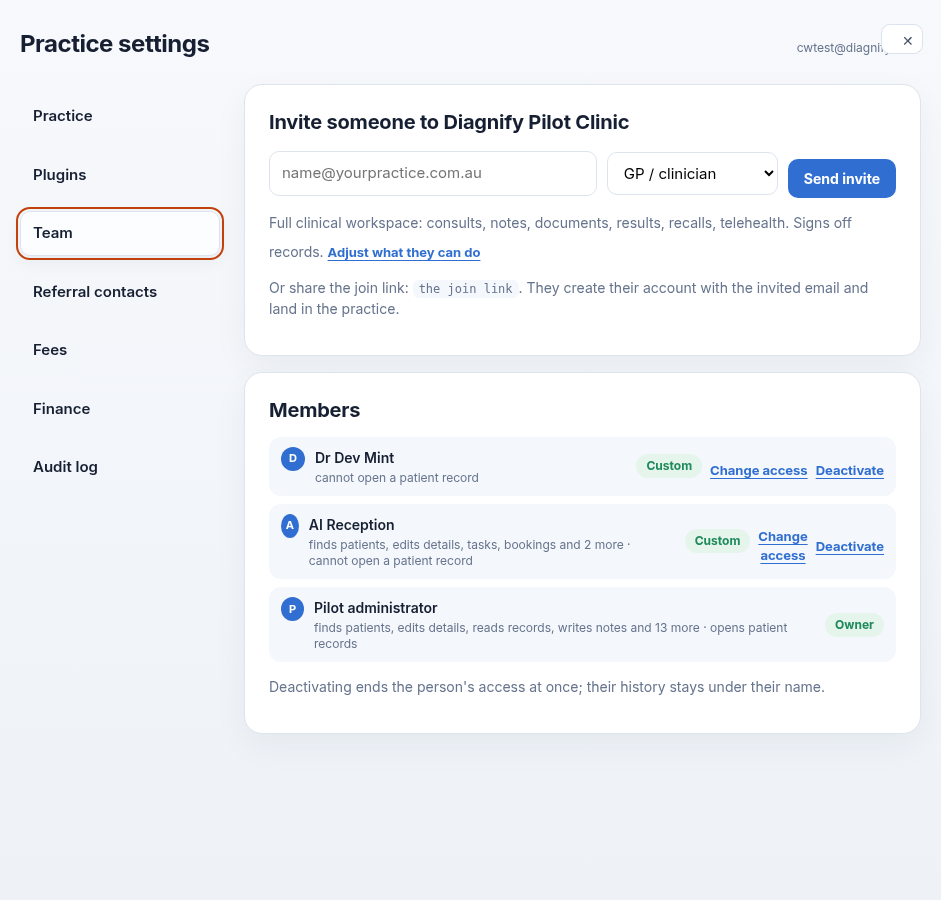
Press Team. The invite form, the roles and the people already in the practice are here.
On a phone:
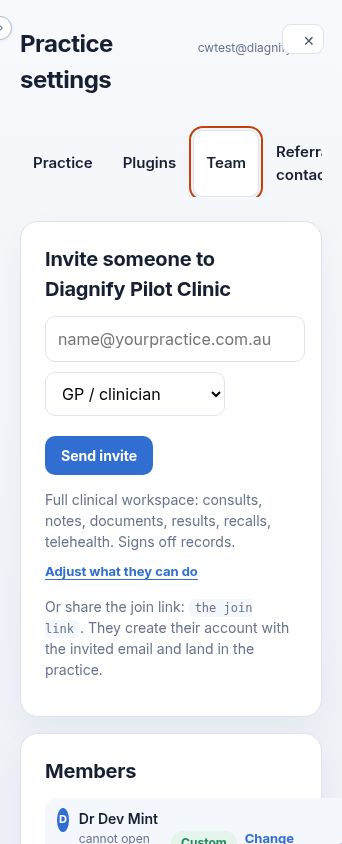
-
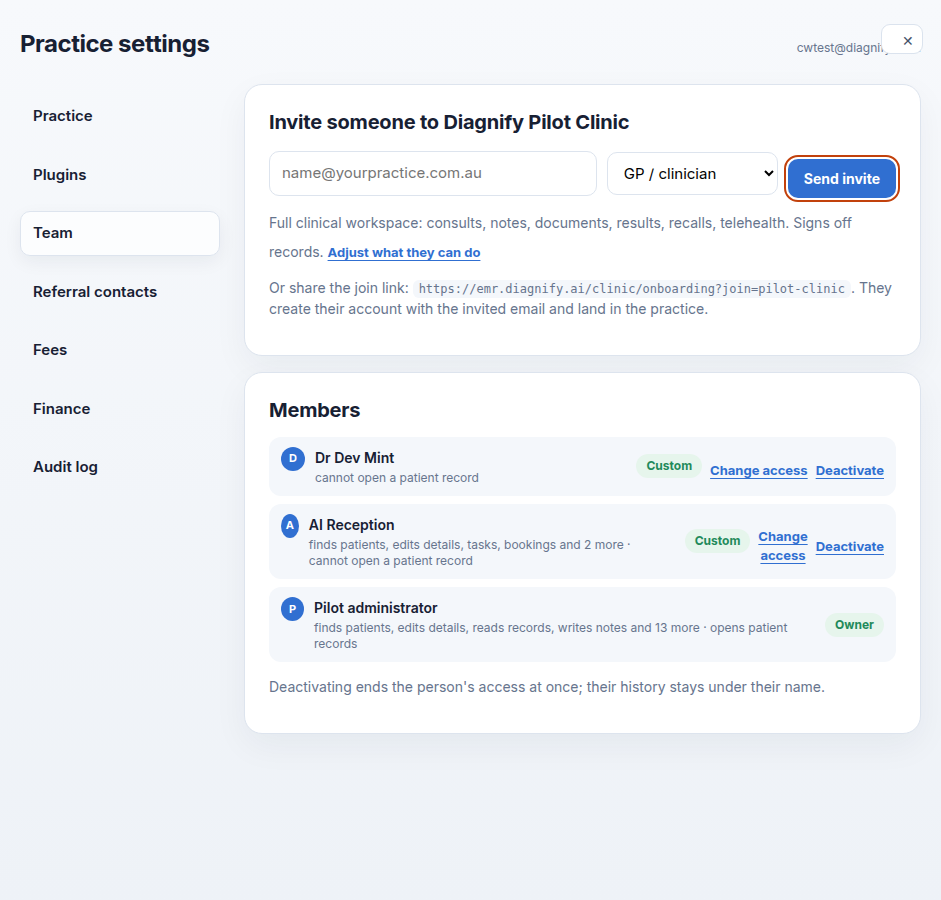
Type an email and pick a role. Press Send invite yourself when the card is right.
Also on this screen:
- Roles: practice manager, GP, nurse, receptionist, or billing.
- The billing role is called Billing / admin. It sees practice details and reports, and no clinical content.
- Adjust what they can do opens tick boxes so an invite can be narrower or wider than the role.
- The tick boxes come in groups: find and open a patient; write and sign in the record; letters and documents; test requests and the results inbox; tasks; bookings and texting; practice administration; and reading the audit log.
- Change access opens the same ticks for someone already on the team, plus role buttons and Save access.
- Cancel an invite withdraws one that has not been accepted.
- Deactivate stops a person working in the practice. Reactivate lets them back in. Their history stays.
- Each member row shows a one-line summary of what the person does, and whether they can open a patient record.
- The join link lets the invited email create an account and land in the practice. It was covered in our shot so the private link is not published.
- The owner can bring their own access up to date, adding jobs the product gained after they joined, without losing what they have.
What Agent D can do
- Agent D has no tools on this screen. Invites, roles and access changes are made here by you.
Safety (what needs your Confirm)
- Send invite sends a real email. It is always yours to press.
- The join link is private. Do not paste it anywhere public.
- Deactivating someone keeps their history but locks them out. Tell the person before you do it.
Common questions
What is the difference between a role and the ticks? The role sets a starting point. The ticks narrow or widen it for that person. Someone left. What do I do? Press Deactivate on their row. Their history stays. I sent the wrong role. Can I fix it? Yes. Press Change access on their row and save the new access.
Related
Last checked: 03/10/2026.