Act on a result
Applying clinical actions to diagnostic reports triages results, schedules patient recalls, and documents clinical decision-making.
What it does
When reviewing diagnostic findings, clinicians can assign one of five standard clinical actions to an individual report or to a batch of selected rows: 1. Follow up: Keeps the result open on the practice follow-up list without contacting the patient. 2. Recall: Schedules a formal patient recall requiring a return appointment, complete with a clinical reason. 3. Urgent recall: Creates a high-priority recall for abnormal findings that require same-day patient contact. 4. Discussed: Closes the result and records that findings were already discussed directly with the patient. 5. No action required: Archives normal or expected results where no intervention is needed.
It also enables clinicians to draft notification messages to the patient before anything is dispatched.
When to use it
Use this screen whenever you need to sign off on diagnostic results, bring a patient in for clinical review, or notify a patient that their routine tests are normal.
Step by step
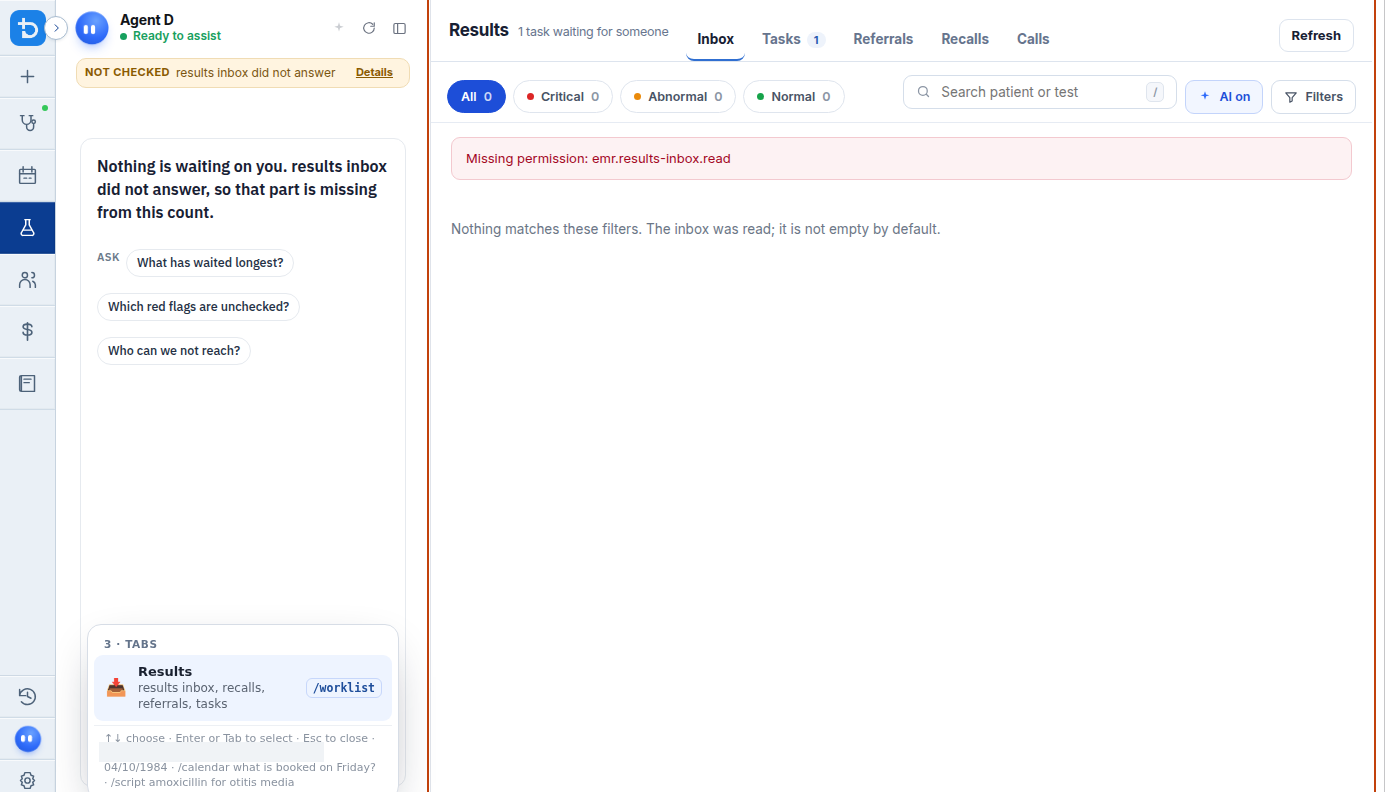
- Select one or more result rows in the inbox table to display the clinical action bar.
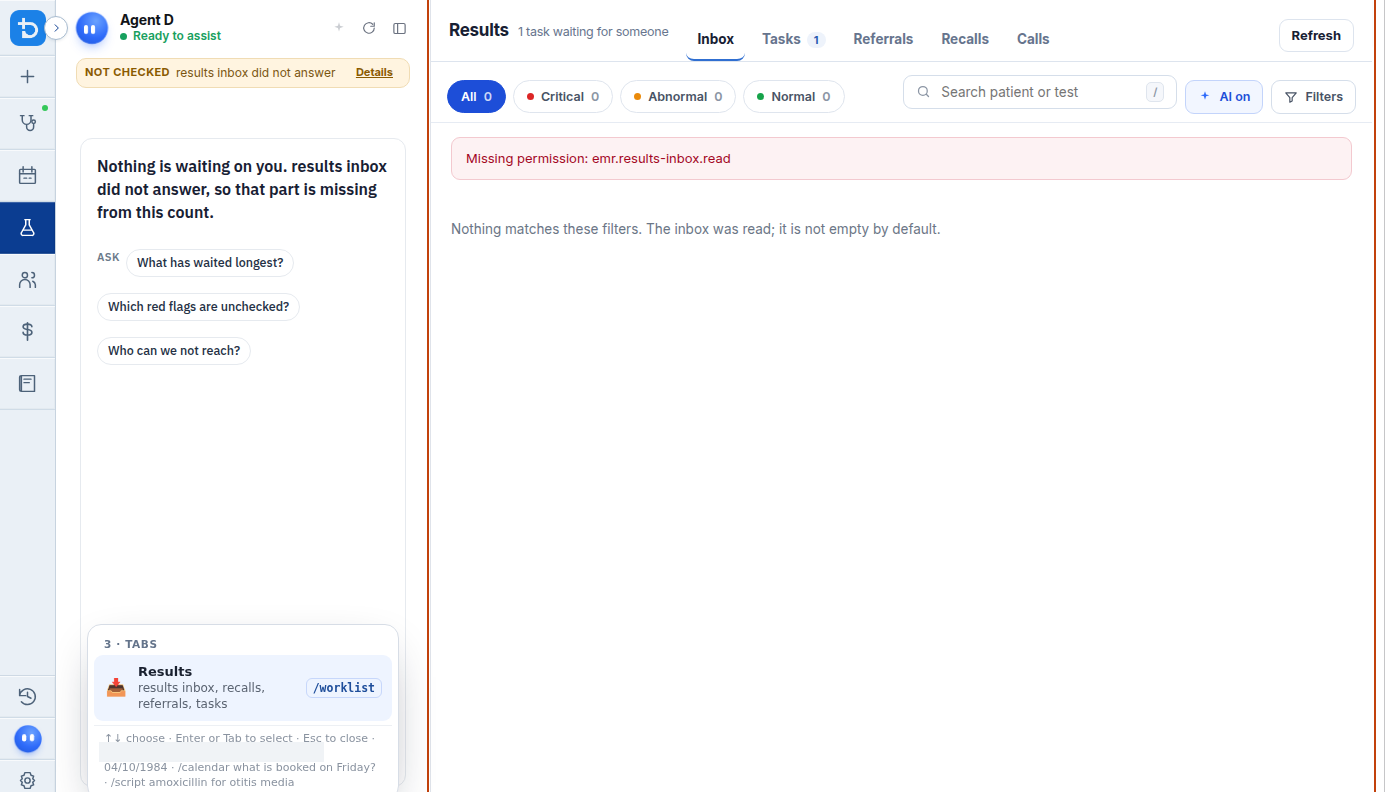
- To notify a patient of their results, select Tell the patient to review the draft message before sending.
Also on this screen
- Follow up: Retains the result in the active clinical workflow for non-urgent internal monitoring.
- Recall: Initiates a structured recall event that adds the patient to the Recalls worklist; prompts for a mandatory clinical reason.
- Urgent recall: Highlights the result in red on clinic worklists and queues an urgent contact alert for same-day outreach.
- Discussed: Immediately archives the result to the patient history, documenting that the clinician discussed the findings during a consult or phone call.
- No action required: Marks normal or expected results as filed; no notifications are scheduled.
- Tell the patient: Opens a draft notification card showing the exact message text (SMS or patient app) for your review before dispatch.
What Agent D can do
- Agent D processes clinical actions using
worklist.inbox_action. - Agent D drafts notification messages tailored to the patient health literacy level using
worklist.inbox_drd_plan. - Agent D records clinical checklist confirmations via
worklist.inbox_tickand reads existing doctor ticks withworklist.inbox_ticks. - Agent D cannot send SMS messages or close recalls without explicit clinician confirmation.
Safety (what needs your Confirm)
- Triage actions permanently update the clinical status of diagnostic records.
- Selecting Recall or Urgent recall requires the clinician to provide or approve a clinical reason.
- "Tell the patient" never sends messages automatically; a draft preview is always presented for your confirmation.
Common questions
What happens when I select "No action required"?
The report is marked as reviewed and filed into the patient permanent record. It is removed from the inbox worklist, and no message is sent to the patient.
Can I undo an action if I clicked the wrong button?
If a result was filed in error, you can find it under "Show finished" in the Results worklist and reopen the item.
Does "Urgent recall" send an automated text immediately?
No. An urgent recall flags the item at the top of the practice recall queue and prepares a draft communication for staff or doctor confirmation.
Related
Last reviewed: 03/10/2026.