Patient reports
Patient reports provide demographic searches, clinical auditing tools, and cohort reporting across the practice.
What it does
This screen enables practice managers and doctors to filter and audit the patient population based on multiple criteria: active or archived status, last visit date ranges, age brackets, sex at birth, Indigenous status, concession card types (DVA, Health Care Card, Pensioner, Seniors), lifestyle factors (smoking, alcohol consumption, exercise, AUDIT-C scores), recorded medical diagnoses, and drug allergies. Filter sets can be saved for recurring audits, and results can be exported as a CSV spreadsheet.
When to use it
Use Patient reports when compiling chronic disease registers (such as all patients over 65 with diabetes), conducting preventive health recalls, preparing clinical accreditation data, or identifying cohorts due for annual health assessments.
Step by step
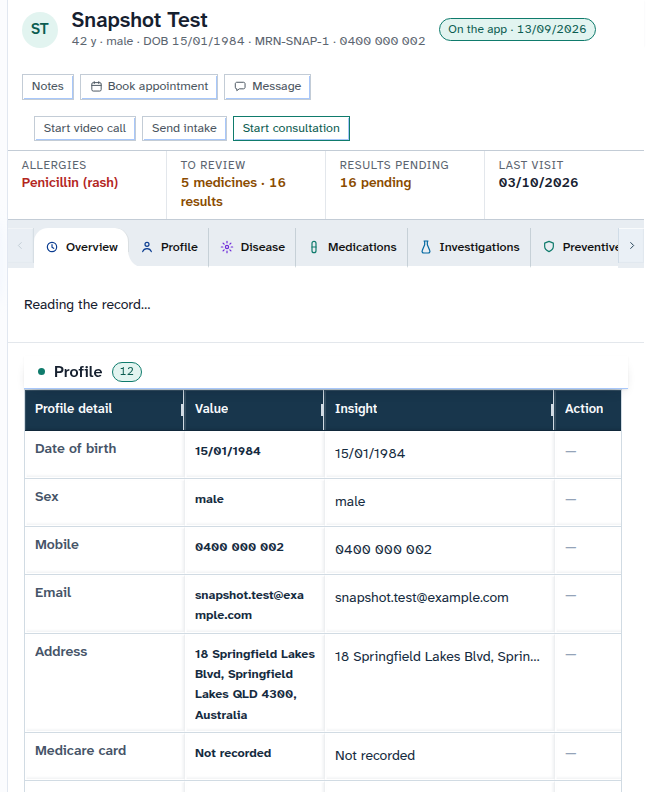
- Select Patients from the left bar, then choose Patient reports.
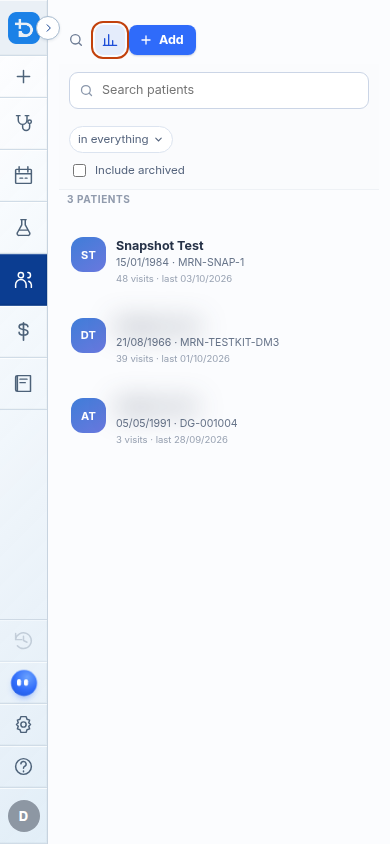
- Review filter criteria or select an existing filter set from Saved searches.
- Select Search to run the query, Reset to clear all criteria, or Export CSV to download results.
Also on this screen
- Patient reports: Section heading and reporting layout adjacent to the patient directory.
- Saved searches: Dropdown allowing quick selection of saved practice audit queries.
- Active, inactive, or all: Cohort filter choosing currently registered patients, archived charts, or the entire database.
- Seen between: Date range selector filtering patients who had encounters between two dates (formatted DD/MM/YYYY).
- Age range: Minimum and maximum age sliders to target specific demographic cohorts.
- Sex at birth: Demographic filter for male, female, other, or unrecorded.
- Aboriginal and Torres Strait Islander: Indigenous status filter to support targeted closing-the-gap health initiatives.
- Concession: Entitlement filter for DVA Gold, DVA White, Health Care Card, Pensioner Concession Card, or Commonwealth Seniors Card.
- Smoking, alcohol, activity, AUDIT-C: Lifestyle risk filters targeting tobacco use, alcohol intake, physical inactivity, or specific AUDIT-C score thresholds.
- Medical filters: Clinical condition selector matching active diagnoses from the practice disease index, alongside allergy filters.
- Reset: One-click action clearing all active filter fields.
- Save as and Save: Stores custom filter combinations under a named template for future clinical audits.
- Delete a saved search: Removes a previously saved search query template.
- Search: Executes the database query and displays matching patients in the result table.
- Export CSV: Generates and downloads a comma-separated spreadsheet of the query results.
What Agent D can do
- Agent D checks available filter options and practice condition registers with
patients.report_options. - Agent D runs natural-language cohort searches using
patients.report_search(such as "active patients over 65 with diabetes who smoke"). - Agent D saves report filter templates with
patients.report_save. - Agent D cannot delete saved report templates (
patients.report_deleteis blocked).
Safety (what needs your Confirm)
- Generating patient reports and exporting CSV files accesses de-identified or identified clinical information subject to privacy regulations.
- Exporting patient data should be conducted in compliance with clinic health privacy guidelines.
Common questions
Can I save a search that I run every month?
Yes. Configure your filters, click "Save as", give the search a name (such as "Diabetic Patients Over 65"), and select Save. It will appear under Saved searches.
How are dates formatted in the search fields?
All dates in Diagnify follow the standard Australian DD/MM/YYYY format.
Does running a report alter any patient records?
No. Patient reports is a read-only reporting tool that queries the database without making any modifications.
Related
Last reviewed: 03/10/2026.