Open Financials
What it does
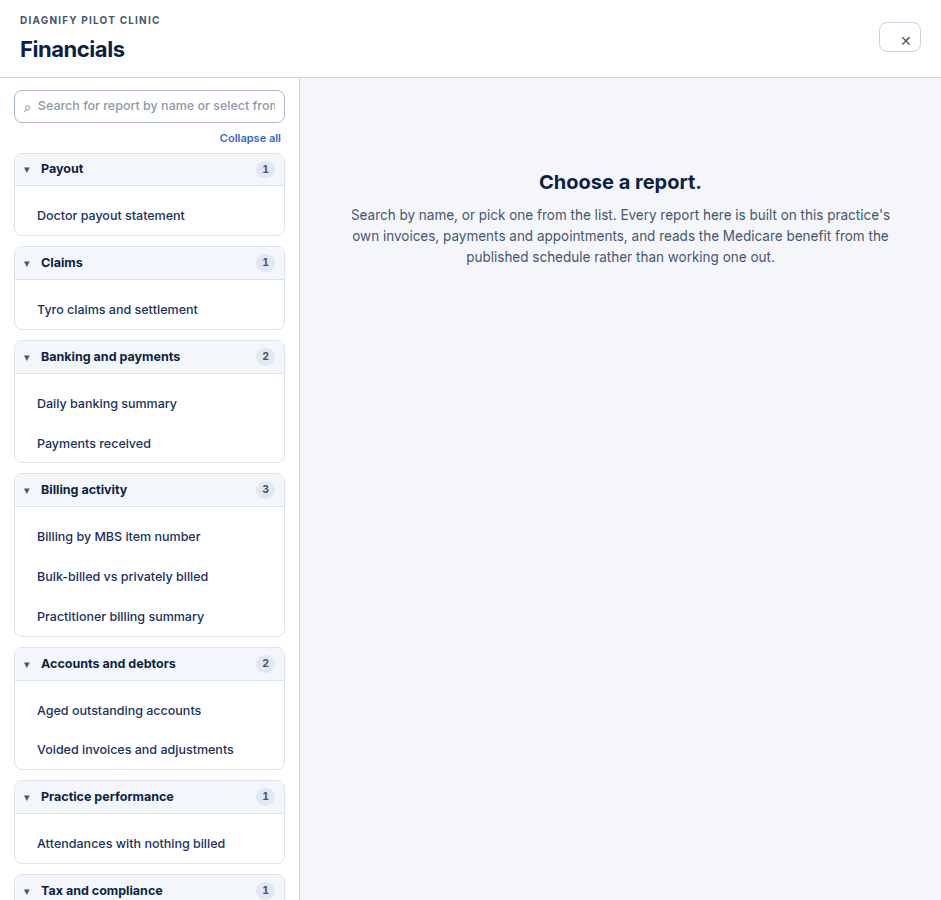
Financials is the practice money screen. It lists the reports you can run, and searches them by name.
When to use it
Use it to check what came in, who owes money, and what each doctor is owed.
Step by step
-
Press Financials on the left. The report list opens. Nothing runs until you pick one.
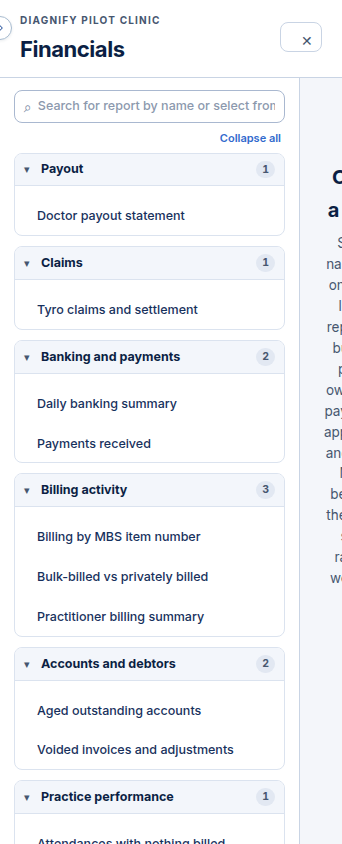
On a phone:
-
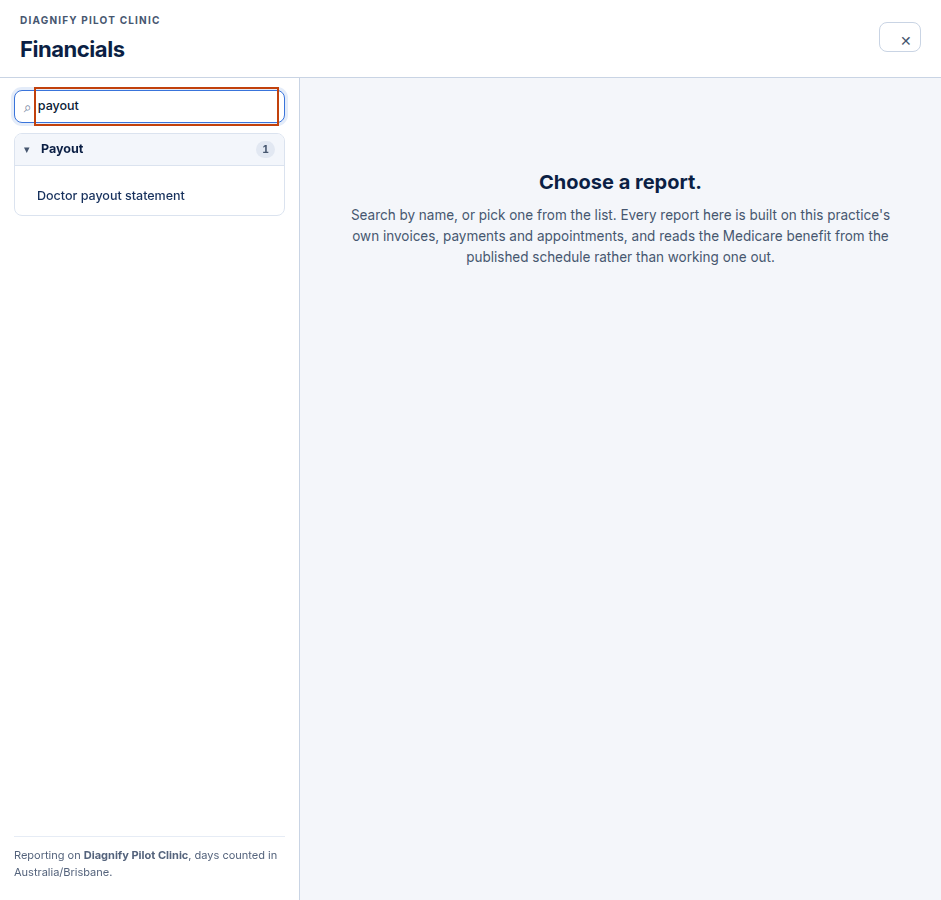
Type in Search reports to narrow the list to matching names.
-
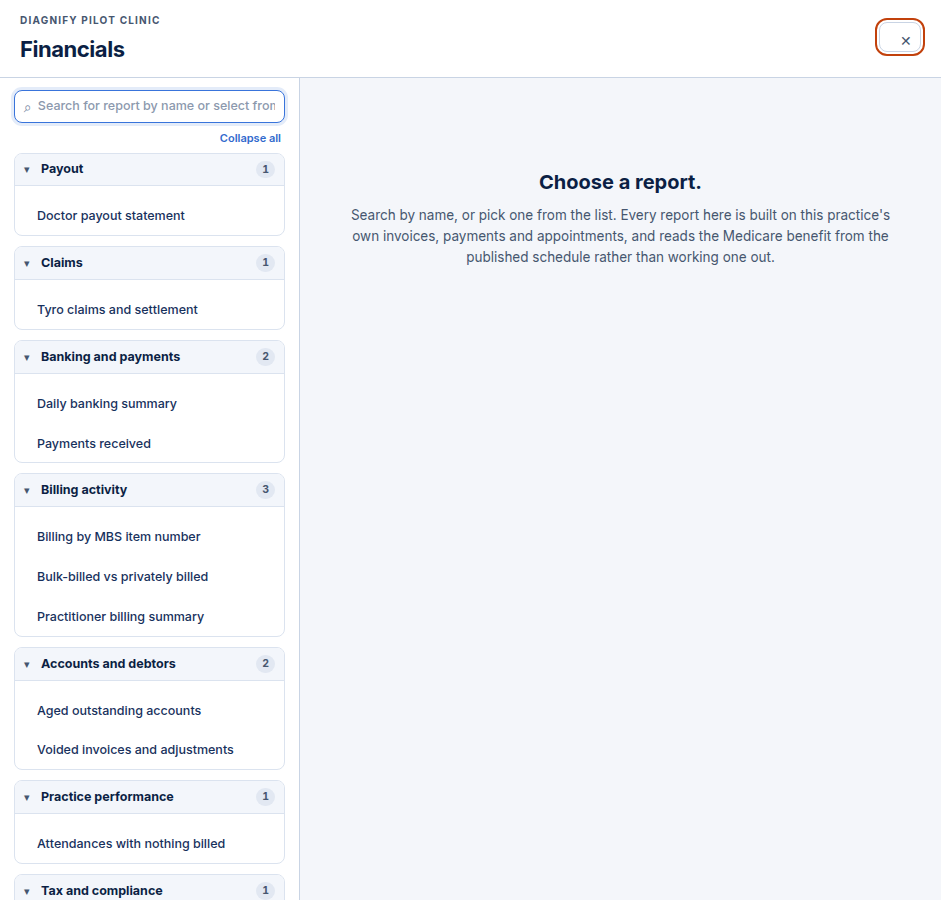
Press the cross to close Financials. The Escape key does the same.
Also on this screen:
- The practice name on the money screen tells you which practice the figures belong to.
- The empty state says Choose a report until you pick one.
- If the report list will not load, a message says the sign-in ran out, so you know it is not just empty.
- If your login cannot bill for the practice, the list covers only your own accounts.
- On the home screen, an unpaid chip shows the total unpaid count and amount. Pressing it opens the Aged outstanding report.
- Patient Reports used to be a second tab here. Those reports have moved to the Patients screen.
What Agent D can do
/reportsopens the Financials screen.- List the reports you can run, with your billing scope.
Safety (what needs your Confirm)
- Opening Financials and browsing reports changes nothing.
Common questions
Where did Patient Reports go? They moved to the Patients screen, when no patient chart is open.
The list looks empty. Is something broken? If your sign-in ran out, the screen says so. Sign in again and the list comes back.
Why can I only see my own accounts? Your login cannot bill for the practice, so the list covers only your own accounts.
Related
Last checked: 03/10/2026.