Add a patient
The Add patient workflow enables quick registration of new individuals into the practice database.
What it does
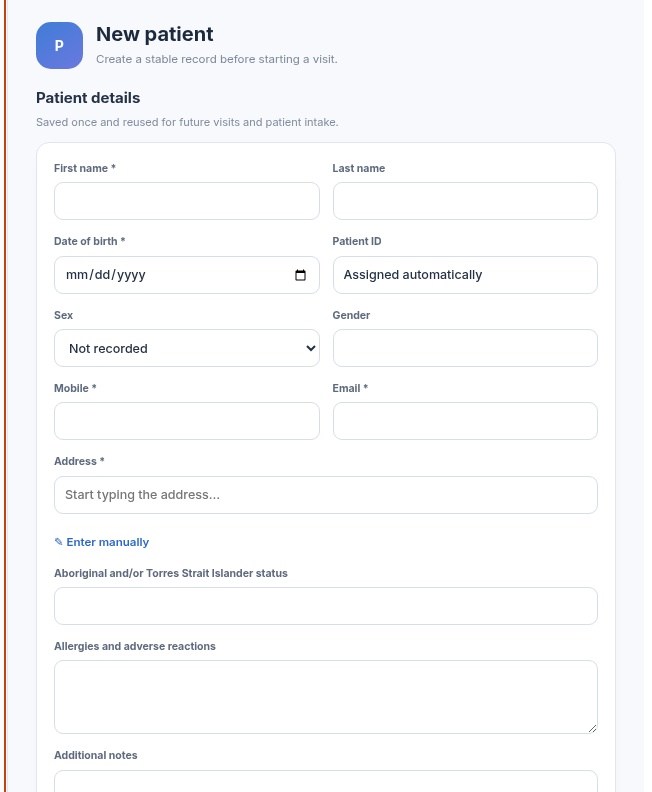
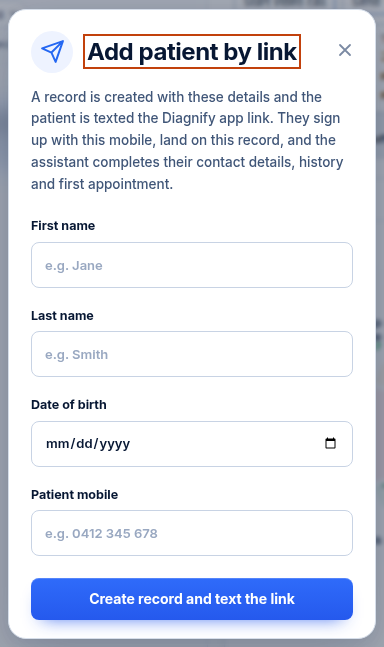
This screen provides two pathways for registering new patients: 1. Enter the details myself: Opens a structured registration form where staff can enter full legal name, date of birth, sex, contact details, residential address, and emergency contacts. The address field includes automated street autocomplete suggestions. 2. Text the patient a link: Captures basic details (name, date of birth, and mobile number) and sends a secure one-time SMS link allowing the patient to complete their full demographic and Medicare details on their own device.
When to use it
Use this feature when a new patient registers at the clinic reception, when onboarding a new telehealth patient, or when sending digital intake links prior to an initial consultation.
Step by step
- On the patient list toolbar, select Add.
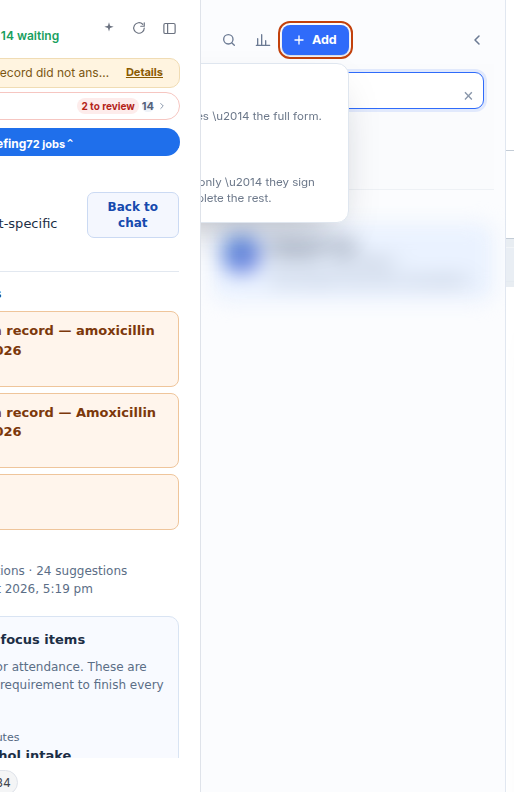
- Choose Enter the details myself to open the complete manual registration form.
- Alternatively, choose Text the patient a link to invite self-registration via mobile SMS.
Also on this screen
- Add patient: Main dropdown button that reveals the two registration pathways.
- Enter the details myself: Launches the comprehensive demographic and contact form.
- Text the patient a link: Minimal form that gathers name, date of birth, and mobile number to dispatch an onboarding link.
- Address autocomplete: Built-in street lookup that auto-completes validated Australian street addresses, suburbs, states, and postcodes.
What Agent D can do
- Agent D creates or updates patient records with
patients.save_patient. - Agent D verifies address service connectivity using
patients.address_config. - Agent D fetches structured street addresses and suggestions via
patients.address_suggestandpatients.address_place. - Agent D cannot send an SMS intake invite without explicit staff confirmation.
Safety (what needs your Confirm)
- New patient registration creates an official medical chart within your clinic database.
- Selecting "Text the patient a link" prepares an SMS draft; the message is only sent once you confirm.
- Entering details manually saves only when you explicitly select Save.
Common questions
What happens after a patient receives the registration SMS?
The patient taps the link, verifies their identity with their date of birth, and fills in their contact information, Medicare card details, and concession cards securely from their phone.
Can I edit patient details after registering them?
Yes. You can edit all demographic and contact details at any time from the Patient details and cover screen.
Does address autocomplete support rural addresses?
Yes. The address lookup searches validated national postal databases across all Australian states and territories.
Related
Last reviewed: 03/10/2026.