The consult screen
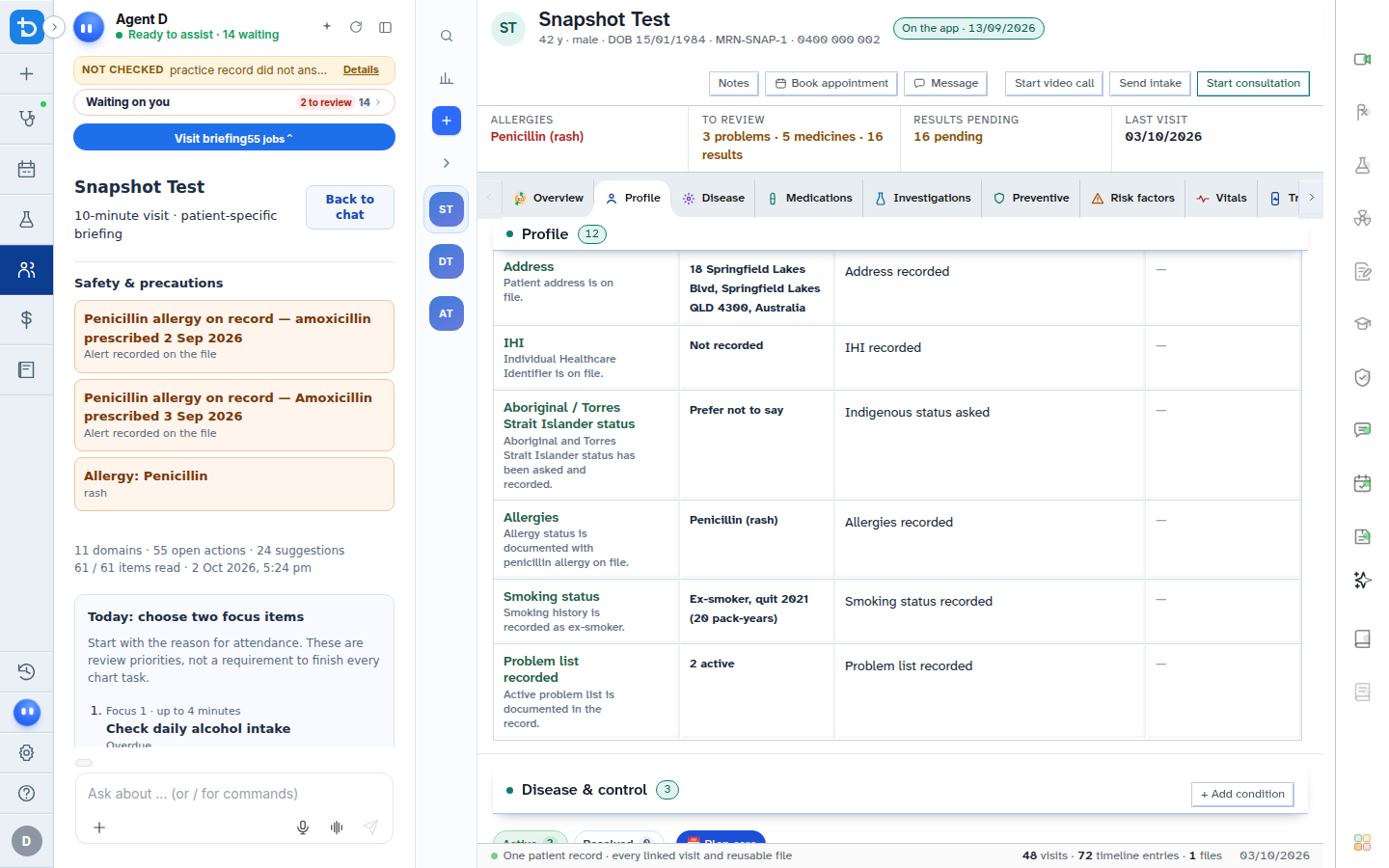
The consult screen is the primary clinical cockpit in Diagnify, integrating clinical notes, decision support, and right-hand tool drawers into a unified interface.
What it does
The consult screen groups your active consultation into dedicated zones. The left sidebar provides navigation and recent consultation history. The central workspace hosts case entry, typed notes, and Agent D discussion. The right tool rail provides rapid access to prescriptions, pathology requests, imaging, referrals, recalls, and billing.
When to use it
Use the consult screen whenever conducting an in-person, telephone, or telehealth consultation with a patient.
Step by step
- Select Consult from the left navigation rail to enter the consultation workspace.
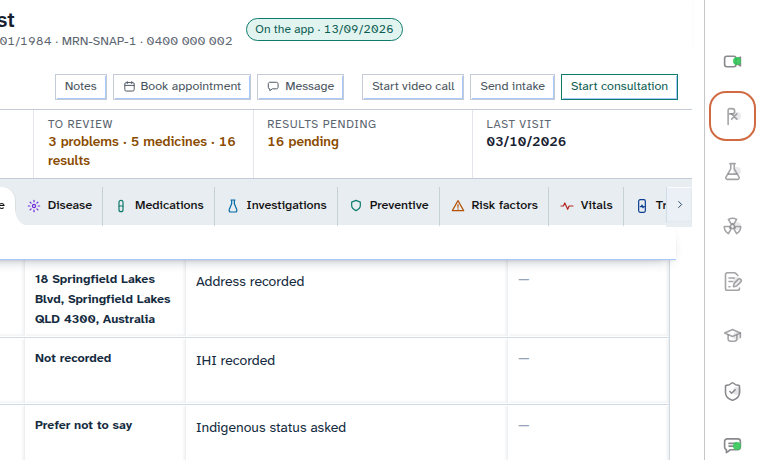
- Use the right-hand tool buttons to slide open clinical drawers for prescriptions, pathology, and correspondence.
Also on this screen
- Practice name in header: Displays your clinic name alongside the Diagnify mark.
- Left sidebar links: Quick navigation icons for Patients, Calendar, Worklist, and Settings.
- Consult / scribe rail button: Opens the typed consultation note and ambient recording drawer from the right toolbar.
- Right toolbar glass pop-out: Hovering over any right toolbar icon reveals a translucent tool title for clear identification.
- Single panel separator lines: Crisp, single flush divider lines separating the patient header, consultation area, and tool panels.
What Agent D can do
- Agent D tracks the active consultation note in real time to suggest differential diagnoses and safety alerts.
- Agent D drafts orders and correspondence in response to natural language prompts or slash commands.
- Agent D cannot file notes or finalize invoices without your explicit direction.
Safety (what needs your Confirm)
- Navigating between consult tools or adjusting panel views is non-destructive and read-only.
- All documents, prescriptions, and requests prepared on this screen remain unfinalised drafts until you select Confirm.
Common questions
How do I open a specific clinical tool like prescriptions?
Click the prescription icon on the right toolbar, or type /script into the Ask Agent D box.
Will navigating to Patients or Bookings lose my open consultation?
No. Diagnify preserves your open consultation state so you can return to it from the left navigation rail without losing entered text.
Can I collapse side panels to focus purely on note taking?
Yes. Click the sidebar collapse button on the left rail or drag panel dividers to expand the central note area.
Related
Last reviewed: 03/10/2026.