Chips under the note
Quick-action chips beneath the consultation note allow you to insert structured templates, record vitals, and launch clinical drawers with one click.
What it does
Note chips are interactive shortcut buttons positioned directly below the consultation text editor. Clicking a chip instantly inserts pre-formatted sections (such as Vitals, History, Examination, Allergies, or Safety-net advice) or triggers specialized tool panels without disrupting your typing flow.
When to use it
Use note chips when documenting systematic physical examinations, recording objective vital signs, dictating sections, or structuring formal consult templates.
Step by step
- Locate the horizontal row of chips beneath the active consultation note.
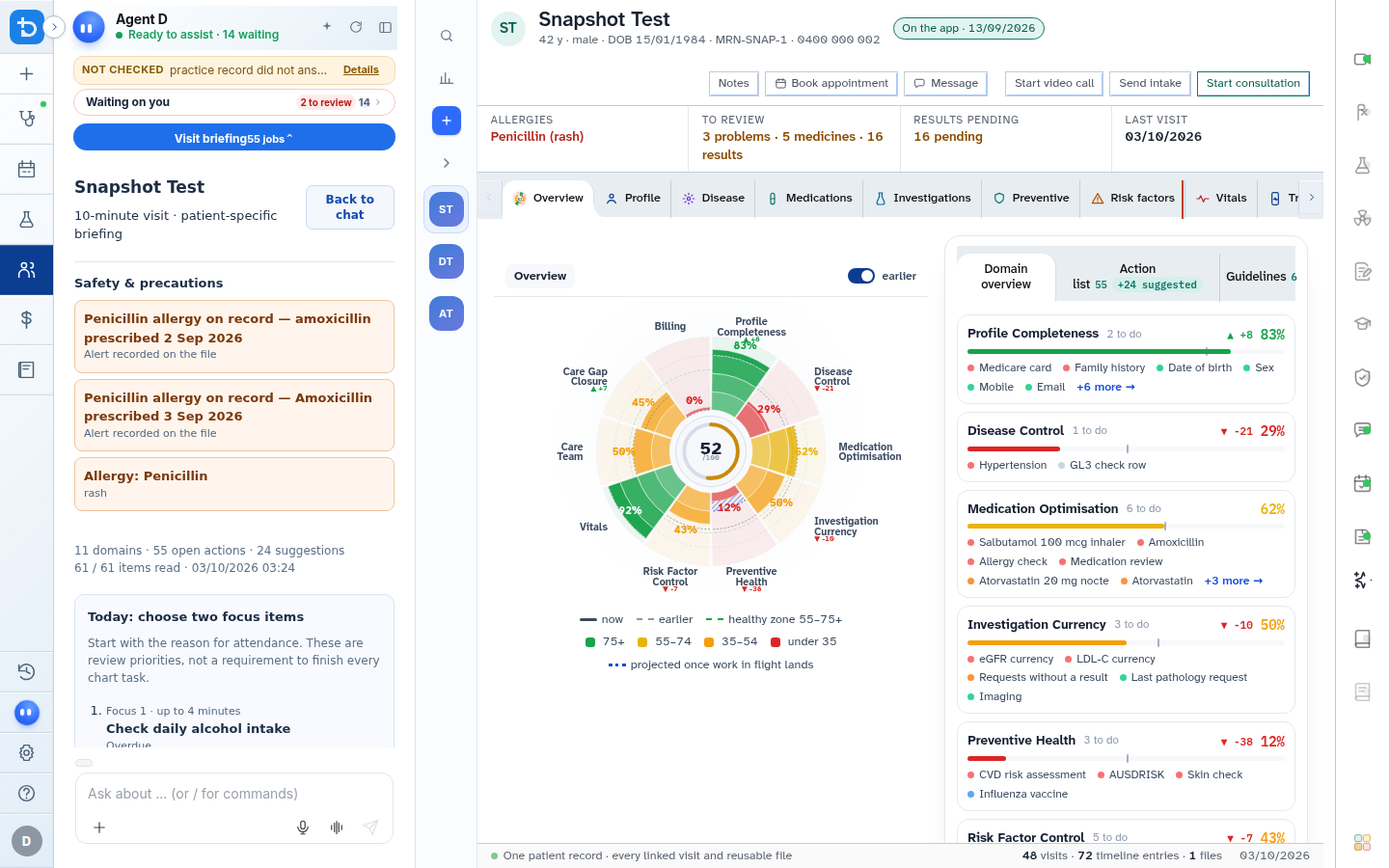
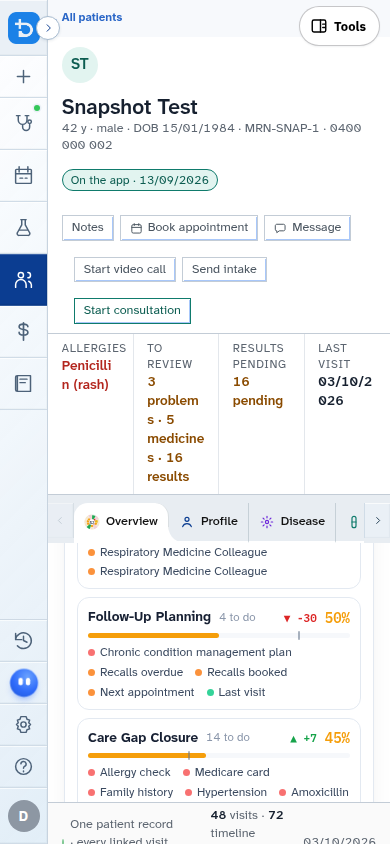
- Select any chip (such as + Vitals, Hx, or Ex) to insert structured content or launch a drawer.
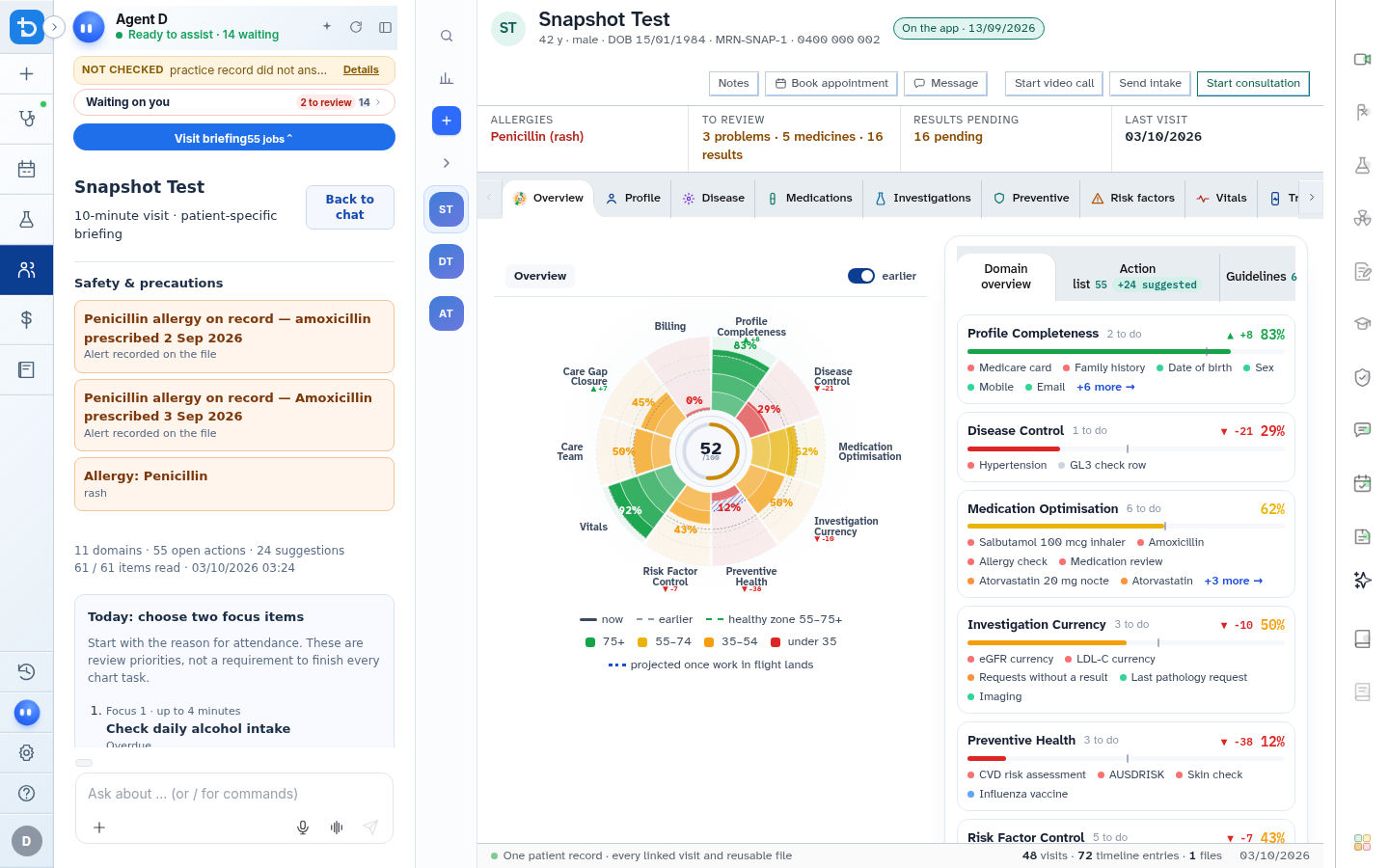
Also on this screen
- + Vitals chip: Opens the adult deterioration detection score (ADDS) vital signs dialog to insert a structured vitals summary.
- Hx chip: Launches the systematic review-of-systems history checklist.
- Ex chip: Opens the physical examination checklist with body system tabs.
- Dictate note chip: Activates speech-to-text dictation directly into the active cursor position in your note.
- + menu, Billing: Dropdown menu offering a fast shortcut to open Medicare billing.
- + Allergies chip: Inserts verified allergies from the patient banner into the consultation text.
- + Safety-net chip: Appends recommended worsening-advice and safety-netting instructions for the patient.
- + Follow-up chip: Inserts a structured review timeframe and recall plan into the note.
- Drawing canvas chip: Opens a clinical sketchpad to draw lesions, anatomical diagrams, or injection sites.
- Message block shortcut: Opens the patient messaging drawer directly from the note area.
What Agent D can do
- Agent D formats inserted chip templates to match standard clinical documentation conventions.
- Agent D populates the safety-netting chip with condition-specific warning signs based on the working diagnosis.
Safety (what needs your Confirm)
- Clicking a chip inserts draft text into your note. You can edit, replace, or delete inserted text before saving.
- Inserting an allergy or safety-net chip does not replace formal clinical verification.
Common questions
Can I customise the text inserted by the safety-net chip?
Yes. The chip inserts standard guidance into the editor, allowing you to tailor advice to the individual patient.
How do I use the Dictate note chip?
Click Dictate, allow microphone access when prompted by your browser, and speak naturally. Your spoken words are transcribed at the cursor position.
Does clicking + Vitals save the numbers permanently?
Vitals numbers entered through the dialog are appended to the consultation note and saved to the patient vitals history upon confirmation.
Related
Last reviewed: 03/10/2026.