History and examination
The history and examination drawers provide structured checklists across all major body systems to document systematic clinical findings rapidly.
What it does
This tool structures clinical documentation into standardized anatomical and physiological systems. You can systematically record positive and negative symptoms across cardiovascular, respiratory, gastrointestinal, neurological, and musculoskeletal systems. Each finding can be marked Yes, No, or No Abnormality Detected (NAD), or illustrated using a clinical drawing canvas.
When to use it
Use this tool during comprehensive health assessments, routine medical examinations, occupational assessments, or complex multisystem reviews.
Step by step
- Select Hx or Ex from the note chips to open the systematic review panel.
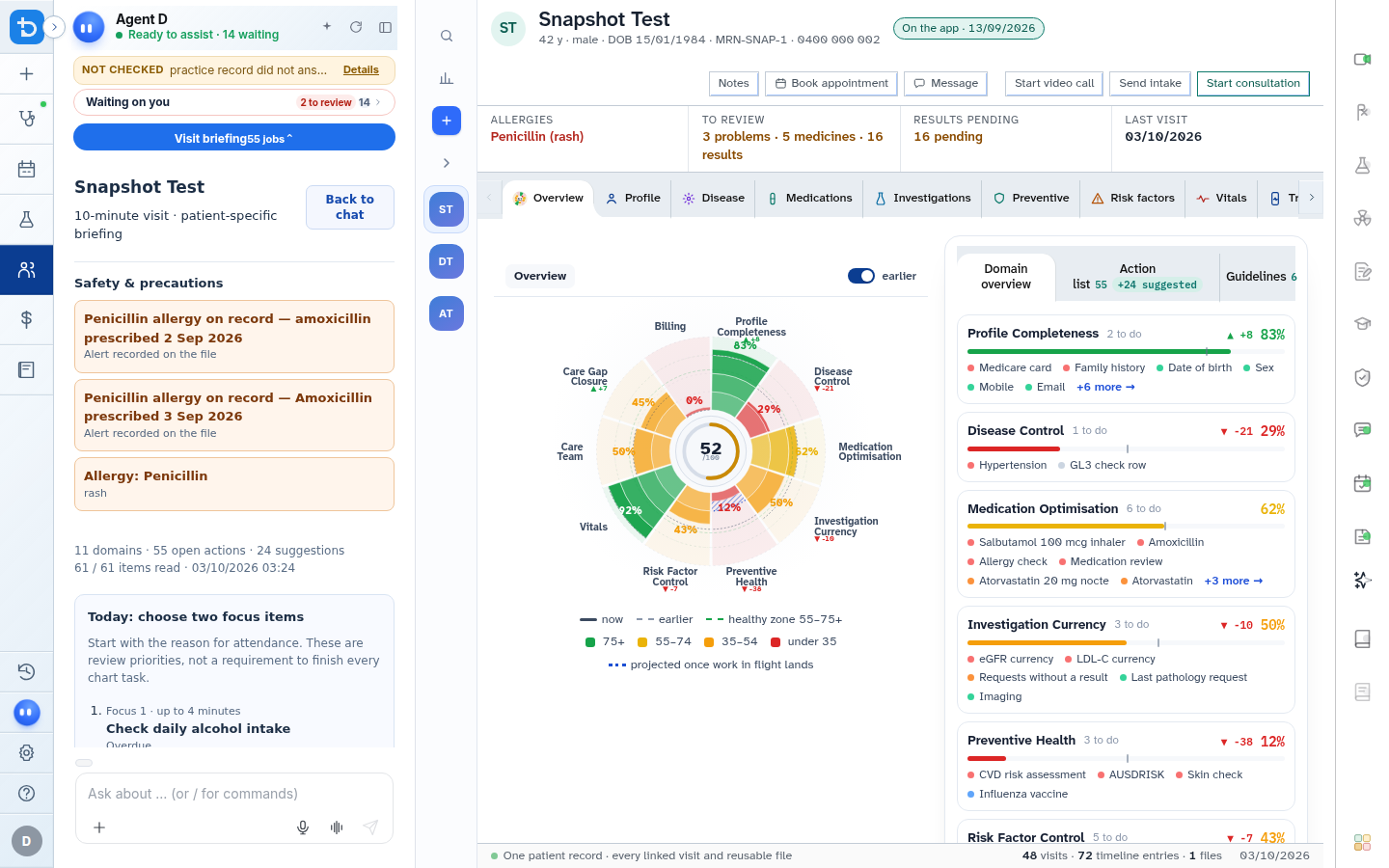
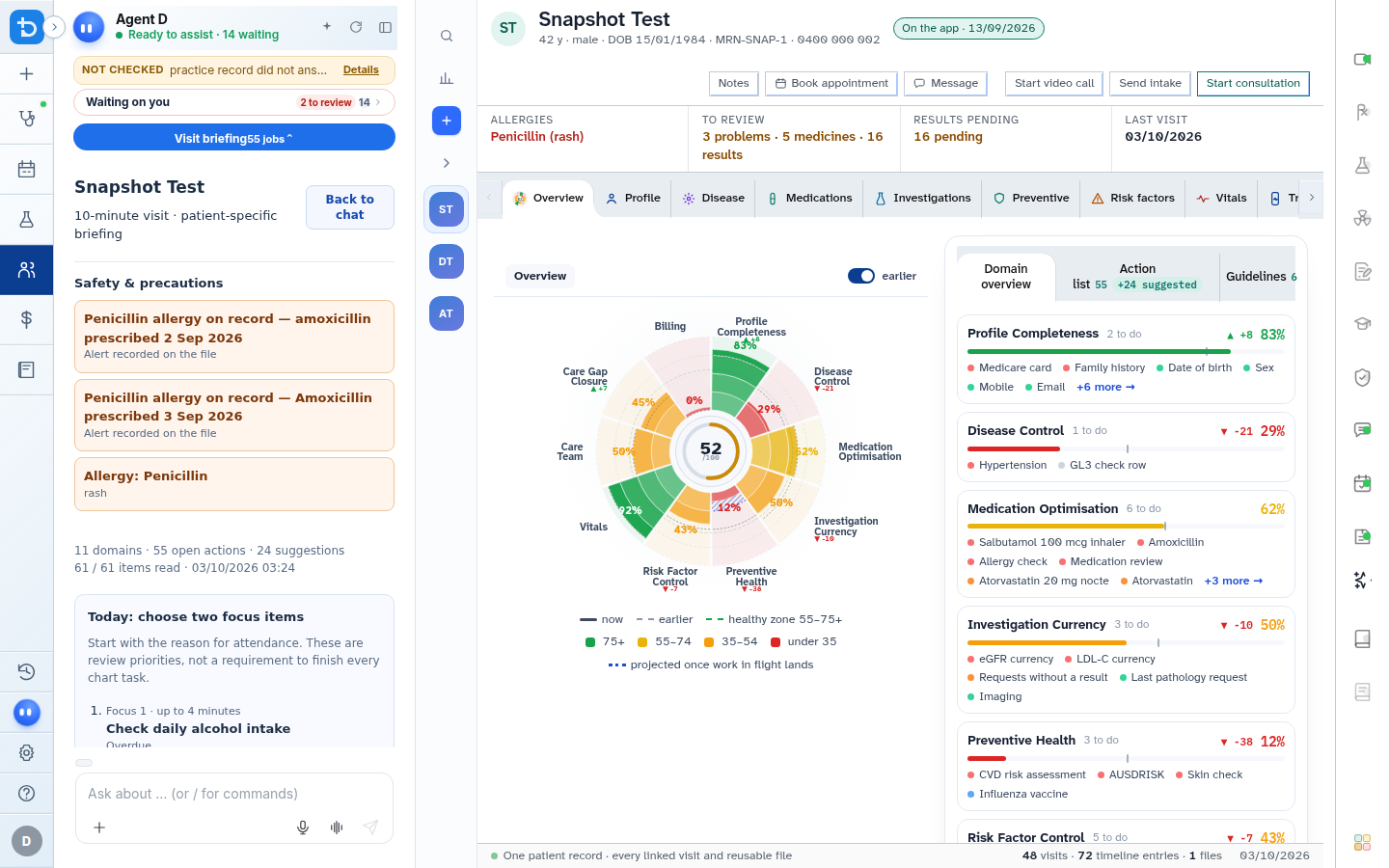
- Select body system tabs, mark findings, and select Add to Notes to append the structured summary.
Also on this screen
- System tabs (History): Cardiovascular, Respiratory, Neurological, Gastrointestinal, Genitourinary, Musculoskeletal, ENT, Eyes, Psychiatric, and Skin.
- System tabs (Examination): General Survey, CVS, Respiratory, Abdomen, CNS, Cranial Nerves, Musculoskeletal, and Endocrine.
- Yes and No toggles: Binary indicators to record presence or absence of specific clinical signs.
- NAD (No Abnormality Detected): Rapidly marks an entire system as normal with a single click.
- Right and Left markers: Anatomical laterality toggles for bilateral joint or limb assessments.
- Reset button: Clears all selections on the active tab without affecting other systems.
- Add to Notes: Formats the selected findings into concise, readable clinical sentences and appends them to your active note.
- Cancel: Closes the checklist without inserting text into the note.
- Drawing canvas: A digital sketchpad with pen, eraser, and clear controls for recording skin lesions or anatomical findings.
What Agent D can do
- Agent D summarizes findings recorded in the history and examination drawer into concise medical terminology.
- Agent D identifies examination findings that support or refute differential diagnoses.
Safety (what needs your Confirm)
- Selecting Add to Notes writes text into your draft note. You review and verify all text before finalising the visit.
- Marking NAD asserts that a clinical assessment was performed and showed no abnormal signs.
Common questions
Can I document both positive and negative findings in one system?
Yes. You can mark positive symptoms with Yes and pertinent negatives with No. Unselected items remain unmentioned.
Where does the drawing canvas save its image?
Drawings created on the canvas are saved as clinical attachments linked to the consultation visit and referenced in the note.
Can I edit the text after selecting Add to Notes?
Yes. Once added to the note, all text can be edited, expanded, or deleted like standard typed notes.
Related
Last reviewed: 03/10/2026.